Why Is My Laptop So Hot and How to Fix It
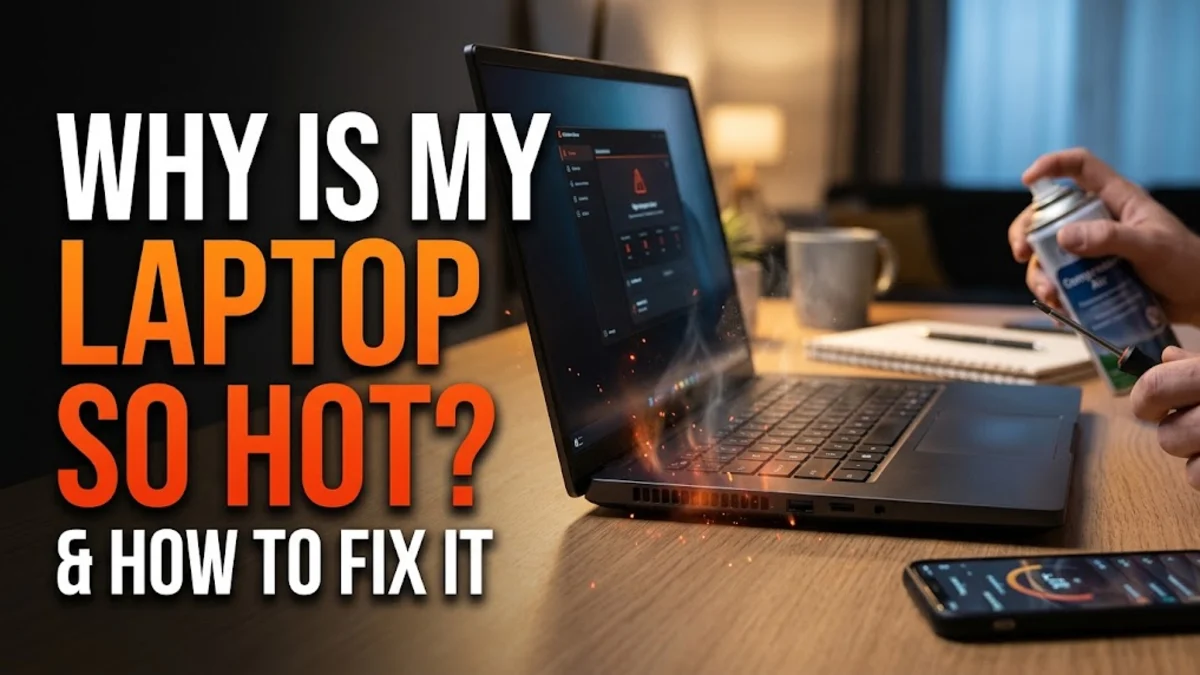
If you are wondering why is my laptop so hot, you are likely dealing with blocked air vents, background resource hogs, or outdated system drivers forcing your processor to work overtime. When internal temperatures spike, your laptop may slow down drastically or shut down unexpectedly to protect its components from permanent thermal damage.
Cooling down your machine starts with identifying whether the heat is caused by software processes or physical dust buildup. This step-by-step troubleshooting guide walks you through diagnosing the root cause and applying proven fixes to restore normal operating temperatures on Windows.
Understanding the Main Causes of Laptop Overheating
Laptops pack powerful components into tight enclosures, leaving very little room for heat to dissipate naturally. When you notice excessive warmth, it usually stems from a combination of software workload and physical environmental factors. Heavy multitasking, gaming, or rendering video forces the Central Processing Unit (CPU) and Graphics Processing Unit (GPU) to draw more power, which directly translates into thermal energy.
Physical obstructions are equally common culprits. Using your laptop on a soft surface like a bed, couch, or your lap blocks the intake and exhaust vents located on the bottom or sides. Without adequate airflow, heat gets trapped inside the chassis. Furthermore, over time, dust and pet hair accumulate inside the cooling fans and heatsink fins, acting as an insulating blanket that suffocates the cooling system.
Identify and Close Resource-Heavy Background Apps
Stray background processes are frequently responsible for spiking CPU usage and generating unwanted heat even when you are not actively using heavy software. To find out which application is driving up temperatures, you need to inspect your system resources using Task Manager. Press Ctrl + Shift + Esc to open Task Manager instantly.
Once the window opens, click on the Processes tab and sort the CPU or Memory column from highest to lowest by clicking the header. Look for apps consuming an abnormal percentage of system resources. Right-click any rogue program or browser tab causing the spike and select End task. To prevent these apps from running automatically in the future, navigate to the Startup apps tab on the left sidebar and disable unnecessary programs.
Adjust Windows Power and Performance Modes
Windows includes built-in power management settings that dictate how hard your processor works. If your power mode is set to maximum performance while you are simply browsing the web or typing documents, your system will run hotter than necessary. Lowering the power profile can immediately reduce thermal output without noticeably sacrificing day-to-day speed.
To change your power mode, go to Settings > System > Power & battery. Under the Power mode section, switch the setting from Best performance to Balanced or Best power efficiency. If you are using an older version of Windows 10, click on the battery icon in your taskbar system tray and drag the power slider toward Better battery or Balanced.
Clean Dust Vents and Improve Physical Airflow
Even the best software optimizations cannot compensate for physically blocked airflow. If dust has clogged your cooling fins and fan blades, air cannot circulate properly through the chassis. Power down your laptop completely, unplug the power adapter, and inspect the intake and exhaust grilles for visible lint and dust buildup.
Use a can of compressed air in short, controlled bursts to dislodge dust from the vents. Avoid spinning the internal fans too fast with high-pressure air, as this can damage the bearings. Always operate your laptop on a hard, flat, and clean surface such as a wooden desk or a dedicated laptop stand. Avoid using cushions or blankets that conform to the bottom of the device and seal off the thermal vents.
Update Your Windows System and Graphics Drivers
Outdated system software and buggy graphics drivers can cause hardware components to miscommunicate with the power management controller, leading to unnecessary heat generation and constant high fan speeds. Manufacturers frequently release patches that optimize thermal efficiency and fix firmware bugs.
Check for pending operating system updates by opening Settings > Windows Update and clicking Check for updates. Additionally, ensure your graphics card drivers are current by opening your dedicated GPU software, such as NVIDIA GeForce Experience or AMD Software, or by visiting your laptop manufacturer's official support website to download the latest chipset and BIOS updates.
Consider Using a Laptop Cooling Pad
If you routinely push your laptop to its limits with gaming, video editing, or software development, passive cooling may not be enough. In such cases, investing in an external laptop cooling pad can provide the extra thermal relief your machine needs to maintain peak performance during long work sessions.
Cooling pads feature built-in electric fans powered by USB that push a steady stream of cool air directly into the bottom intake vents of your laptop. They also elevate the rear of the device, creating a larger clearance gap underneath for natural heat dissipation. When purchasing a cooling pad, ensure the fan placement aligns with your specific laptop model's bottom vent layout for maximum cooling efficiency.
The bottom line
Dealing with an overheating laptop requires a balanced approach combining software monitoring, power management, and physical maintenance. By closing resource-heavy tasks, adjusting your Windows power settings, and keeping dust vents clean, you can dramatically lower operating temperatures and extend your hardware's lifespan.
Frequently asked questions
What is a normal operating temperature for a laptop?
Normal idle temperatures typically range between 30°C and 50°C. Under heavy load or gaming, temperatures between 70°C and 85°C are common, but anything consistently exceeding 90°C indicates a cooling problem.
Can an overheating laptop damage hardware permanently?
Yes, prolonged exposure to extreme heat can degrade the battery lifespan, warp circuit boards, and eventually cause permanent damage to your CPU or GPU if thermal protection shutdowns fail.
Does gaming on a bed cause overheating?
Yes, soft surfaces like beds and couches compress against the bottom of the laptop, blocking intake vents and trapping heat inside the chassis, which rapidly leads to thermal throttling.
How often should I clean dust out of my laptop?
It is recommended to inspect and clean your laptop vents and fans with compressed air every three to six months, especially if you have pets or live in a dusty environment.
Should I use third-party temperature monitoring software?
Yes, reputable monitoring tools like HWMonitor or Core Temp can help you accurately track individual core temperatures and identify when your system is running too hot.