How to Fix a Router Not Working But Modem Is Online
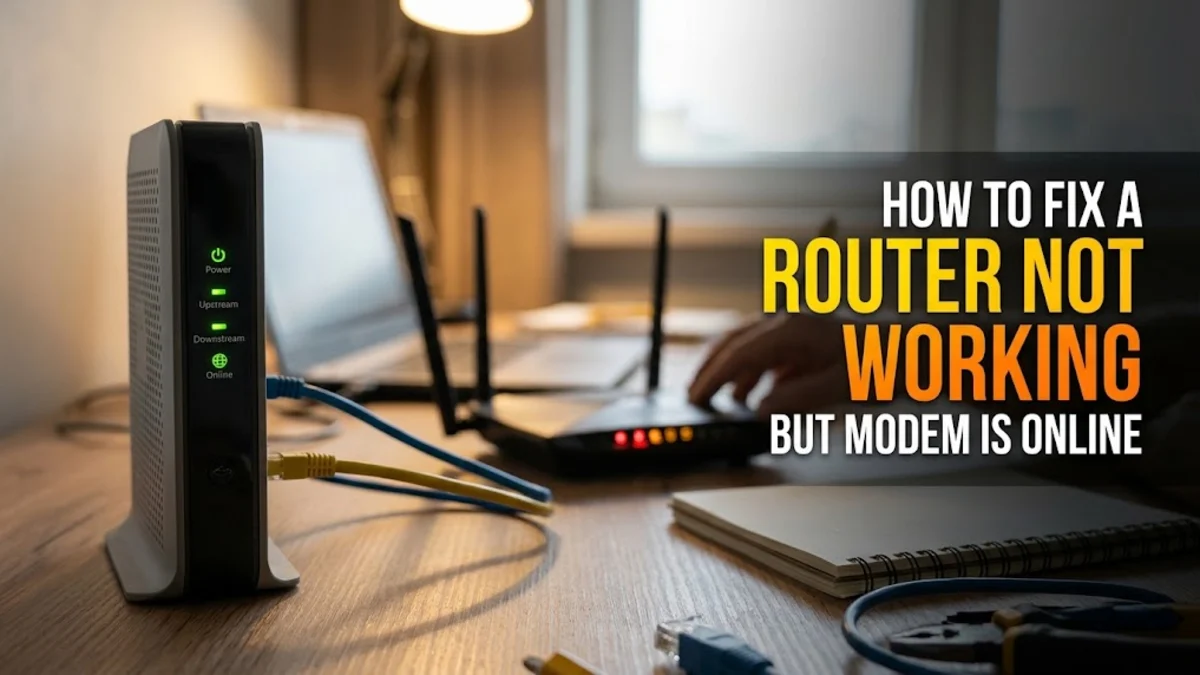
When your modem has a solid internet connection but your router refuses to broadcast Wi-Fi or route traffic, the issue usually lies in a local networking glitch, an incorrect setting, or a frozen firmware state. Diagnosing this disconnect quickly gets your devices back online without unnecessary frustration.
This guide walks you through proven troubleshooting steps, starting with the simplest power cycles and moving to advanced configuration checks to restore your home network completely.
Check Physical Connections and Ethernet Cables
When your modem is fully functional, the breakdown in communication frequently happens right at the physical link connecting your modem to your router. A loose, damaged, or incorrectly plugged Ethernet cable can easily prevent your router from receiving data packets from the internet service provider, even though the modem itself is receiving the signal cleanly. Inspect the cable running from the LAN port on your modem to the WAN or Internet port on your router. Make sure both ends click securely into place, and look for any visible fraying or pin damage.
Another common mistake during setup or routine cleaning is plugging the Ethernet cable into a standard LAN port on the router instead of the dedicated WAN port. Your router relies on the WAN port to pull an IP address from the modem. If the cable is plugged into a regular LAN port, the router cannot translate the modem's signal into your home Wi-Fi network. Unplug the cable, verify you are using a working CAT5e or CAT6 cable, and plug it securely into the designated Internet port before moving on to software troubleshooting.
Power Cycle Both Modem and Router in Proper Order
A temporary freeze in the router's internal operating system or an IP address conflict can instantly halt internet distribution, even while the modem operates normally. Performing a proper power cycle clears out corrupted cache memory and forces both devices to re-establish a fresh handshake with your internet service provider. However, the order in which you restart these devices matters significantly for establishing a successful connection.
Unplug the power cables from both your modem and your router. Wait for at least sixty seconds to allow all residual power to drain completely from their internal capacitors. First, plug the modem back into the electrical outlet and wait a few minutes until all its status lights—such as power, online, and data—turn solid green or white. Once the modem is fully online, plug your router back into power. Give the router another two to three minutes to boot up, broadcast its wireless signal, and pull the active internet connection from the modem.
Inspect Router Status Lights and Error Indicators
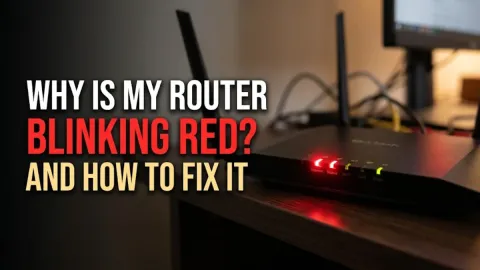
Your router features a set of diagnostic Light Emitting Diodes on its front or top panel that offer immediate insight into what is failing. Ignoring these indicators leads to guesswork, whereas reading them correctly points you straight to the source of the issue. Look closely at the Internet or WAN icon on your router. If it is glowing solid red, blinking amber, or turned entirely off, the router recognizes that it is receiving power but cannot communicate with the modem or read the upstream data stream.
Compare these indicators with your modem's status lights. If the modem shows a healthy connection but the router's internet light remains dark or warning-colored, it strongly indicates either a port failure, a bad cable, or an authentication lockout. Check your router's manual or manufacturer app to see what specific color codes mean for your exact model. Note down any persistent flashing patterns, as they often correlate with specific firmware crashes or hardware faults that require targeted intervention.
Access the Router Admin Panel to Verify WAN Settings
If physical checks and reboots do not restore service, your router's software configuration may have corrupted or lost its dynamic IP settings. You need to log into your router's web management interface using a computer connected via an Ethernet cable or an already saved administrative app. Open your web browser and type the default gateway IP address—such as 192.168.1.1 or 192.168.0.1—into the address bar, then log in using your administrator credentials.
Once inside the dashboard, navigate to the network settings or Internet setup page. Ensure that your WAN connection type is set to Dynamic IP (DHCP) or PPPoE, depending on what your internet service provider requires. If the setting was accidentally changed to a static IP with incorrect numbers, your router will be unable to communicate with the modem. Save any corrections, restart the dashboard session, and check if the internet status changes from disconnected to online.
Release and Renew IP Addresses on Your Devices
Sometimes your router is actually working and connected to the modem, but your individual computers, phones, and smart TVs are stuck holding onto old or invalid local IP addresses. This frequently happens after network outages or reboots, resulting in local connection errors or endless loading screens. You can force your devices to drop their old local addresses and request fresh ones from the router.
On a Windows computer, open the Command Prompt by typing cmd in the search bar. Type ipconfig /release and press Enter, then type ipconfig /renew and press Enter. On a Mac, navigate to System Settings > Network > Wi-Fi or Ethernet > Details, and click Renew DHCP Lease. For mobile devices, toggling airplane mode on and off or simply forgetting and reconnecting to the Wi-Fi network achieves the exact same local IP refresh.
Update or Factory Reset Your Router Firmware
Outdated or corrupted router firmware can cause erratic behavior where the device powers on and connects to a modem but fails to route traffic to local clients. Log back into your router administrative interface and look for a firmware update or system upgrade section. If a newer version is available from the manufacturer, download and install it carefully, making sure never to unplug the router during the flashing process.
If updating does not resolve the issue, or if the admin panel is completely unresponsive, performing a factory reset is your final recourse. Locate the recessed reset button on the back of your router chassis. Use a paperclip or a SIM ejector tool to press and hold the button for about ten to fifteen seconds until all the lights flash simultaneously. This wipes away any corrupt custom configurations, returning the router to its default factory state. You will then need to run through the initial setup wizard to reconfigure your Wi-Fi name and password.
The bottom line
Troubleshooting a router that refuses to work while your modem is online requires a methodical approach, starting from physical cable checks and simple power cycles before moving into admin panel settings and firmware resets. By working through these steps systematically, you can quickly pinpoint the exact breakdown and restore reliable internet access to your entire home.
Frequently asked questions
Why do the modem and router need to be unplugged in a specific order?
Unplugging both and powering the modem up first ensures that the modem establishes a clean link with your ISP and assigns a fresh public IP address before the router requests it. Powering the router too early can cause it to fail to catch the IP lease.
Can a bad Ethernet cable cause the router to lose internet while the modem works?
Yes. If the data pairs inside the Ethernet cable are damaged, the modem can communicate with the outside world, but the data cannot cross over to the router's WAN port.
How do I find my router's default login IP address?
You can usually find the default gateway IP printed on a physical sticker on the bottom of your router. Alternatively, on a connected computer, check your network connection details to find the default gateway address.
Will a factory reset erase my Wi-Fi password?
Yes, a factory reset restores the router to its original out-of-the-box settings, meaning your custom Wi-Fi network name and password will be erased and replaced with the default ones printed on the router sticker.