How to Fix Google Account Not Working on Samsung

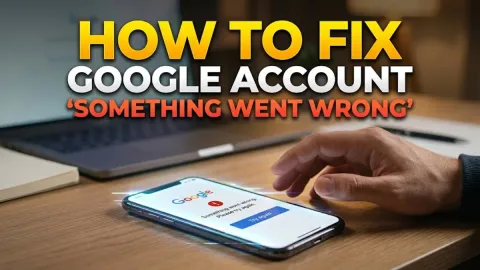
When your Google account stops working on a Samsung Galaxy device, the disruption is immediate. You may see persistent "Account action required" alerts, encounter authentication loops, or find that Gmail, Google Play, and contacts refuse to sync across One UI. These breakdowns typically stem from token expiration, security validation errors, corrupted Google Play Services caches, or mismatched system dates.
Restoring your connection does not require a factory reset. By systematically tackling account authentication, system caches, and Samsung-specific security handshakes, you can restore full functionality to your Google services in minutes.
Verify Automatic Date, Time, and Master Sync Settings
Google authentication servers rely on precise cryptographic timestamps to validate session tokens and passkeys. If your Samsung phone drifts even a few minutes away from network time, security certificates fail to validate, resulting in silent authentication blocks or repeated login prompts. Before modifying complex settings, verify that your phone pulls its timestamp directly from your cellular provider.
Navigate to Settings > General management > Date and time. Ensure that the toggle next to Automatic date and time is enabled. If it is already on, switch it off, wait ten seconds, and switch it back on. Next, verify that system-wide account synchronization is active by going to Settings > Accounts and backup > Manage accounts. Scroll to the bottom of the screen and confirm that Auto sync data is toggled on.
Clear Cache and Data for Google Play Services
Google Play Services acts as the background framework connecting your Samsung Galaxy to Google's cloud infrastructure. Over time, cached authentication tokens and corrupted temporary files can disrupt background handshakes, triggering continuous sync errors across Gmail, Drive, and the Play Store. Refreshing this framework resolves the majority of stubborn account failures.
Open Settings > Apps, then tap the filter icon next to "Your apps" and toggle on Show system apps. Scroll down and select Google Play Services. Tap Storage, choose Clear cache, then select Manage storage (or Clear data) and tap Clear All Data. Repeat this exact process for the Google Services Framework app. Restart your Samsung phone immediately afterward to allow Play Services to rebuild a clean local database.
Resolve Security Alerts and Re-Authenticate Two-Factor Prompts
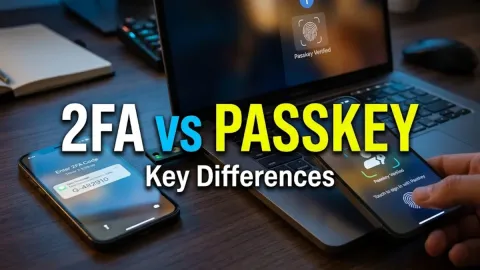
A Google account often halts synchronization on Samsung phones when a security trigger flags an unrecognized login or pending policy update. If you recently changed your password, added a passkey, or activated Google 2-Step Verification on another device, your Samsung device requires manual re-authorization before resuming background tasks.
Go to Settings > Google (or Google Services) and tap your profile avatar at the top. Select Manage your Google Account, then swipe horizontally to the Security tab. Review the Recent security activity section to see if Google flagged your Galaxy device. If you see a warning prompt, confirm your identity and grant access. Additionally, check whether 2-Step Verification prompts are awaiting confirmation inside the Google Authenticator app or through an on-screen prompt.
Remove and Re-Add the Google Account in One UI
If cached authentication tokens remain deadlocked, removing the Google account from your Samsung device and adding it again creates a fresh connection. This process deletes only locally stored synchronization files; your emails, photos, contacts, and cloud documents remain securely stored on Google's servers.
Follow these steps to refresh your account profile safely:
- Go to Settings > Accounts and backup > Manage accounts.
- Locate and tap the problematic Google account from the list.
- Tap Remove account, then confirm the prompt when warned about removing synced data.
- Restart your phone to clear lingering background processes.
- Return to Settings > Accounts and backup > Manage accounts, tap Add account, and select Google.
- Enter your email, password, and two-factor authentication code to establish a fresh security session.
Update Android System WebView and Samsung One UI
Samsung devices rely heavily on Android System WebView to render web-based login screens and in-app sign-in portals. An outdated or bugged WebView component can freeze the login prompt or display a blank white screen when your Google account attempts to authenticate. Keeping your underlying system components up to date prevents these interface crashes.
Open the Google Play Store, search for Android System WebView, and tap Update if a newer version is available. Next, check your core operating system by going to Settings > Software update > Download and install. Samsung regularly releases One UI security patches that fix underlying Knox security handshakes and Google integration bugs. Allow any pending updates to install completely and let your device reboot.
Reset Network Settings to Clear DNS and Proxy Blocks
Corrupted Wi-Fi configurations, misconfigured private DNS profiles, or aggressive third-party VPN apps can silently block your phone from reaching Google's authentication endpoints. When your phone cannot establish an uninterrupted TLS handshake with accounts.google.com, sync timeouts occur even though standard web browsing appears functional.
First, disable any active VPNs or ad-blocking software installed on your device. Next, check your private DNS settings under Settings > Connections > More connection settings > Private DNS; set it to Automatic or Off. If the issue persists, restore default network configurations by navigating to Settings > General management > Reset > Reset mobile network settings and Reset Wi-Fi and Bluetooth settings. This will require you to reconnect to your home Wi-Fi network, but it eliminates hidden routing conflicts.
The bottom line
A Google account failing on a Samsung phone is almost always the result of expired security tokens, Play Services cache corruptions, or synchronization hiccups. By verifying automatic date settings, resetting background Google caches, and re-authenticating your credentials through One UI, you can restore flawless synchronization across all your apps without losing personal data.
Frequently asked questions
Will removing my Google account from my Samsung phone delete my emails and contacts?
No. Removing your Google account from your Samsung device only disconnects the phone from Google servers and clears local cached copies. All your emails, contacts, calendar entries, and Drive files remain safe in the cloud and will immediately re-sync once you log back in.
Why does my Samsung phone keep showing an Account Action Required notification?
This notification appears when your phone's stored security token expires or fails verification. It commonly happens after changing your Google password on another device, enabling two-step verification, or when Google Play Services encounters a communication timeout.
Can Samsung Knox or Secure Folder cause Google account sync errors?
Yes. If your Google account is configured inside Samsung Secure Folder, it runs in an isolated workspace with independent sync policies. If sync fails, verify that background data and account permissions are granted separately within the Secure Folder settings menu.
What should I do if the Google sign-in screen stays completely blank?
A blank sign-in screen usually indicates an issue with Android System WebView or Google Chrome. Open Google Play Store, update both Android System WebView and Google Chrome to their latest versions, and restart your phone before trying to sign in again.