Why Is My Router Flashing Green and How to Fix It
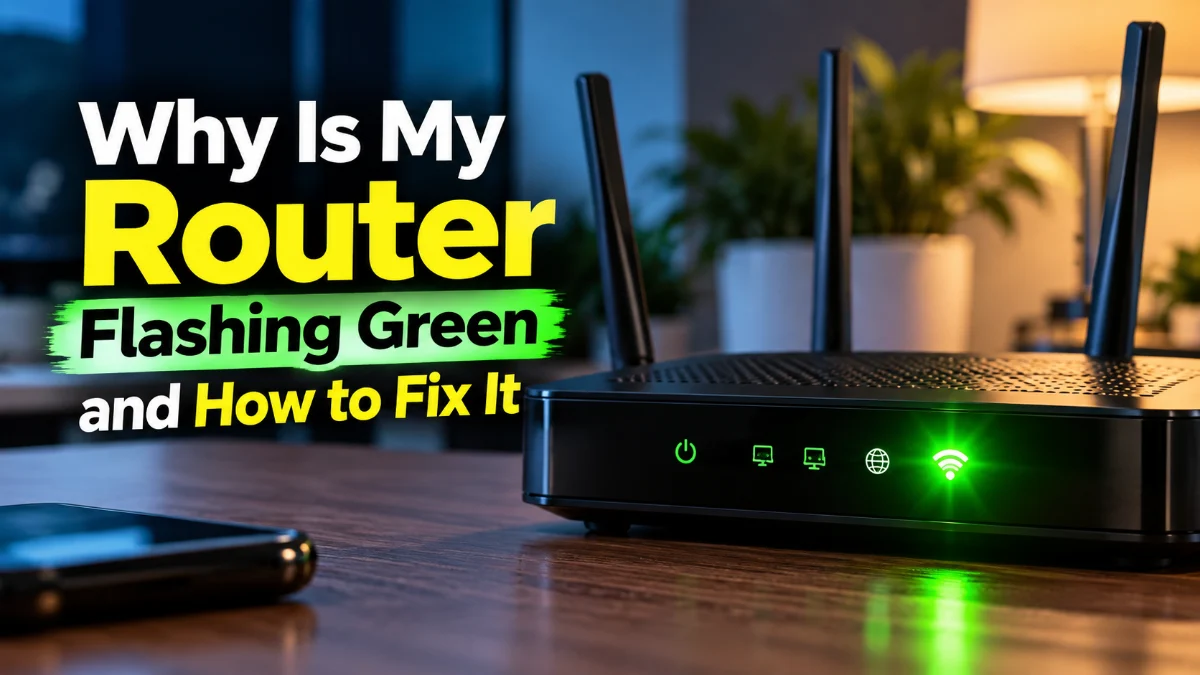
A flashing green light on your router usually means one of two things: it is actively transmitting data across your network, or it is trying to establish a connection with your internet service provider (ISP). If your internet is working normally, rapid flickering indicates routine data transfer. If your devices cannot load webpages, a slow or steady pulsing green light signals that your router is stuck trying to authenticate, negotiate an IP address, or detect an upstream signal.
Because different router manufacturers and internet service providers use green LEDs to indicate different statuses, diagnosing the issue requires looking at which specific symbol is blinking. Whether you use a standalone Wi-Fi 7 router, a TP-Link or Netgear unit, or an all-in-one gateway from providers like Xfinity, Bell, Rogers, or Telus, this troubleshooting guide walks you through identifying what the light means and fixing the underlying connection problem.
Identify Which Green LED Is Blinking and What It Means
Modern routers feature several distinct indicator lights, each marked with a specific icon. Before changing any cables or settings, look closely at the label or icon above or below the flashing green light to pinpoint the exact subsystem reporting activity.
| Icon / Indicator | Normal Green Behavior | Trouble State (Flashing Green) |
|---|---|---|
| Internet / Globe (WAN) | Solid green or rapid irregular flicker (data traffic) | Slow, steady pulsing (trying to reach ISP / no IP address) |
| Power LED | Solid green | Flashing green (booting up or firmware update in progress) |
| Wi-Fi / Wireless Bands | Rapid flicker during device communication | Slow blink (WPS pairing mode active or Wi-Fi radio resetting) |
| LAN / Ethernet Ports | Flickering during local file transfers or streaming | Continuous blinking with no connected device (faulty port/cable) |
| Broadband / DSL | Solid green (synced line) | Rhythmic flashing (attempting DSL handshake; line noise) |
A quick, erratic flicker on the Internet or Wi-Fi light is completely healthy; it shows that packets of data are streaming between your devices and the web. However, if the light pulses at an even, one-second rhythm while your devices show "No Internet Access," your router has physical link power but cannot complete its data handshake with the ISP headend.
Recognize ISP Gateway Activation and Sync Modes
If you use an all-in-one gateway supplied by your telecommunications provider—such as an Xfinity xFi Gateway, Rogers Ignite modem, or Bell Home Hub—a pulsing green LED carries a very specific operational meaning. On these unified devices, a single light on the top or front panel often serves as the master status monitor.
A slow pulsing green light on an ISP gateway almost always indicates that the modem is attempting to lock onto the downstream and upstream RF frequencies (on coaxial networks) or establish a GPON optical link (on fiber connections). If you recently set up the equipment or moved it to a different wall outlet, this pulsing indicates that the unit is not receiving an authorized signal or is waiting for initial registration through your provider's mobile app. Let the device run for at least 15 minutes undisturbed; interrupting a gateway during an initial software pull or cloud registration cycle can corrupt the internal configuration.
Inspect All Physical Cable Connections and Splitters
A router that blinks green while hunting for an internet signal often suffers from signal attenuation or an open circuit. Even a microscopic bend in a fiber optic patch cable or a slightly loose coaxial screw-on connector can degrade signal levels past the operating threshold required for a digital lock.
- Examine the WAN / Internet Ethernet cable: If you have a separate modem or Optical Network Terminal (ONT), verify that the Ethernet cable runs securely from the modem's 2.5 Gbps or 1 Gbps LAN port to the router's WAN port. Unplug both ends, inspect the plastic clip for damage, and listen for a distinct click when reinserting.
- Inspect coaxial lines: If your incoming feed uses RG6 coaxial cable, ensure the threaded nut is finger-tight on the wall plate and the modem. Avoid using cheap screw-on splitters between the wall jack and the gateway; splitters reduce signal strength by 3.5 dB to 7 dB, which can throw the modem into a green sync loop.
- Check the Fiber ONT: For pure fiber setups, check the separate wall-mounted ONT box. If the optical link light (marked PON, Optical, or Fiber) on the ONT is red or unlit, the problem is an incoming optical outage rather than your router hardware.
Execute a Sequenced Power Cycle on All Equipment
When routers lose synchronization with your ISP's Dynamic Host Configuration Protocol (DHCP) servers, simply tapping the power button or toggling settings inside an app is rarely enough. Residual charge stored in the motherboard's capacitors can preserve corrupted routing tables in volatile RAM. A complete, properly sequenced power cycle resets the communication registers on both ends of your home connection.
To perform an effective power cycle:
- Unplug the power adapter from the back of your router and your standalone modem or ONT.
- Wait a full 60 seconds. This allows all capacitors to discharge completely, flushing internal cache and wiping temporary address conflicts.
- Plug in the modem or ONT first. Leave the router completely powered off while you watch the modem's front panel.
- Wait 3 to 5 minutes until the modem displays a solid upstream/downstream and internet connection light.
- Plug the router back into the wall outlet. Allow it another 3 minutes to negotiate its WAN IP address and launch its local Wi-Fi radios.
Skipping step 4 is the most common mistake users make. If the router finishes booting before the modem has fully registered with the provider's CMTS or optical terminal, the router defaults to a flashing green error state because it cannot detect an active gateway address.
Confirm Local Outages and ISP Network Status
If physical connections are intact and a clean restart fails to produce a solid green status light, the underlying cause is frequently outside your home. Telecommunications infrastructure routinely undergoes scheduled maintenance, node re-architecting, and emergency line repairs following severe weather.
Turn off Wi-Fi on your smartphone to force it onto your mobile cellular carrier, then open your ISP's official account management app or navigate to their public network status webpage. Most major carriers provide automated diagnostic tools that ping your specific modem serial number or MAC address directly from their server. If the automated diagnostic tool states that your gateway is unreachable, an area outage has severed communication, and the flashing green light will persist until field technicians complete physical repairs at the neighborhood node.
Log In to the Router Admin Console to Review WAN Errors
If your router continues to flash green but your ISP reports no outages, checking the router's internal system log will reveal the precise software or network failure. You can access this interface from any computer or tablet connected to the router via Ethernet cable or local Wi-Fi.
Open a web browser and type your router's default gateway IP address into the address bar (typically 192.168.1.1, 192.168.0.1, or 10.0.0.1), then press Enter. Sign in using your administrative credentials. Once inside the administrative dashboard:
- Navigate to Advanced > System Tools > System Log (or Status > WAN Status).
- Check the Internet IP Address field. If it reads
0.0.0.0or shows an APIPA address beginning with169.254.x.x, your router is actively broadcasting DHCP Discovery packets but receiving no acknowledgment from your ISP. - Inspect the system log for phrases such as "DHCP Lease Failed", "PPPoE Authentication Failed", or "No Response to LCP Echo-Requests". If you use a fiber or DSL provider requiring PPPoE credentials or a specific VLAN ID tag (such as VLAN 35 for Bell networks or VLAN 2 for CenturyLink), re-enter your username and password under Network > WAN Settings to clear the negotiation loop.
Reset the Router to Factory Defaults as a Final Measure
When a router's power light or internet light continues flashing green without interruption, the root cause may be corrupted non-volatile memory (NVRAM) or an interrupted automatic firmware update. A hard factory reset returns the device's firmware and operating parameters to their original clean baseline.
To perform a factory reset, ensure the router is powered on. Locate the small, recessed pinhole labeled Reset on the rear or underside panel. Straighten a paperclip and press the internal switch inside the hole, holding it down continuously for 10 to 15 seconds. Release the pinhole only after you see all front-panel LEDs illuminate simultaneously or turn amber, indicating the bootloader has begun wiping the operational storage.
Allow the device up to five minutes to restart. Once the reset concludes, your router will broadcast its default factory network name (SSID) printed on the bottom label. Connect to this default network, run through the initial setup wizard, and set a fresh Wi-Fi name and password. If the light remains perpetually flashing green even after a factory reset and with no external cables connected, the internal flash memory or physical WAN controller has suffered a hardware failure requiring equipment replacement under warranty.
The bottom line
A flashing green light on your router is not always an error; in many cases, it simply reflects everyday data traffic flowing smoothly across your home network. However, when the flashing is accompanied by a dropped internet connection, it denotes an incomplete handshake with your provider or an offline upstream line. By checking the specific LED label, securing your physical cable jacks, running a properly timed power cycle, and checking your gateway's internal WAN logs, you can quickly determine whether you need to tweak your settings or wait for an ISP technician to resolve an area outage.
Frequently asked questions
Is a flashing green light on my router normal?
Yes, if your devices have full access to the internet. Rapid, irregular flickering on the Internet, Wi-Fi, or Ethernet LEDs indicates that data packets are actively moving between your devices and external servers. It only indicates a malfunction if your devices report no internet connection or if the flashing follows a slow, steady pulse.
What is the difference between a blinking green light and a blinking orange light?
A blinking green light generally means the router has detected an electrical carrier signal and is attempting to synchronize data or authenticate with the ISP. A blinking orange or amber light typically indicates an outright physical disconnection, an invalid cable connection, or a total inability to sense an upstream network carrier.
Why is my router flashing green after a storm or power outage?
Power fluctuations frequently reboot local utility nodes and neighborhood distribution boxes at different speeds than residential equipment. If your home regained power before the ISP's roadside distribution node finished re-initializing, your router will blink green waiting for the external line signal. Power cycle your router again once neighborhood utility equipment has stabilized.
How long should a router take to stop blinking green during setup?
Under normal conditions, a newly installed modem or gateway takes between 5 and 15 minutes to establish upstream and downstream channels, download latest configuration files, and register its MAC address. If the light continues blinking green after 20 minutes, check your cable connections or contact your provider to verify that the equipment's serial number is activated on your account.