Best Windows 11 Cleaner Utilities in 2026
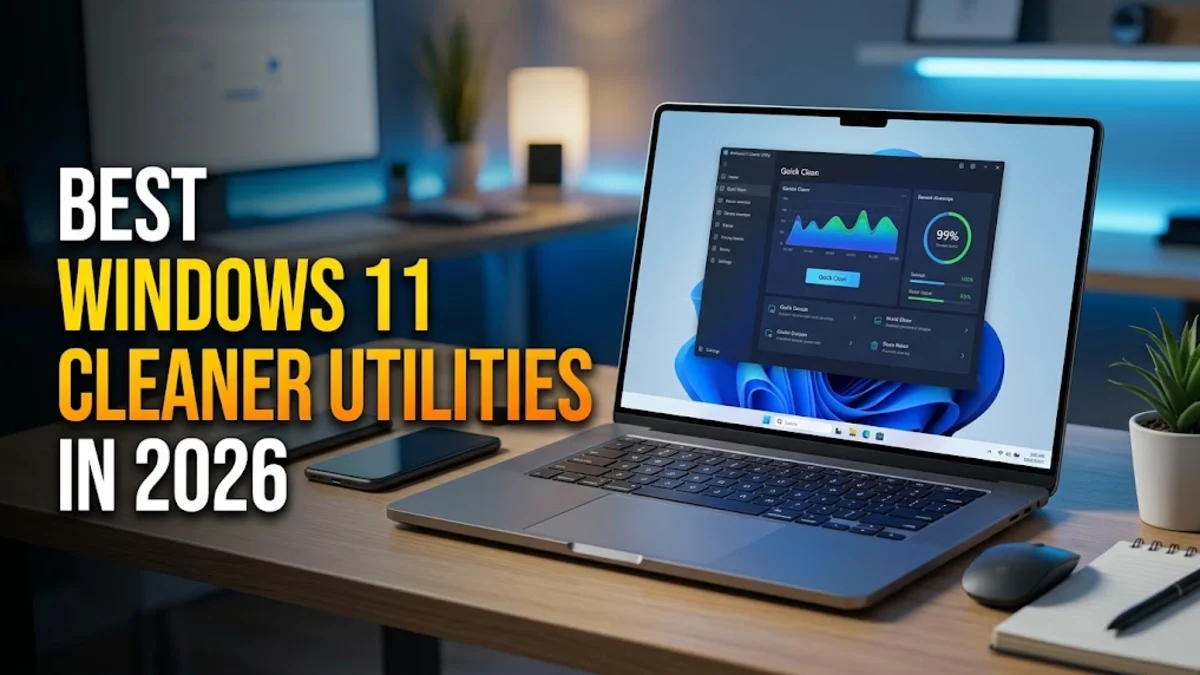
Finding the right utility to clear out digital clutter can drastically improve your computer's speed and reclaim precious storage space. As operating systems accumulate temporary files, cache data, and leftover registry entries over time, performance naturally dips.
Using a reliable maintenance utility helps automate the removal of unnecessary files without risking critical system components. Below, we break down the top tools available to keep your system running smoothly.
Why Windows 11 Accumulates Junk Files
Every time you browse the web, install applications, or run system updates, Windows 11 generates temporary files. While these files are initially designed to speed up loading times and track installation states, they often linger long after their usefulness has expired. Over months of heavy use, gigabytes of cache, logs, and installer remnants can clog your primary drive, forcing your system to work harder than necessary.
Furthermore, standard application uninstalls frequently leave behind orphaned registry entries and empty folders. Although a single leftover file consumes negligible space, thousands of them can fragment file allocation tables and slow down search indexing. Regular maintenance using a dedicated utility prevents this cumulative buildup, ensuring your drive remains responsive and optimized for daily tasks.
Built-in Windows Tools vs. Third-Party Cleaners
Before downloading external software, it is worth noting that Windows 11 includes native utilities capable of handling routine cleanup tasks. Tools like Disk Cleanup and the Storage Sense feature found in Settings > System > Storage can automatically purge temporary system files, previous Windows installation backups, and recycle bin contents without requiring additional installations.
However, third-party cleaners offer deeper scanning capabilities that target application-specific caches, browser history across multiple profiles, and third-party registry remnants that Microsoft's native tools ignore. For users dealing with severe storage constraints, combining built-in features with a reputable third-party cleaner delivers the most thorough results while maintaining system stability.
Top Windows 11 Cleaner Software Reviewed
When selecting an external tool, safety and transparency are paramount. Avoid obscure utilities found on unverified download portals, as many bundle adware or aggressive upsells. Instead, look for open-source or established commercial software with clear privacy policies. Applications like BleachBit provide a completely open-source and ad-free experience, making them popular among privacy-conscious users who want precise control over what gets deleted.
Commercial alternatives such as CCleaner and Wise Disk Cleaner offer polished user interfaces with automated scheduling features. These programs categorize junk files clearly, allowing you to preview items before deletion. Always review the default scan settings during installation to opt out of telemetry or extra promotional offers, ensuring your system remains clean and secure.
Safe Practices When Cleaning System Files
Aggressive system cleaning can sometimes cause unexpected issues if critical cache files or login tokens are wiped away. To avoid losing saved browser passwords or active session data, always customize your cleaner's profile settings before running a full scan. Uncheck options related to browser session cookies and autofill data unless you intentionally want to clear your web browsing history.
Additionally, it is wise to create a system restore point or back up important personal files before utilizing deep registry cleaners. While modern utilities are generally safe, system registry modifications carry inherent risks. Taking a few precautionary minutes guarantees that you can easily revert any unintended changes should an application behave erratically after a cleaning session.
How to Automate Routine PC Maintenance
Maintaining peak PC performance should not feel like a daily chore. Most modern cleaning applications include built-in scheduling tools that run silent background maintenance during idle hours. By configuring these routines to execute weekly or monthly, you prevent storage bloat before it impacts your system speed or triggers low disk space warnings.
To set up automation, navigate to your chosen software preferences and locate the scheduling or monitoring tab. Enable silent background cleaning for temporary system directories, but keep manual confirmation enabled for deep registry scans. This hybrid approach ensures effortless everyday upkeep while retaining human oversight for more sensitive system adjustments.
Comparison of Popular Windows 11 Cleaning Utilities
Choosing the right utility depends on whether you prefer an open-source privacy-first tool or a polished commercial application with automated features. The following table compares three of the most reliable cleaning utilities compatible with Windows 11 in 2026.
| Software | Type | Key Feature | Open Source |
|---|---|---|---|
| BleachBit | Free / Open Source | Deep privacy scrubbing and minimal footprint | Yes |
| CCleaner | Freemium | Automated health check and software updater | No |
| Wise Disk Cleaner | Freemium | Fast defragmentation and junk file removal | No |
Reviewing these options helps you match your specific maintenance goals with the appropriate utility, ensuring your Windows 11 environment stays fast, organized, and free of unnecessary clutter.
The bottom line
Keeping your Windows 11 PC clean and responsive does not require complex technical expertise. By leveraging built-in storage settings alongside trusted utilities like BleachBit or CCleaner, you can effortlessly reclaim gigabytes of disk space and maintain optimal system performance throughout 2026.
Frequently asked questions
Is using a PC cleaner safe for Windows 11?
Yes, provided you use reputable software and avoid aggressive registry cleaners that lack transparency. Stick to trusted utilities and review scan results before deleting files.
Does Windows 11 have a built-in cleaner?
Yes, Windows 11 includes Storage Sense and the classic Disk Cleanup tool, which can automatically remove temporary files and system caches without third-party apps.
How often should I clean my PC's junk files?
Running a routine cleanup once a month is generally sufficient for most users to maintain adequate storage space and system responsiveness.
Will cleaning junk files delete my personal documents?
Standard cleaners target temporary files, browser caches, and system logs. They do not touch personal files stored in your Documents or Desktop folders unless explicitly configured to do so.
Can a PC cleaner make my computer faster?
While a cleaner won't upgrade your hardware, removing excessive junk files and freeing up drive space can significantly improve system responsiveness and boot times.