How to Fix a Windows 11 Laptop That Won't Turn On
When your Windows 11 laptop refuses to turn on, it can quickly trigger panic, especially if you have important work or study deadlines approaching. Whether the screen remains pitch black, the fan stays completely silent, or the power LED flashes erratically, finding the root cause requires a systematic troubleshooting approach.
Most boot failures stem from minor power glitches, drained batteries, or faulty charging accessories rather than catastrophic hardware failure. By checking power connections, draining residual static charge, and isolating hardware components, you can safely diagnose and resolve the issue without immediately resorting to a repair shop.
Perform a Hard Power Reset
A hard reset clears residual electrical charge from your laptop capacitors, which often fixes silent boot failures caused by temporary system lockups. When your laptop is stuck in a low-level power state, standard pressing of the power button fails to register because the motherboard control chip is frozen.
To perform a hard reset, unplug all connected cables, power adapters, and USB devices. Press and hold down the laptop power button continuously for at least 40 to 60 seconds. This action forces the hardware circuits to completely discharge. Afterward, reconnect only the original power charger and attempt to turn the laptop on normally. If your system boots up, the issue was merely a static power glitch.
Verify the Power Adapter and Outlet
Faulty power bricks, damaged charging cables, or dead wall outlets frequently trick users into thinking their Windows 11 laptop is completely broken. Over time, internal wire fraying can interrupt power delivery even if the charger looks fine on the outside.
Unplug your charger from the wall and test the electrical outlet with a working lamp or phone charger to ensure current is flowing. Next, inspect the length of your power cord for bends, cuts, or burning odors. If your laptop supports USB-C charging, try using a different compatible cable and power brick, or plug the charger into an alternate port. Look for a small LED indicator light on the power brick or near the charging port to confirm power transmission.
Inspect the Battery and Charging Port
Laptop batteries degrade over extended periods, and deeply depleted lithium-ion cells sometimes refuse to accept a charge until jump-started. Furthermore, lint, dust, or bent pins inside the physical charging port can block the electrical connection entirely.
Carefully inspect the charging port on your laptop using a flashlight. If you notice dust or pocket lint trapped inside, gently clean it out using a wooden toothpick, taking extreme care not to bend the central metal pin. If your laptop features a removable battery pack, slide it out, clean the metal contact points with a dry microfiber cloth, and reinsert it securely. Leave the laptop plugged into a reliable wall outlet for at least 30 minutes before attempting to power it on again.
Disconnect External Peripherals and Docks
Faulty USB hubs, external monitors, mice, keyboards, or SD cards can trigger a hardware conflict during the initial power-on self-test. If a connected device experiences a short circuit, the laptop motherboard will automatically cut power to prevent permanent damage.
Unplug every single external accessory connected to your Windows 11 laptop. This includes wireless dongles, external hard drives, USB flash drives, docking stations, and printer cables. Once every peripheral is removed, press the power button. If the laptop boots successfully, reconnect your accessories one by one, restarting after each addition to identify which specific device is causing the conflict.
Test the Display and Backlight
Sometimes your Windows 11 laptop is actually turned on, but the internal screen remains blank because of a display driver crash, a disconnected ribbon cable, or a failed backlight. You can determine whether the computer is running by listening for fan noise and hard drive activity.
Press Win + Ctrl + Shift + B simultaneously. This keyboard shortcut forces Windows to restart the graphics driver, accompanied by a short beep. Additionally, listen closely for fan spinning or hard drive hums, and check if the keyboard backlight illuminates. If you hear system sounds or see faint images when shining a flashlight at an angle against the LCD panel, the issue lies with your display assembly rather than the power supply.
Check Internal Components Like RAM and Storage
Loose internal hardware components, such as memory modules or solid-state drives, can halt the boot sequence before the screen ever turns on. Physical drops or vibrations can unseat these components from their motherboard slots.
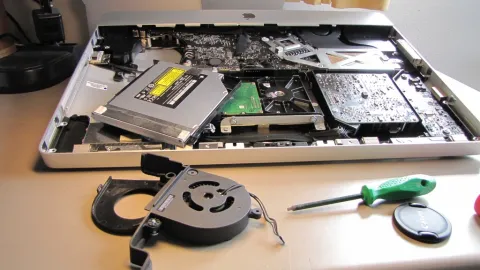
If you are comfortable opening your laptop chassis and your device is out of warranty, remove the bottom panel after disconnecting the battery. Locate the RAM sticks, release the retention clips, remove them, and firmly snap them back into place. Ensure your M.2 NVMe SSD is securely fastened down with its mounting screw. Reassemble the laptop and test the power button. If issues persist, professional hardware diagnostics may be necessary.
The bottom line
Dealing with a Windows 11 laptop that refuses to turn on can be stressful, but working methodically through these troubleshooting steps usually uncovers the culprit. Starting with a simple hard power reset and verifying your charging hardware solves the vast majority of unexpected boot failures. If basic fixes fail, consulting an authorized service technician will help identify deeper motherboard or component faults safely.
Frequently asked questions
Why is my laptop power light blinking but the screen is black?
A blinking power light usually indicates that your laptop is in sleep or hibernation mode, or it has encountered a memory error. Try performing a hard reset by holding the power button for 40 seconds.
Can a dead battery completely prevent a laptop from turning on while plugged in?
Yes. If a lithium-ion battery is completely dead or short-circuited, some laptop models will refuse to boot even when connected directly to the wall charger until the battery receives an initial trickle charge or is removed.
How do I know if my laptop motherboard is dead?
If your laptop shows zero signs of life—no fan spin, no LED lights, no beep codes, and no warmth near the vents—even with a verified working charger and a hard reset, it often points to a motherboard power delivery failure.
Will unplugging external devices erase my saved files?
No. Disconnecting USB drives, mice, and docks is completely safe and will not delete any files or compromise your Windows 11 operating system.
What should I do if my laptop gets hot while trying to turn on?
Unplug the laptop immediately and disconnect the charger. Excessive heat during boot indicates an electrical short circuit, which requires professional inspection to prevent fire or permanent hardware damage.