Fix AirPods Not Working on Microsoft Teams
When your AirPods refuse to work during a Microsoft Teams meeting, the issue usually stems from Bluetooth audio profile conflicts or misconfigured audio device settings inside Teams itself. Wireless earbuds use separate Bluetooth profiles for high-fidelity music playback and two-way voice communication, and desktop operating systems frequently struggle to switch between them automatically when a call begins.
Whether your AirPods produce robotic audio, fail to transmit your voice, or disconnect the moment you enter a meeting room, you can resolve the glitch without replacing your hardware. Follow these targeted troubleshooting steps to fix your AirPods on Windows and macOS so your meetings run smoothly.
Verify Audio Device Selection Inside Microsoft Teams
Microsoft Teams maintains its own independent audio device preferences that frequently override your computer system defaults. If you paired your AirPods to your PC or Mac after launching Teams, the application may still route your incoming sound or outgoing voice through your integrated monitor speakers or laptop microphone.
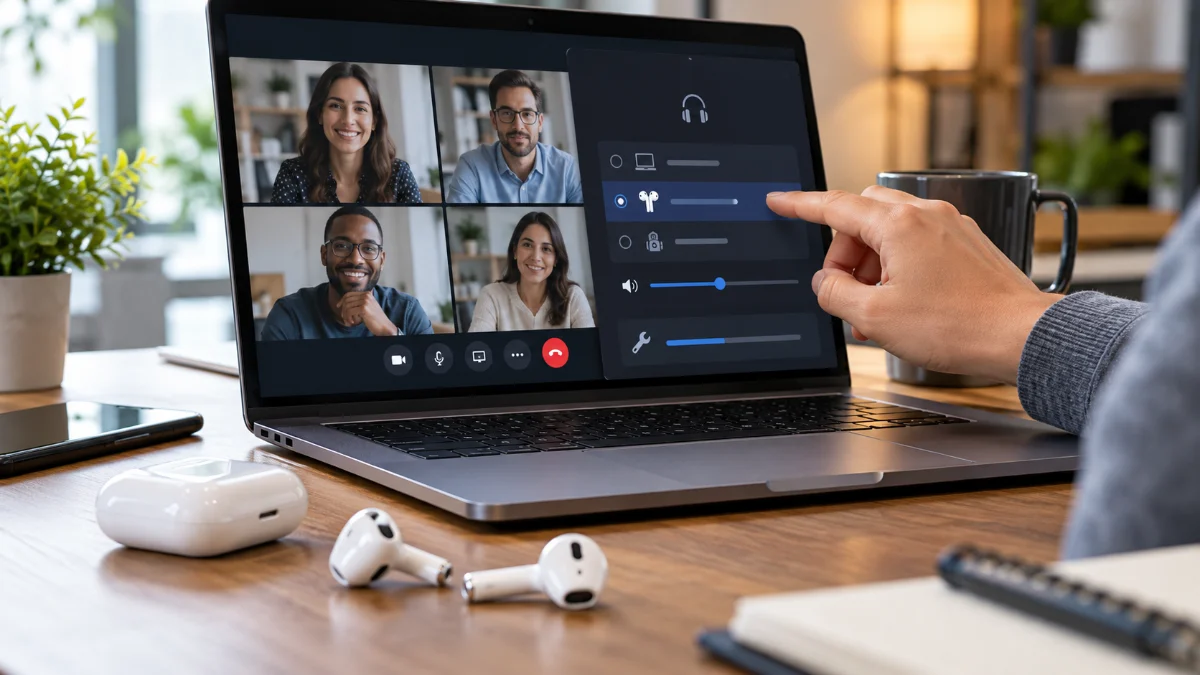
To manually route your meeting audio to your earbuds, open Microsoft Teams and click the Settings and more button (three horizontal dots) next to your profile picture in the upper-right corner. Select Settings > Devices. Under the Audio devices section, choose Custom Setup from the dropdown menu. Ensure that both Speaker and Microphone explicitly list your AirPods rather than your system's built-in sound card or an external webcam.
After selecting your AirPods, scroll down and disable Automatically adjust mic sensitivity. Teams can aggressively lower your microphone input when it detects background noise, which frequently causes your voice to cut out when speaking through AirPods. Finally, click Make a test call to verify that your voice records cleanly and that you can hear the automated playback clearly before your next live conference.
Configure Windows Bluetooth and Sound Device Properties
On Windows 11 and Windows 10, Bluetooth headsets present two separate modes: stereo audio for listening and hands-free telephony for calls. When Microsoft Teams initiates a call, Windows switches the AirPods into hands-free mode to open the microphone channel, which drops audio quality and can cause the driver to crash if exclusive mode permissions clash.
Press Win + R, type mmsys.cpl, and press Enter to open the classic Sound Control Panel. Navigate to the Playback tab, right-click your AirPods (Hands-Free AG Audio), and select Set as Default Communication Device. Keep your default playback device as your standard headphones profile for system sounds. Next, click the Recording tab, right-click your AirPods microphone, and select Set as Default Communication Device.
To prevent third-party applications from hijacking your connection during meetings, double-click your AirPods under the Recording tab, switch to the Advanced tab, and uncheck Allow applications to take exclusive control of this device. Click Apply, then OK. If Windows still fails to detect voice input, open Settings > System > Sound, scroll to Advanced sound options, click Volume mixer, find Microsoft Teams, and manually set its input and output to your AirPods.
Adjust macOS Audio Permissions and Sample Rates
Mac users often encounter silent meetings when macOS privacy controls block Microsoft Teams from accessing the AirPods microphone, or when an audio sample rate mismatch creates a silent loop in CoreAudio. A quick verification of system permissions ensures Teams has full hardware access.
Click the Apple menu > System Settings > Privacy & Security > Microphone. Locate Microsoft Teams in the list and ensure the toggle switch beside it is turned on. If the toggle is already active, turn it off, wait five seconds, and turn it back on to refresh the security token. Restart Teams afterward so the new permission state registers.
If your microphone connects but nobody can hear you, an internal sampling rate mismatch may be silencing the input. Open Finder > Applications > Utilities > Audio MIDI Setup. In the left sidebar, click your AirPods input device. Look at the Format dropdown menu on the right. If the sample rate is set to an unsupported high frequency, change it to 1 ch 16-bit 16.0 kHz or 24.0 kHz. This locks the microphone to the precise bandwidth Apple allocates for Bluetooth voice calls and prevents Teams from dropping the channel.
Disable Conflicting Hands-Free Telephony Services on Windows
Windows includes legacy telephony services designed for early mono Bluetooth earpieces. On modern AirPods, these background services often conflict with Microsoft Teams, resulting in sudden disconnections, frozen audio, or an inability to un-mute yourself.
Press Win + R, type control printers, and press Enter to access the classic Devices and Printers panel. Locate your AirPods under the Devices list, right-click the icon, and select Properties. Switch to the Services tab. Wait a few moments while Windows queries the Bluetooth profiles supported by the earbuds.
In the services list, locate Handsfree Telephony. If you use a dedicated external USB microphone for speaking and only want crystal-clear stereo audio from Teams through your AirPods, uncheck Handsfree Telephony and click Apply. This permanently stops Windows from forcing your AirPods into low-bandwidth telephone audio mode. If you rely on the AirPods internal microphone for your calls, leave this checked, but uncheck Remote Control and Remotely Controllable Device to stop media key events from accidentally muting your Teams client.
Turn Off Automatic Switching and Reset the AirPods Hardware
Apple AirPods feature automatic device switching, which seamlessly transfers audio between your iPhone, iPad, and Mac. While convenient for personal media, this feature frequently disrupts work meetings: if an incoming text message or video starts playing on your iPhone, your AirPods may abruptly abandon your Teams meeting on your computer.
To disable automatic switching on an iPhone or iPad, wear your AirPods and open Settings > Bluetooth. Tap the More Info icon (the letter 'i' inside a circle) next to your AirPods. Tap Connect to This iPhone, and switch the option from Automatically to When Last Connected to This iPhone. On a Mac, navigate to System Settings > Bluetooth, click Options next to your AirPods, and set Connect to This Mac to When Last Connected to This Mac.
If the connection remains unstable, perform a complete hardware reset on your AirPods. Place both earbuds into their charging case and keep the lid open. Press and hold the setup button on the back of the case for approximately 15 seconds until the status light flashes amber, then white. Re-pair the AirPods to your computer from scratch and launch Teams to verify stability.
Clear Microsoft Teams Cache to Remove Corrupt Audio Profiles
Microsoft Teams stores cached hardware profiles, meeting tokens, and device identifiers locally. Over time, recurring client updates or changing Bluetooth peripherals can corrupt these files, causing Teams to search for an outdated audio profile ID each time you join a call.
To clear the cache on Windows, right-click the Microsoft Teams icon in your system tray and select Quit. Press Win + R, type %appdata%\Microsoft\Teams, and press Enter. Select all files and folders inside this directory by pressing Ctrl + A, and press Delete. For the newer Microsoft Teams (Work or School) app on Windows 11, open Settings > Apps > Installed apps, click the three dots beside Microsoft Teams, select Advanced options, and click Reset.
On macOS, completely quit Teams by pressing Cmd + Q. Open Finder, press Cmd + Shift + G, and enter ~/Library/Application Support/Microsoft/Teams. Delete the contents of the folder. Restart your computer and relaunch Teams. The app will generate clean device detection files and properly assign your AirPods without legacy configuration conflicts.
The bottom line
AirPods audio failures in Microsoft Teams almost always come down to competing Bluetooth profiles, incorrect in-app device selection, or outdated cache files. By locking Teams to your specific audio endpoints and disabling intrusive automatic switching, you can maintain reliable sound and clear communication throughout your workday.
Frequently asked questions
Why does my audio quality sound muffled or robotic when Teams starts?
Bluetooth bandwidth is limited. When Teams activates the AirPods microphone, your operating system switches the connection from high-fidelity stereo (A2DP) to low-bitrate hands-free telephony (HFP/HSP) to carry both input and output simultaneously. Using an external USB microphone allows your AirPods to remain in full-fidelity stereo mode.
Why do my AirPods keep disconnecting right in the middle of a Teams call?
This usually happens because Apple Automatic Switching transfers your AirPods to an iPhone or iPad that received a notification, or because Windows power management turns off your PC Bluetooth adapter to conserve battery. Disable automatic device switching in your iOS settings and disable Bluetooth power saving in Windows Device Manager.
Can I use AirPods noise cancellation during a Teams meeting?
Yes. Active Noise Cancellation (ANC) and Transparency modes operate entirely on the AirPods internal hardware processors. You can toggle between these modes by pressing and holding the stem of your AirPods Pro or using the noise control button on AirPods Max regardless of your computer operating system.
Why can others hear me on Teams, but I cannot hear anyone else?
Your audio output device in Teams is most likely routed to a different sound card, such as your monitor or laptop speakers. Open Teams Settings > Devices while in the call and ensure the Speaker field is explicitly set to your AirPods.