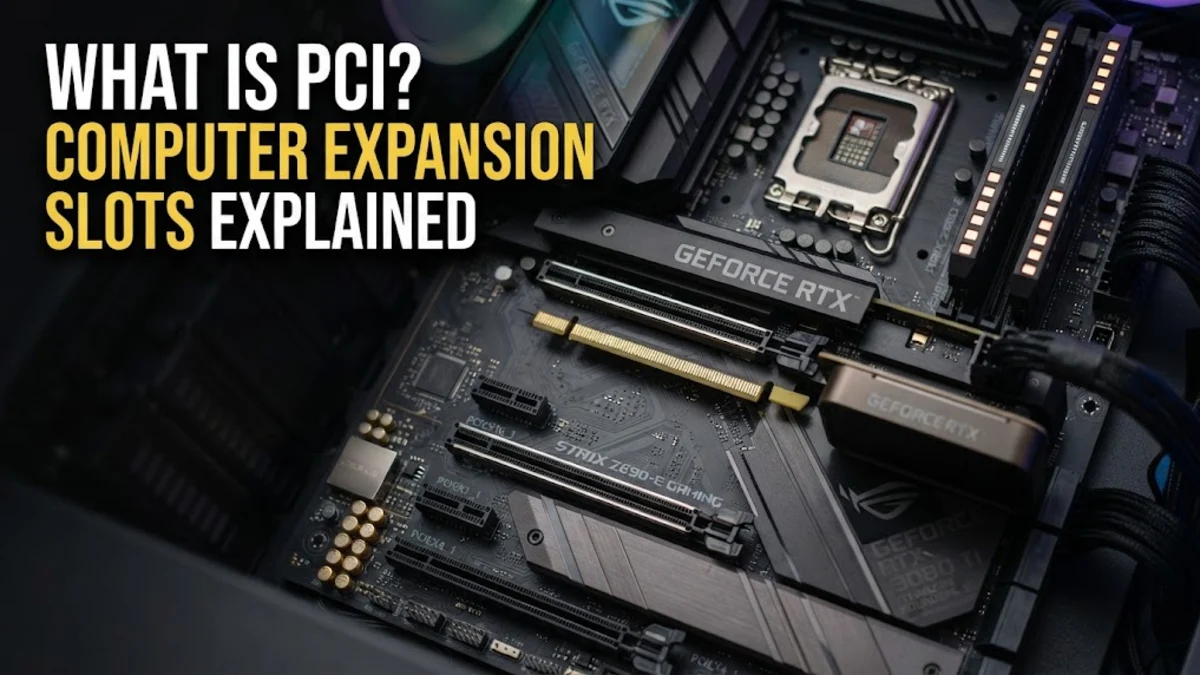
What Is PCI? Computer Expansion Slots Explained
PCI stands for Peripheral Component Interconnect. It is an industry-standard interface that allows physical hardware components to connect directly to a desktop computer motherboard, enabling rapid communication between the central processing unit and expansion hardware like graphics cards, high-speed storage drives, and wireless network adapters.
If you are building a modern PC, upgrading existing components, or troubleshooting system hardware in Windows, understanding how PCI and its modern successor, PCI Express (PCIe), work is essential. This guide explains the differences between PCI slot configurations, transfer speeds across PCIe generations, and how to verify your hardware capabilities directly inside Windows 11 or Windows 10.
What PCI Means and How It Works on Your Motherboard
In personal computer architecture, Peripheral Component Interconnect serves as the primary local bus standard connecting internal hardware devices to the system motherboard. Before standardized expansion buses existed, adding sound cards, storage controllers, or display adapters required proprietary connections that differed between computer manufacturers. PCI solved this issue by establishing a universal hardware interface that allowed motherboard makers and third-party component vendors to build compatible hardware.
When you plug an expansion card into a motherboard slot, the hardware establishes direct electronic pathways with the system controller. Data travels across parallel or serial traces on the circuit board, transferring instructions between the expansion device, system RAM, and the processor. While older legacy PCI slots relied on a shared parallel bus architecture, modern motherboards use point-to-point serial communication, ensuring that each connected component maintains dedicated data throughput without competing with other installed devices.
The Evolution from Legacy PCI to PCI Express
The original PCI architecture introduced in the early 1990s operated using a parallel communications structure. In a traditional parallel PCI design, all attached cards shared the exact same data bus and bandwidth. If multiple devices attempted to send data simultaneously, bus congestion occurred, creating performance bottlenecks that hindered high-performance hardware like 3D graphic accelerators and gigabit network interfaces.
To overcome these bandwidth limitations, PCI Express was introduced, commonly abbreviated as PCIe. Unlike legacy PCI, PCIe relies on high-speed point-to-point serial connections called lanes. Instead of forcing all devices to share a single bus highway, each PCIe device communicates directly with the motherboard chipset or processor over its own dedicated data connection. This fundamental shift eliminated bus contention and unlocked scalable performance that modern computing relies on today.
Understanding PCIe Lanes and Physical Slot Sizes
PCI Express slots are categorized by physical length and the number of operational data lanes they support. A single PCIe lane consists of two wire pairs: one pair for transmitting data and another for receiving data. Motherboard manufacturers label slot configurations using the letter x followed by the number of active lanes, such as x1, x4, x8, or x16.
Physical slot sizes typically correspond to these lane counts, allowing higher-bandwidth cards to occupy longer slots. A larger card can fit into a larger slot, but smaller physical cards can also operate in longer slots without issue. Below are the standard PCIe slot sizes found on modern desktop motherboards:
- PCIe x1: The shortest expansion slot, designed for lower-bandwidth components like Wi-Fi adapters, Bluetooth cards, extra USB port cards, and sound cards.
- PCIe x4: A medium-length slot frequently utilized for budget NVMe solid-state drives attached via adapter cards and multi-port Ethernet network interfaces.
- PCIe x8: A longer slot typically found on workstation motherboards, used for RAID controller cards, high-speed networking adapters, and expansion frames.
- PCIe x16: The longest slot on the motherboard, providing maximum bandwidth for graphics cards, video capture hardware, and enterprise storage cards.
PCIe Generations and Transfer Speeds
PCI Express technology continuously evolves to meet the growing performance demands of modern operating systems, games, and professional software workloads. Each new generation doubles the theoretical data transfer rate of the previous version while maintaining backward and forward compatibility. This means a PCIe 4.0 graphics card can run in a PCIe 3.0 motherboard slot, though it will operate at the slower PCIe 3.0 throughput rates.
Understanding the bandwidth differences between PCIe generations helps you determine whether a hardware upgrade will deliver its full potential on your current setup. The following table highlights theoretical maximum speeds across recent PCIe generations for a standard full-length x16 slot:
| PCIe Generation | Per-Lane Speed | x16 Theoretical Bandwidth |
|---|---|---|
| PCIe 3.0 | 8.0 GT/s | ~15.75 GB/s |
| PCIe 4.0 | 16.0 GT/s | ~31.51 GB/s |
| PCIe 5.0 | 32.0 GT/s | ~63.03 GB/s |
| PCIe 6.0 | 64.0 GT/s | ~126.00 GB/s |
Most modern desktop systems utilize PCIe 4.0 or PCIe 5.0 motherboard architectures, providing abundant data throughput for demanding discrete graphics cards and fast PCIe NVMe SSDs.
Common Expansion Cards That Use PCI Express
Expansion slots give personal computers their modularity, allowing users to upgrade specific hardware capabilities without replacing the entire computer. Installing hardware into motherboard PCI Express slots expands your system features to meet changing work or gaming demands.
The most common devices designed for PCIe motherboard slots include:
- Graphics Cards (GPUs): Demanding visual applications, video editing software, and 3D rendering engines require dedicated graphics processing power, which plugs into the primary PCIe x16 slot.
- NVMe M.2 Adapter Cards: While M.2 drives often plug directly into specialized motherboard slots, PCIe expansion cards allow you to add multiple additional high-speed NVMe drives.
- Network Interface Cards (NICs): Dedicated PCIe cards supply 2.5GbE, 10GbE, or Wi-Fi 7 wireless connectivity for fast network transfers.
- Sound Cards: Audiophiles and digital audio creators use discrete PCIe sound cards to reduce electromagnetic interference and gain enhanced audio processing.
- Capture Cards: Content creators and streamers use PCIe capture cards to record high-resolution, uncompressed video feeds from cameras and external consoles.
How to Check Your PCIe Slots and Hardware in Windows
Before buying new PC components, you should check your computer's installed expansion cards and active PCIe bus details directly within Windows. You do not always need to open your desktop case to gather basic hardware controller details.
Follow these steps to inspect system hardware and PCI bridge devices using built-in Windows utilities:
- Press Win + X on your keyboard and select Device Manager from the power user menu.
- Expand the System devices section to view internal PCI bridges, PCI Express Root Ports, and bus controllers.
- Double-click any specific device, such as your display controller under Display adapters, and switch to the Details tab.
- Click the Property drop-down menu and select PCI bus number or Location paths to verify physical bus addressing.
For deeper hardware insights, press Win + R, type msinfo32, and press Enter to launch System Information. Navigate to Hardware Resources > IRQs to view connected component addresses. Diagnostic utilities like CPU-Z can also display active link widths and real-time interface speeds under the Mainboard tab.
Key Considerations When Installing PCIe Hardware
Upgrading or adding expansion cards to your PC requires attention to physical spacing, power delivery, and thermal management. A common mistake when installing a heavy graphics card into the primary PCIe x16 slot is neglecting clearance for adjacent slots, as modern dual-slot or triple-slot cooler designs can physically block neighboring PCIe x1 or x4 slots.
Always verify power supply capacity and auxiliary PCIe power cables before installing high-draw cards. While smaller x1 cards draw all necessary power directly from the 75-watt motherboard slot allowance, high-performance GPUs require dedicated 8-pin or 16-pin power connections running straight from your power supply unit. Additionally, ensure proper case airflow around installed cards to prevent thermal throttling under sustained workloads.
The bottom line
Understanding what PCI is and how PCI Express operates allows you to make informed decisions when upgrading, building, or troubleshooting your Windows desktop computer. By choosing the correct PCIe lane size, matching component generations, and verifying system compatibility in Windows, you can maximize hardware bandwidth and maintain system stability.
Frequently asked questions
What is the main difference between PCI and PCIe?
Legacy PCI uses a shared parallel bus where all connected hardware shares bandwidth. PCI Express (PCIe) uses dedicated serial point-to-point lanes, providing significantly higher speeds and preventing bandwidth competition between devices.
Can I put a PCIe x1 card into a PCIe x16 slot?
Yes, smaller PCIe cards (such as x1 or x4 cards) can be safely installed into larger physical PCIe slots (like an x16 slot). The card will simply operate using its native number of lanes.
Will a PCIe 4.0 graphics card work on a PCIe 3.0 motherboard?
Yes, PCI Express is backward and forward compatible. A PCIe 4.0 graphics card will work on a PCIe 3.0 motherboard, but its transfer speed will be limited to PCIe 3.0 bandwidth limits.
Which motherboard slot is best for a graphics card?
The top PCIe x16 slot (closest to the CPU socket) is ideal for your primary graphics card, as it connects directly to the processor's high-speed lanes for maximum performance.