How to Fix ChatGPT Not Loading in Your Browser or App
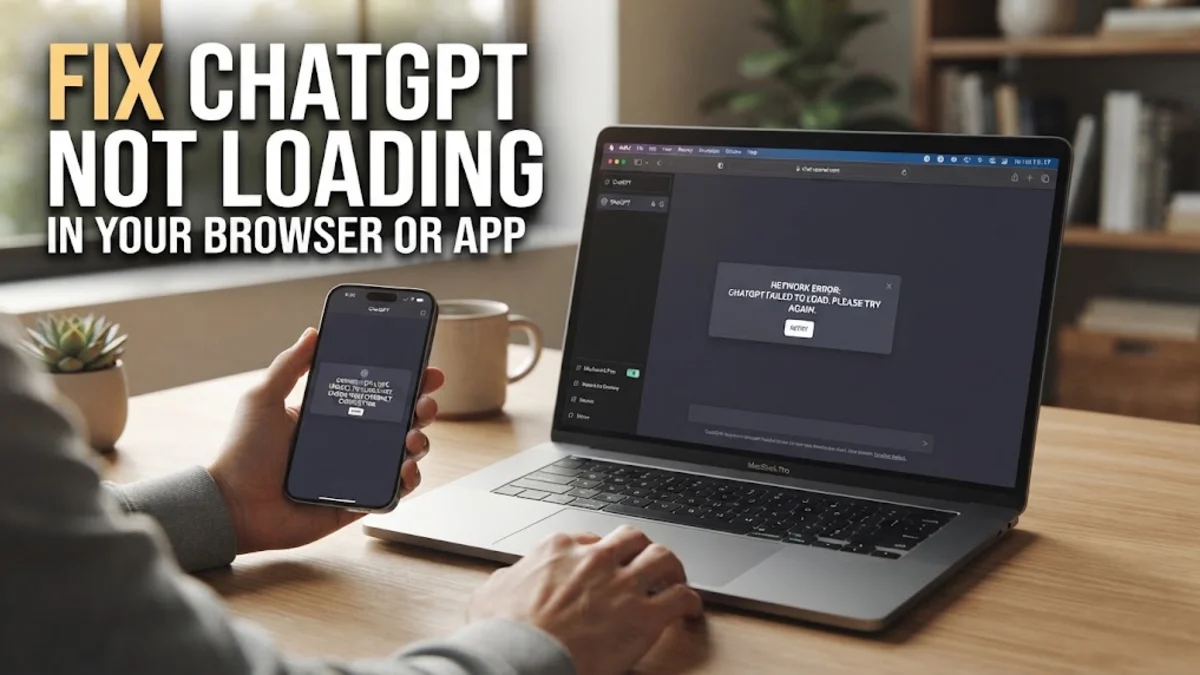
When ChatGPT refuses to load, hangs endlessly on a blank screen, or fails to send messages, it can completely disrupt your workflow. This issue is usually caused by temporary OpenAI server outages, corrupted browser cache files, active VPN connections, or aggressive ad-blocking extensions interfering with background scripts.
Fortunately, resolving ChatGPT loading failures is straightforward. This step-by-step troubleshooting guide walks you through diagnosing the root cause and applying proven fixes on desktop browsers, mobile devices, and official desktop apps without losing your conversation history.
Check OpenAI Server Status and Outage Reports
Before tweaking your browser settings or restarting network hardware, check whether the underlying issue lies on OpenAI's infrastructure. ChatGPT relies on complex cloud services and server clusters that occasionally experience unexpected downtime, high network traffic, or maintenance windows. When severe outages occur, the web client fails to load its interface, displaying a blank screen or a generic server error.
To verify service health, open a browser tab and navigate to status.openai.com. This official dashboard tracks real-time availability across ChatGPT services, API services, and login infrastructure. Review the incident log for active disruptions or degraded performance alerts. You can also visit community monitoring portals like Downdetector to see if other users in your region are reporting similar access issues. If an official outage is confirmed, local troubleshooting will not help; you must wait until OpenAI restores cloud server functionality.
Clear Browser Cache and Cookies for ChatGPT
Corrupted local cache files, outdated scripts, or broken session cookies are among the primary reasons ChatGPT fails to render correctly. Web browsers store cached elements to accelerate load times on subsequent visits. However, whenever OpenAI updates its frontend scripts or security protocols, obsolete cached files can create conflicts, causing infinite loading spinners or failed authorization requests.
Clearing site-specific browsing data forces your browser to download fresh assets directly from OpenAI. To clear data for ChatGPT in Google Chrome, Microsoft Edge, or Brave, follow these steps:
- Open your browser and navigate to
chatgpt.com. - Click the lock icon (view site information) located on the left side of the address bar.
- Select Site settings from the drop-down menu.
- Click Clear data and confirm your choice.
Alternatively, open your browser settings directly. In Chrome on Windows or Mac, go to Settings > Privacy and security > Delete browsing data. Set the time range to All time, check Cookies and other site data along with Cached images and files, and click Delete data. Close and reopen your browser before attempting to sign back into ChatGPT.
Disable Conflicting Browser Extensions and Ad Blockers
Browser extensions—especially privacy shields, ad blockers, script managers, and third-party AI companion overlays—frequently disrupt ChatGPT web communication. Security extensions often misidentify background WebSocket connections or telemetry API queries as invasive tracking scripts, blocking them automatically and preventing the interface from loading.
To verify whether an extension is responsible for the problem, test ChatGPT inside an isolated browsing session. Open a new private or incognito window by pressing Ctrl + Shift + N on Windows or Cmd + Shift + N on macOS. Log into your account inside the private window. If the interface loads seamlessly, an active extension in your main profile is blocking the connection.
To pinpoint and remove the troublesome add-on, navigate to Settings > Extensions > Manage Extensions in your browser. Toggle off all active extensions, then re-enable them individually while refreshing ChatGPT after each one until you find the extension causing the conflict.
Turn Off VPNs, Proxies, and Custom DNS Settings
Virtual Private Networks (VPNs), custom proxy setups, and security-focused DNS resolvers redirect your network traffic through intermediary servers. Cloudflare, the security provider protecting ChatGPT against automated attacks, routinely flags IP addresses belonging to heavily populated VPN endpoints. If your active IP address triggers automated security flags, ChatGPT will fail to load or lock you into an unending verification loop.
Disconnect your VPN software completely or switch to a different server location. If you rely on system-level proxy configurations, turn them off by navigating to Settings > Network & internet > Proxy on Windows 11, or System Settings > Network > Proxies on macOS.
Additionally, check your local network DNS settings. If your custom DNS provider blocks domains required by OpenAI, revert your DNS settings to automatic assignment (DHCP) or test well-known public DNS resolvers such as Google Public DNS (8.8.8.8) or Cloudflare DNS (1.1.1.1).
Flush DNS Cache and Reset Sockets on Desktop
Stale domain resolution data or corrupted network sockets at the operating system level can prevent your computer from establishing a stable connection with ChatGPT endpoints. Flushing your system's Domain Name System (DNS) cache forces the OS to re-fetch the correct IP addresses for OpenAI servers.
On Windows 11 or Windows 10, execute a DNS flush through the command line:
- Click the Start menu, search for
Command Prompt, right-click it, and select Run as administrator. - Type
ipconfig /flushdnsand press Enter. - Type
netsh winsock resetand press Enter to repair network sockets. - Restart your computer.
On macOS, launch Terminal from Applications > Utilities, execute sudo dscacheutil -flushcache; sudo killall -HUP mDNSResponder, press Return, and enter your administrator password when prompted.
Clear Application Cache or Reinstall the App on Mobile
If ChatGPT is not loading when using the official mobile app on Android or iOS, stored local app cache or corrupted application binaries are likely preventing startup. Clearing the local app cache cleans temporary file errors without deleting your account history.
On Android, navigate to Settings > Apps > ChatGPT > Storage & cache. Tap Clear cache. If the app continues to freeze on launch, return to this screen and tap Clear storage (or Clear data) to perform a clean app reset.
On iPhone or iPad, go to Settings > General > iPhone Storage > ChatGPT. Select Offload App to delete temporary binary caches while maintaining essential data, then tap Reinstall App. Alternatively, uninstall the app completely from the Home Screen and download a fresh copy from the Apple App Store or Google Play Store.
The bottom line
Resolving ChatGPT loading issues usually requires identifying whether the problem lies with OpenAI server infrastructure, browser extensions, or network security configurations. By systematically clearing site data, disabling conflicting extensions, and pausing VPN services, you can quickly bring the AI assistant back online.
If ChatGPT remains unresponsive across all browser instances on your local Wi-Fi, try connecting via a mobile cellular hotspot. A working cellular connection indicates an issue with your home router or internet service provider, which can usually be fixed by restarting your router or updating its firmware.
Frequently asked questions
Why is ChatGPT displaying a blank white or black screen?
A blank screen is usually caused by corrupted local browser cache, outdated session cookies, or ad-blocking extensions intercepting essential JavaScript files. Clearing your browser cache or opening the site in Incognito Mode usually fixes this problem.
Does using a VPN prevent ChatGPT from loading?
Yes, using a VPN can block ChatGPT. Cloudflare and OpenAI flag IP addresses shared by high-volume VPN servers to defend against automated bot traffic. Disconnecting your VPN or changing your server location resolves the block.
Why does ChatGPT load in Incognito Mode but not normal mode?
Incognito Mode runs without active extensions, cached files, or pre-existing cookies. If ChatGPT works in Incognito Mode, a browser extension or corrupted cookie in your main profile is causing the interference.
How can I check if ChatGPT is down globally?
Visit status.openai.com or check third-party status monitors like Downdetector. These services provide real-time updates regarding service disruptions, high latency, and maintenance schedules.
What should I do if ChatGPT is blocked on a school or work network?
If network administrators have restricted access to ChatGPT domains, web troubleshooting steps won't work. Switch your device to a personal mobile data hotspot to bypass local network firewalls.