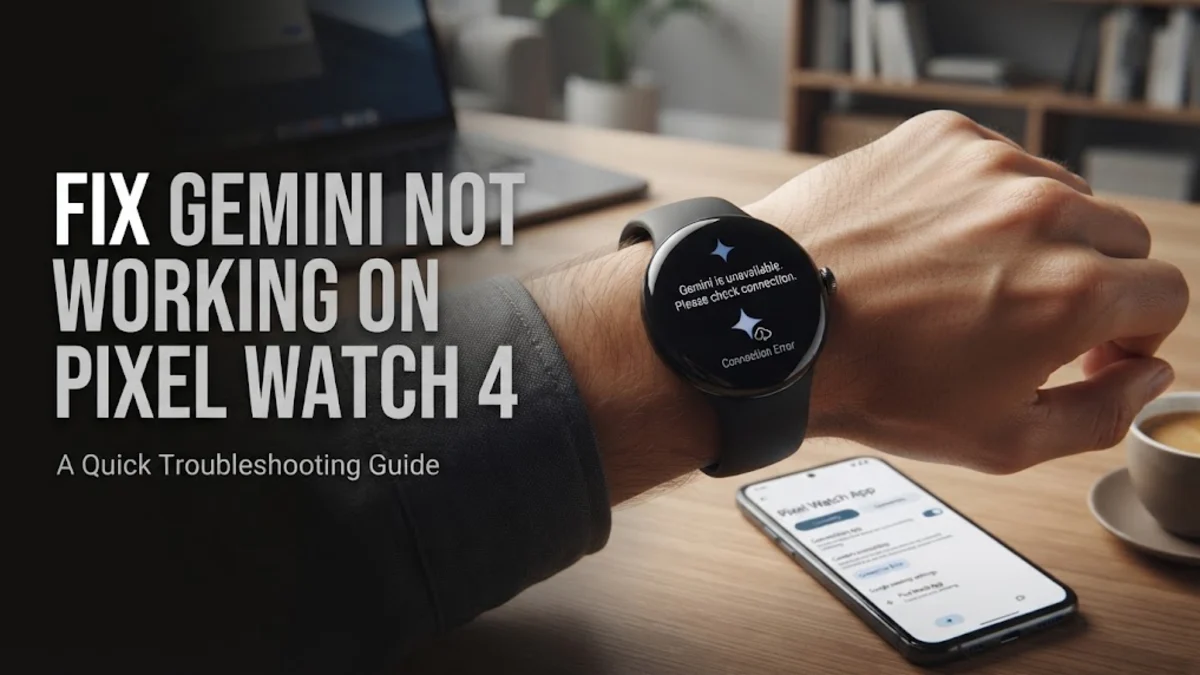
If you find Gemini not working on Pixel Watch 4, you are likely encountering an issue with either the cloud handshake between your watch and phone or a localized software glitch on Wear OS. In 2026, Gemini has become the primary intelligence interface for the Google ecosystem, and when it fails to respond to your voice or button triggers, it can disrupt your entire workflow, from setting reminders to managing smart home devices.
Most instances of Gemini failing on the Pixel Watch 4 are related to account synchronization, background data restrictions, or the transition between the legacy Google Assistant and the newer Gemini AI interface. This guide walks you through a series of technical fixes, starting with the simplest connectivity resets and moving toward deeper system-level configurations to ensure your wearable assistant is fully functional.
1Verify Connectivity and Account Matching
The most common reason for Gemini not working on Pixel Watch 4 is a breakdown in communication between the watch and the paired smartphone. Because Gemini processes much of its advanced logic in the cloud, even a minor interruption in the Bluetooth or Wi-Fi bridge can cause the 'Something went wrong' error. First, ensure your phone has a stable internet connection and that Bluetooth is active on both devices. A frequent mistake is having the watch connected to a guest Wi-Fi network that requires a web-based login, which the watch cannot always complete, leading to a silent failure of AI services.
Another critical factor is account parity. Gemini requires that the primary Google account on your Pixel Watch 4 matches the primary account on your smartphone. If you use multiple accounts for work and personal use, the watch may occasionally default to a secondary profile that does not have Gemini enabled or is restricted by Workspace administrator policies. Open the Watch app on your phone, navigate to Google > Google Account, and verify that the active email is the one you intended to use with Gemini. If they do not match, remove the account from the watch and re-add the correct one to force a fresh sync of your AI preferences.
2Configure App Permissions and Background Data
Gemini is a permission-heavy application that requires constant access to the microphone, location, and background data to function as intended. If you recently updated your watch software in 2026, some permissions might have been reset to a 'Ask every time' state, which can prevent the assistant from launching via voice command. On your watch, swipe down and tap Settings > Apps > App info > System Apps > Google (or Gemini if listed separately). Check the Permissions menu and ensure that Microphone is set to Allow only while using the app and that Files and media is granted.
Furthermore, Gemini needs the ability to refresh in the background. If you have enabled 'Battery Saver' mode on your Pixel Watch 4, the system may be killing the Gemini process to preserve power. To fix this, go to Settings > Battery and ensure that 'Battery Saver' is turned off while you are troubleshooting. You should also check the Data usage settings within the app info screen to confirm that Background data is toggled on. Without this, the watch cannot maintain the persistent connection required for the 'Hey Google' detection to trigger the Gemini interface.
3Clear Cache and Reset the Google App
Over time, the local storage used by the Google app on Wear OS can become corrupted, leading to lag or the assistant failing to load entirely. Clearing the cache is a non-destructive way to fix this without losing your personal settings. On your Pixel Watch 4, navigate to Settings > Apps > App info. Scroll down to find the Google app, which handles the Gemini integration on the wearable. Tap on it, then select Storage. Here, you will see options to Clear cache and Clear data.
Start by tapping Clear cache and then restart your watch by holding the crown and the side button simultaneously for about 15 seconds. If Gemini still doesn't work after the reboot, return to this menu and select Clear data (or Manage space). Note that clearing data will require you to go through the initial assistant setup process again on your watch, but it is often the most effective way to strip away 'ghost' settings from previous software versions that might be conflicting with the current Gemini build. This is particularly helpful if you see the 'Gemini is not available' message despite being in a supported region.
4Toggle Digital Assistant Preferences
As Google transitioned from the traditional Assistant to Gemini, a toggle was introduced in the settings to allow users to choose their preferred interface. Sometimes, the Pixel Watch 4 can get stuck in a state where it expects the old Assistant logic while the Gemini app is trying to take over. To resolve this conflict, you need to manually toggle the digital assistant settings. On your paired smartphone, open the Google app, tap your profile icon, and go to Settings > Google Assistant > Digital Assistants from Google. Ensure that Gemini is selected as your primary assistant.
Once confirmed on the phone, go to your watch and navigate to Settings > Google > Assistant. Turn the toggle for Hey Google off and then back on. This forced refresh tells the watch to pull the latest configuration from the cloud. If you use the 'Press and hold crown' shortcut to trigger the assistant, check Settings > Gestures > Hold crown and ensure it is still mapped to Assistant. Sometimes a system update can unmap this shortcut, making it appear as though the AI is not working when, in reality, the physical trigger has simply been disabled.
5Check Region and Language Compatibility
In 2026, while Gemini is widely available, certain advanced features and specific voice models are still restricted by region and system language settings. If your watch's system language is set to a dialect that Gemini does not yet fully support for Wear OS, the app may fail to initialize. To verify this, go to Settings > System > Language and input > Languages. For the best results, ensure that English (United States), English (United Kingdom), or English (Australia) is at the top of the list.
Additionally, check if you are using a Virtual Private Network (VPN) on your phone. If your VPN is set to a country where Gemini features are restricted, the watch will inherit those restrictions through the shared connection. Disconnect any VPN services and restart the Watch app on your phone to see if the Gemini interface reappears on your wrist. It is also worth noting that if you are using a Google Workspace account, your organization's IT admin must specifically enable 'Gemini' in the Admin Console. If they have only enabled 'Google Assistant,' the Gemini-specific features will not load on your Pixel Watch 4.
6Perform a System Update or Factory Reset
If none of the targeted fixes work, the issue may lie within a bug in the Wear OS system files that can only be resolved through an update or a full reset. First, check for pending updates by going to Settings > System > System updates. Ensure your watch is on a charger and connected to Wi-Fi. Google frequently releases 'Assistant Stability Patches' that address specific bugs with the Pixel Watch 4 hardware. If an update is available, install it and test Gemini again.
As a final resort, you may need to factory reset the watch. This will erase all data, so ensure your health data is synced to Fitbit/Google Fit and your watch faces are backed up. To reset, go to Settings > System > Disconnect & reset. After the reset is complete, set up the watch as a new device rather than restoring from a backup if possible. Restoring from a backup can sometimes bring back the very configuration error that caused Gemini to stop working in the first place. Once the clean setup is finished, Gemini should initialize correctly during the 'Getting Started' phase of the Wear OS 2026 onboarding.
Frequently asked questions
Why does Gemini say 'Check your connection' on my watch when my phone is connected?
This usually happens if the Bluetooth bridge is active but the 'Wear OS' background process on your phone has been put to sleep by battery optimization. Ensure the Pixel Watch app on your phone is set to 'Unrestricted' battery usage.
Can I use Gemini on Pixel Watch 4 without a smartphone nearby?
Only if you have the LTE version of the Pixel Watch 4 with an active data plan, or if the watch is connected directly to a known Wi-Fi network. Standard Bluetooth models require the phone to be in range to process Gemini requests.
How do I switch back to Google Assistant from Gemini on my watch?
You can change your preferred assistant in the Google app settings on your paired smartphone. Go to Settings > Google Assistant > Digital Assistants from Google and select the legacy Assistant option. Your watch will sync this change automatically.
Does Gemini on Pixel Watch 4 work with Google Workspace accounts?
Yes, but only if your organization's administrator has enabled Gemini for your account. If you see a 'Not available for this account' message, contact your IT department to verify your permissions.