How to Fix Windows 10 Bootloader Issues
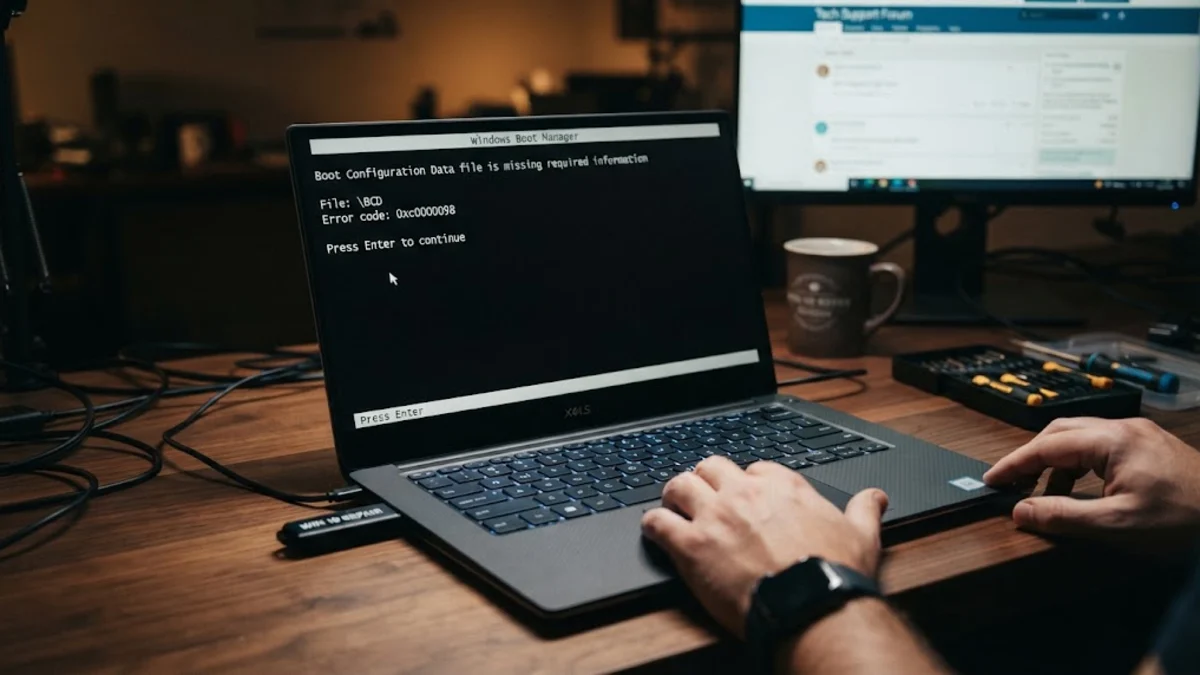
When your computer fails to start and displays a blue screen or a missing operating system error, a corrupted Windows 10 bootloader is often the culprit. This critical component of your operating system loads the kernel and essential drivers required to start your PC successfully.
Fortunately, you can repair a broken boot configuration without losing your personal files by using built-in recovery tools and command-line utilities. Follow this step-by-step guide to diagnose the issue and restore your system to a fully functioning state.
Understanding Why the Windows 10 Bootloader Fails
The Windows 10 bootloader relies on the Boot Configuration Data (BCD) store to initiate the startup sequence. When this file becomes corrupted or missing, your PC cannot locate the necessary system files to load the operating system. Common triggers for this failure include sudden power outages during updates, improper system shutdowns, disk write errors, or conflicts caused by installing dual-boot operating systems like Linux.
Before attempting any technical repairs, disconnect all external USB drives, printers, and secondary storage devices. Sometimes, the computer attempts to boot from an incompatible external medium, which triggers false bootloader errors. If your hardware is clear of external interference, you can proceed to access the recovery environment to begin fixing the underlying software corruption.
Accessing the Windows Recovery Environment
To repair the bootloader, you need access to the Command Prompt outside of the normal operating system interface. If Windows fails to boot three times consecutively, it should automatically trigger the Automatic Repair screen. From there, navigate through Troubleshoot > Advanced options > Command Prompt.
If your PC does not enter the recovery environment automatically, you will need to create a bootable USB installer using another working computer and the official Media Creation Tool. Insert the installation media, restart your PC while pressing your manufacturer's boot menu key such as F12, F8, or Esc, select your USB drive, and click Repair your computer in the bottom-left corner of the setup window before choosing Command Prompt.
Running Automatic Startup Repair
Before diving into manual command-line repairs, you should test the automated diagnostic tool built into Windows. In the recovery options menu, select Troubleshoot > Advanced options > Startup Repair. This diagnostic utility automatically scans system files, registry settings, and configuration data to detect and resolve common boot blockers without requiring manual input.
The tool can take anywhere from a few minutes to half an hour depending on your hard drive speed. If Startup Repair successfully resolves the issue, your PC will restart normally into your desktop environment. If the utility reports that it could not repair your PC, or if the boot error persists, you must move on to manual command-line reconstruction of the BCD store.
Rebuilding the Boot Configuration Data
If automated tools fail, you must rebuild the Boot Configuration Data manually using the Command Prompt. Open the Command Prompt from the advanced recovery menu and type the command bootrec /rebuildbcd and press Enter. This command scans your drives for Windows installations that are not included in the BCD store and prompts you to add them.
When the scan identifies your Windows 10 installation, press Y or A to add the installation to the boot list. If the scan returns zero installations found, do not panic. Your system files are likely intact, but the store requires a complete reset. You will need to export and rename the old corrupt BCD file before generating a fresh one using advanced disk partition commands.
Repairing the Master Boot Record and Boot Sector
Corruption often extends beyond the BCD store into the Master Boot Record (MBR) or the volume boot code. While inside the Command Prompt, type bootrec /fixmbr and press Enter to write a clean MBR to your system partition without overwriting your existing partition tables. This fixes sector-level damage caused by malware or faulty disk writes.
Next, type bootrec /fixboot and press Enter to write a new boot sector to the system partition using boot code compatible with Windows 10. If you encounter an Access Is Denied error during the fixboot command, it usually indicates that your EFI system partition lacks proper permissions or requires manual formatting. Ensure your active partition is correctly designated before proceeding to file integrity checks.
Checking and Repairing System Files Offline
A damaged bootloader is frequently a symptom of broader system file corruption. While your Command Prompt window is still open in the recovery environment, you should run the System File Checker and Deployment Image Servicing and Management tools offline. Type DISM /Image:C:\ /Cleanup-Image /RestoreHealth and press Enter, assuming C: is your main operating system drive letter.
Once the DISM scan finishes, type sfc /scannow /offbootdir=C:\ /offwindir=C:\Windows and press Enter. This commands the utility to scan all protected system files and replace corrupted or missing components with cached copies. Allow the process to complete fully, then close the command prompt and restart your computer to test if the bootloader successfully loads Windows 10.
Preventing Future Boot Failures
Once your computer successfully boots into Windows 10, take preventive measures to avoid future bootloader corruption. Regularly check your storage drive health using manufacturer diagnostic utilities or built-in SMART monitoring tools. Failing solid-state drives or mechanical hard drives often exhibit sudden file corruption before failing entirely.
Additionally, create a system image backup or keep a bootable USB recovery drive handy. Avoid forcing your computer to shut down by holding the physical power button during updates or heavy disk operations. Keeping your system software stable and maintaining backup recovery media ensures you can quickly recover from unexpected boot configuration failures in the future.
The bottom line
Fixing a corrupted Windows 10 bootloader requires patience and careful entry of command-line instructions, but it can save you from a complete operating system reinstallation. By utilizing the Windows Recovery Environment and tools like bootrec, you can restore your boot configuration data and get your computer back to a working state.
Frequently asked questions
Will fixing the bootloader delete my personal files?
No, running commands like bootrec and startup repair only modifies system configuration and boot files. Your personal documents, apps, and photos stored on the drive remain intact.
What should I do if bootrec says total identified Windows installations: 0?
This means the system cannot find the BCD store. You will need to delete or rename the old BCD file using the attrib and ren commands before running the rebuild command again.
Why do I get an Access Is Denied error on bootrec /fixboot?
This common error happens when the EFI system partition is not properly formatted or lacks security permissions. You may need to assign a drive letter to the EFI partition and format it using FAT32.
Can I fix a Windows 10 bootloader without a USB drive?
Yes, if your PC fails to boot three times in a row, Windows automatically launches the automatic repair environment where you can access the Command Prompt directly.