Best AirPods EQ Settings for Superior Audio Quality
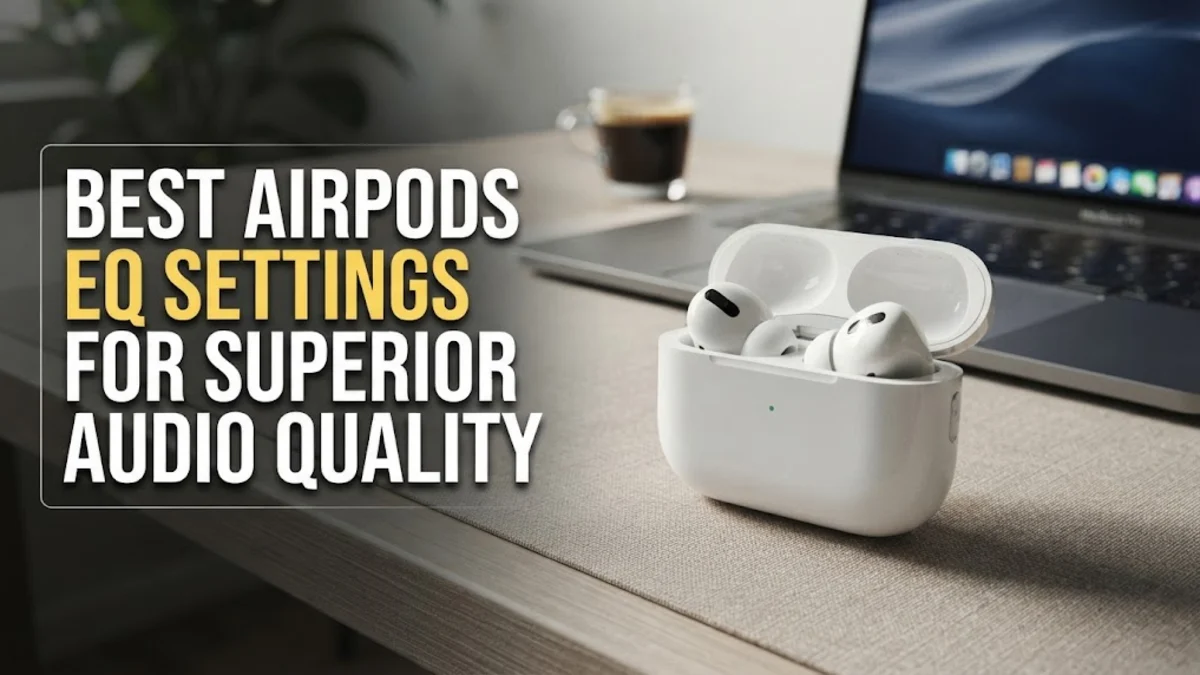
AirPods are famous for their balanced sound profile out of the box, but default factory settings do not always match your personal listening preferences or specific music genres. Whether you want deeper bass for electronic music, crystal-clear vocals for podcasts, or sharper treble for acoustic tracks, adjusting your audio settings makes a dramatic difference.
While Apple does not include a traditional multi-band equalizer in system settings, iOS provides powerful built-in accessibility tools and integration with app-specific EQ menus. This guide explains how to configure the best AirPods EQ settings across your iPhone, Apple Music, and Spotify to achieve optimal audio quality.
Why AirPods Need EQ Adjustments and How Apple Handles Audio
AirPods, AirPods Pro, and AirPods Max come equipped with Apple's Adaptive EQ technology. Adaptive EQ relies on inward-facing microphones to measure sound pressure in your ear canal, automatically tweaking low and mid frequencies in real time to compensate for fit variations. While this ensures consistent playback across different ear shapes, Adaptive EQ responds to fit rather than your personal taste in sound output.
Because iOS lacks a single graphic equalizer slider in system settings, many users assume customizing audio balance is impossible. In reality, Apple distributes sound controls across multiple layers of the operating system and within individual media applications. System features like Headphone Accommodations adjust frequencies globally, while streaming apps offer pre-rendered EQ presets or manual frequency curves before sending audio to your wireless earbuds.
How to Configure System-Wide EQ with Headphone Accommodations
The most comprehensive equalizer control on iOS is Headphone Accommodations. Unlike app-level settings, this feature applies tailored frequency boosts across phone calls, movies, system sounds, and third-party media players. It operates as a true system equalizer tailored to your hearing capabilities.
To activate Headphone Accommodations, place your AirPods in your ears and ensure they are connected to your iPhone. Open Settings > Accessibility > Audio & Visual > Headphone Accommodations, then switch the toggle to on. Once enabled, you can choose from three distinct audio tuning profiles:
- Balanced Tone: Delivers a moderate boost across all frequency bands. This is the best overall setting for daily music streaming, offering warm bass alongside clear mid-range instruments.
- Vocal Range: Elevates mid-range frequencies where human speech lives. Choose this profile if you primary listen to podcasts, audiobooks, or acoustic tracks with prominent vocals.
- Brightness: Amplifies high-frequency treble details. This option adds crispness to cymbals, string instruments, and high notes, though it may feel slightly piercing at higher volume levels.
Below the profile selection, set the adjustment slider to Slight, Moderate, or Strong. For most music lovers, setting this slider to Moderate offers noticeable detail expansion without introducing harmonic distortion. You can also select Custom Audio Setup to complete a brief hearing test that generates a personalized audiogram profile.
The Best Apple Music EQ Presets for AirPods
If you use Apple Music as your main streaming service, the app includes over two dozen built-in equalizer presets. These presets alter the frequency output of tracks directly in the playback pipeline. To choose a preset, navigate to Settings > Apps > Music > EQ (or Settings > Music > EQ depending on your iOS version) and ensure the toggle is turned on.
While testing every preset takes time, a few options deliver exceptional improvements on AirPods:
- Late Night: Widely considered the single best preset for Apple Music users. Late Night compresses the dynamic range by softening sudden loud sound spikes while boosting quiet details. On AirPods, this generates a punchier, warmer tone with elevated bass and vocal clarity at lower volume levels.
- Acoustic: Reduces harsh high frequencies while slightly boosting vocals and warm mid-bass. It shines on folk, singer-songwriter, and live acoustic recordings.
- Electronic and Hip-Hop: Both profiles boost low-end sub-bass and high treble, creating a classic V-shaped sound signature that enhances beat-driven tracks.
- Flat: Clears away artificial coloration, allowing Apple's acoustic design and Adaptive EQ to present tracks as originally mixed in the studio.
How to Customize Spotify Equalizer Settings for AirPods
Unlike Apple Music, Spotify includes a manual six-band graphic equalizer directly inside its iOS application. This grants you precise control over 60Hz, 150Hz, 400Hz, 1kHz, 2.4kHz, and 15kHz frequency bands, allowing you to build custom curves tailored to your exact AirPods model.
To access the equalizer in Spotify, open the app, tap your profile icon at the top corner, go to Settings and privacy > Playback > Equalizer, and turn the toggle on. You can select standard presets like Bass Booster, or manually drag the dots on the frequency graph to create these optimized configurations:
- Punchy Bass Profile: Set 60Hz to +4dB, 150Hz to +2dB, 400Hz to 0dB, 1kHz to +1dB, 2.4kHz to +2dB, and 15kHz to +3dB. This adds deep, satisfying impact to low end without obscuring vocals.
- Vocal & Vocal Clarity Profile: Set 60Hz to 0dB, 150Hz to -1dB, 400Hz to +1dB, 1kHz to +3dB, 2.4kHz to +4dB, and 15kHz to +2dB. This pushes vocalists and lead instruments to the front of the mix.
- Smooth Everyday Curve: Set 60Hz to +2dB, 150Hz to +1dB, 400Hz to 0dB, 1kHz to +1dB, 2.4kHz to +2dB, and 15kHz to +1dB. This gentle wave shape enhances energy across all genres without causing ear fatigue over hours of listening.
Optimizing Spatial Audio and Personalized Spatial Audio
Equalization only covers frequency levels, but spatial acoustics play an equally important role in sound quality. Apple's Spatial Audio uses dynamic head tracking and directional sound filters to create an immersive, multi-dimensional soundstage within your AirPods.
To ensure Spatial Audio does not hollow out mid-range frequencies or weaken bass reproduction, enable Personalized Spatial Audio. This feature utilizes your iPhone's TrueDepth front camera to map your head shape and ear geometry, tailoring acoustic rendering specifically to your anatomy. Go to Settings > Bluetooth, tap the Info icon next to your AirPods, and select Personalized Spatial Audio to begin the setup process.
If traditional stereo music sounds artificially echoey or light on bass, open Control Center while playing audio, press and hold the volume slider, and change Spatialize Stereo from Head Tracked to Fixed, or turn it off completely for direct stereo sound.
Genre-Specific EQ Quick Reference Table
Different styles of music emphasize different parts of the sound spectrum. Using a single EQ curve across every playlist can make heavy electronic tracks sound thin or classical symphonic pieces sound muffled. The table below lists the recommended configuration combinations across iOS, Apple Music, and Spotify for common media types:
| Genre or Media | iOS Headphone Profile | Best Apple Music Preset | Spotify Curve Adjustment |
|---|---|---|---|
| Hip-Hop & EDM | Balanced Tone (Moderate) | Electronic or Late Night | Boost 60Hz (+4dB) and 15kHz (+3dB) |
| Rock & Alternative | Balanced Tone (Slight) | Acoustic or Rock | Boost 150Hz (+2dB) and 2.4kHz (+3dB) |
| Classical & Jazz | Brightness (Slight) | Classical or Flat | Flat curve with slight 15kHz lift (+2dB) |
| Podcasts & Speech | Vocal Range (Moderate) | Spoken Word | Boost 1kHz (+3dB) and 2.4kHz (+4dB) |
Troubleshooting AirPods Audio Quality and EQ Issues
If your AirPods continue to sound flat, muffled, or unexpectedly quiet after adjusting equalizer settings, hardware and system software limitations may be interfering. Before resetting your settings, perform these practical troubleshooting checks:
First, inspect the speaker grilles on your AirPods. Earwax, oil, and dust accumulation in the fine acoustic mesh significantly diminish volume and stifle treble response. Clean the grilles gently using a clean, dry cotton swab or a soft-bristled brush. Never use liquid cleaners or sharp metal objects directly on speaker meshes.
Second, check for restrictive safety limits in iOS. Go to Settings > Sounds & Haptics > Headphone Safety and examine the Reduce Loud Sounds toggle. If set to an aggressive decibel limit such as 75 dB or 80 dB, iOS dynamically squashes volume spikes, ruining custom EQ curves. Finally, if you use AirPods Pro or AirPods 4 ANC, ensure your ear tips fit properly by running the Ear Tip Fit Test in your AirPods Bluetooth menu, as a poor seal destroys bass response regardless of EQ settings.
The bottom line
Customizing your AirPods EQ settings does not require complex third-party apps or technical knowledge. By taking advantage of iOS Headphone Accommodations alongside dedicated equalizer options in Apple Music or Spotify, you can unlock richer bass, clearer vocals, and overall superior audio quality.
Experiment with different profiles and presets using your favorite songs to find the precise sound signature that matches your hearing preferences and device model.
Frequently asked questions
Is there a built-in multi-band equalizer for AirPods in iPhone settings?
iOS does not feature a traditional multi-band graphic equalizer in main system settings. However, you can achieve global system equalization using Headphone Accommodations in Accessibility settings, or use dedicated equalizers inside apps like Spotify and Apple Music.
Which Apple Music EQ preset is best for AirPods?
The Late Night preset is widely considered the best option for Apple Music on AirPods. It balances sound levels by bringing up quiet details and boosting bass response without introducing distortion at lower volume levels.
Why do my AirPods sound quiet even after enabling an EQ profile?
Quiet audio is usually caused by dirt buildup in the speaker mesh, an improper ear tip seal, or active volume limits under Settings > Sounds & Haptics > Headphone Safety. Clean the mesh and check your safety decibel caps to resolve this.
Do custom EQ settings drain AirPods battery faster?
No, adjusting EQ settings does not significantly impact AirPods battery life. Equalization audio processing takes place on your iPhone before transmitting the digital audio stream to your earbuds via Bluetooth.
How do I turn off all EQ settings on my iPhone?
To disable all audio adjustments, go to Settings > Accessibility > Audio & Visual > Headphone Accommodations and switch it off. Then go to Settings > Apps > Music > EQ and select Off, and turn off any equalizers inside third-party media apps.