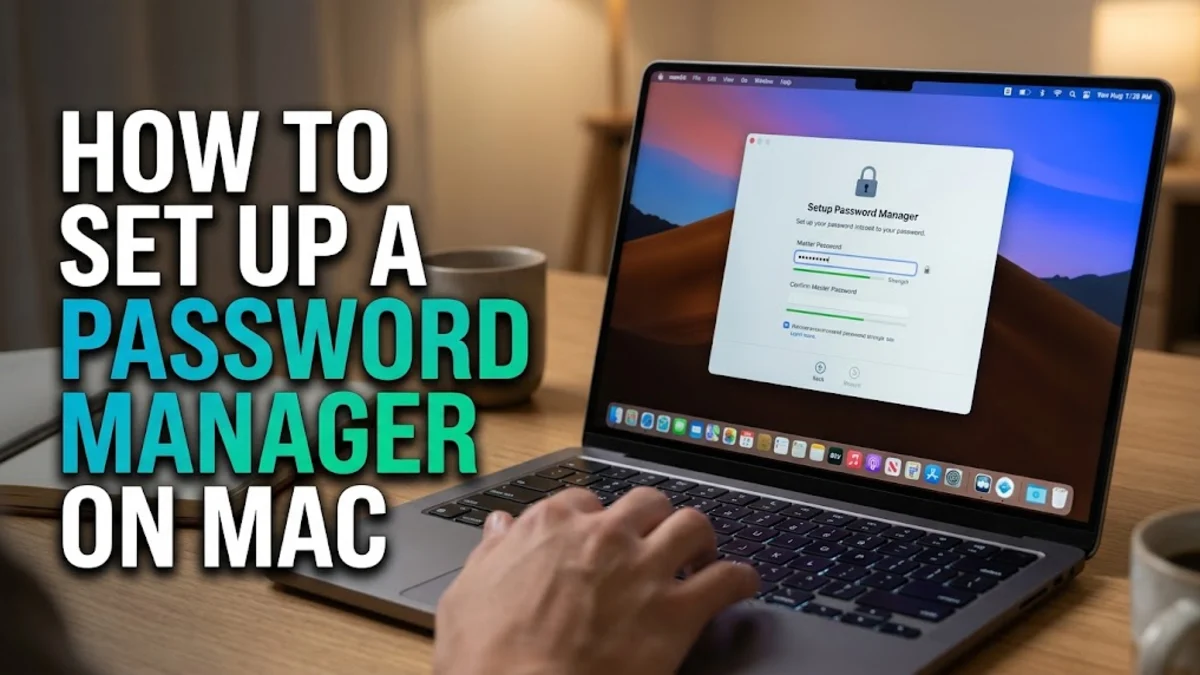
Setting up a password manager on your Mac is the single most effective way to secure your online accounts, generate strong credentials, and streamline your daily browsing. Whether you prefer Apple's deeply integrated ecosystem tool or a powerful cross-platform third-party application, configuring a secure vault takes only a few minutes.
1Understanding Your Password Manager Options on macOS
Before you begin the setup process, it helps to understand what options are available natively versus what you can download. macOS features a robust built-in credential manager called Apple Passwords, which synchronizes seamlessly across all your Apple devices via iCloud Keychain. This native tool is completely free, highly secure, and requires no external downloads, making it an ideal choice if you primarily use Apple hardware like an iPhone, iPad, and Mac. Alternatively, third-party password managers offer advanced cross-platform compatibility, secure file sharing, emergency access features, and dedicated applications for Windows and Android devices. Deciding which route to take depends on your hardware ecosystem and whether you need features beyond basic credential storage and autofill capabilities. Evaluating these factors ensures you select a solution that matches your workflow while maintaining the highest standard of account security.
2How to Enable and Configure Apple Passwords on macOS
If you choose to use Apple's built-in password manager, you likely already have access to it through your Apple Account. To verify and configure it properly, open System Settings from your dock or the Apple menu in the top-left corner. Scroll down and click on your name at the top of the sidebar, then select iCloud. Under the apps syncing to iCloud, click on Passwords and Keychain and ensure the toggle is switched on. Once enabled, you can manage your stored credentials directly by clicking on Passwords in the main System Settings sidebar. You will be prompted to authenticate your identity using your login password or Touch ID. From this menu, you can view existing saved entries, check for weak or compromised passwords using built-in security recommendations, and add new login details manually by clicking the plus icon.
3Installing and Setting Up a Third-Party Password Manager
For users who manage multiple platforms or prefer a dedicated standalone application, installing a third-party service like 1Password or Bitwarden is straightforward. Visit the developer's official website or the Mac App Store to download the official macOS installer package. Once downloaded, open the installer file and drag the application icon into your Applications folder. Launch the application for the first time and choose to create a new account. You will be guided through creating a strong master password and, depending on the service, generating a secret key or recovery code. It is critical to store this recovery information in a secure physical location because third-party zero-knowledge architecture means the company cannot reset your master password if you lose it. After completing the initial account creation, log into your new vault and familiarize yourself with the desktop interface.
4Enabling Browser Extensions for Seamless Autofill
A password manager is only as convenient as its integration with your web browser. To ensure login credentials fill automatically when you visit websites, you must install and configure the corresponding browser extension. Open your preferred browser, such as Safari, Google Chrome, or Mozilla Firefox, and navigate to its extension store or settings menu. Search for your password manager extension and click Install or Add to Browser. Once installed, click on the extension icon in your toolbar and sign in using your master password or sync it with your desktop application. In Safari, you may also need to navigate to Safari > Settings > Extensions and check the box to enable autofill permissions. This setup allows the extension to detect login forms securely, suggest unique strong passwords upon registration, and autofill your details with a single click.
5Configuring Touch ID for Instant Access
Typing a long master password every single time you need to retrieve a login can become tedious, which is why enabling biometric authentication is essential for daily convenience. Most modern MacBooks feature Touch ID built into the keyboard, and password managers fully support this hardware feature. Open your password manager's desktop application settings and look for a security or unlock tab. Check the box labeled Unlock with Touch ID or Use Touch ID for Mac. You will be prompted to enter your master password one final time to authorize biometric linking. Once enabled, whenever your vault locks due to inactivity, you can instantly unlock it by placing your registered finger on the Touch ID sensor. This balances maximum security with effortless day-to-day usability without compromising your master key integrity.
6Importing Existing Passwords from Browsers
If you have spent years saving usernames and passwords directly inside web browsers like Chrome or Safari, you do not need to re-enter them manually. Both built-in and third-party password managers feature robust import tools designed to migrate your data securely. To export your browser data, open your browser settings, navigate to the password management section, and click the menu icon to select Export Passwords. This will generate a comma-separated values file containing your unencrypted credentials, so make sure you delete this file immediately after the import is complete. Open your new password manager, go to File > Import, select your browser type, and upload the exported file. Your vault will populate instantly, allowing you to delete the insecure browser caches and centralize your security management.
Frequently asked questions
Are Mac password managers safe to use?
Yes, password managers use advanced encryption standards such as AES-256 to secure your vault, ensuring that unauthorized users cannot read your data even if intercepted.
Can I use Apple Passwords on Windows or Android?
Apple Passwords is primarily designed for the Apple ecosystem, though Apple provides limited access via iCloud extensions for Windows browsers.
What happens if I forget my master password?
For third-party managers using zero-knowledge architecture, the company cannot recover your password, making your emergency recovery kit vital. Apple Passwords can be reset using your device passcode or Apple Account.
Do password managers cost money?
Apple Passwords is free with macOS. Many third-party managers offer robust free tiers, while premium subscriptions unlock advanced sharing and cloud syncing features.
How do I make sure autofill works correctly?
Ensure that browser extension permissions are enabled in your browser settings and that the password manager application is running in the background.