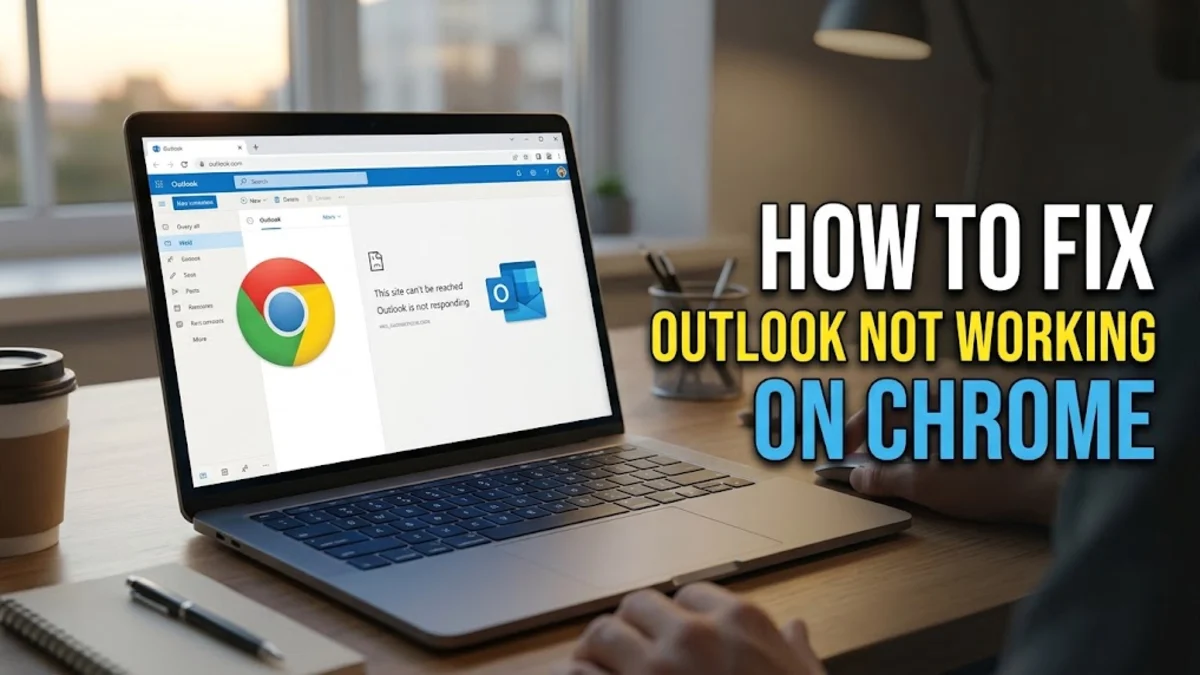
When Outlook refuses to load or keeps crashing inside Google Chrome, managing your emails and calendar can grind to a halt. This issue typically stems from corrupted browser cache, conflicting extensions, or outdated web data preventing the Outlook web app from executing properly.
1Clear Browser Cache and Cookies
Corrupted cache files and outdated cookies are the most frequent culprits when Outlook stops responding or displays blank pages in Google Chrome. Over time, temporary website data accumulates and can conflict with recent updates deployed by Microsoft's web servers. When modern web applications like Outlook load complex JavaScript and rendering elements, mismatched local cache files can throw fatal runtime exceptions, freezing the tab or trapping you in an endless loading loop. To resolve this, you need to clear the specific browsing data associated with Outlook rather than wiping your entire browsing history. Open Chrome, click the three-dot menu icon in the top-right corner, and navigate to Settings > Privacy and security > Delete browsing data. Alternatively, you can click the settings icon directly in your address bar while on the Outlook page, select Site settings, and click Clear data and Reset permissions. This forces Chrome to fetch fresh files from the server the next time you log in, bypassing any corrupted scripts that may have caused the freezing or loading failure. Make sure to restart your browser completely after clearing these files to ensure all background processes are cleanly terminated.
2Disable Conflicting Extensions and Ad Blockers
Third-party browser extensions, particularly aggressive ad blockers, privacy shields, and script blockers, frequently interfere with web applications like Outlook. These tools can mistakenly block essential background API requests and telemetry scripts required for Outlook to fetch incoming messages, sync calendars, or render the user interface correctly. For instance, strict content blockers often catch Outlook's authentication tokens or background polling scripts in their net, causing the app to hang indefinitely on a blue loading screen. To test if an extension is causing the disruption, open an Incognito window by pressing Ctrl + Shift + N (or Cmd + Shift + N on Mac) and log into Outlook. If it works normally in Incognito mode, an extension is definitively the problem. Go to Extensions > Manage extensions from the Chrome menu, and temporarily disable ad blockers, password managers, or translation tools one by one. Once you identify the culprit, you can whitelist the Outlook web domain in that specific extension settings menu to restore full functionality without sacrificing your overall browsing protection.
3Check Network and Firewall Settings
Sometimes the issue is not with Chrome or Outlook itself, but with your local network connection, DNS resolution, or security software blocking the specific ports and protocols Outlook relies on for live communication. Microsoft Outlook Web App relies heavily on continuous WebSocket connections and secure HTTPS polling to deliver real-time notifications and message updates. Strict corporate firewalls, virtual private networks (VPNs), or overly protective third-party antivirus programs can flag these continuous connections or block required Microsoft API endpoints. If you are using a VPN, try temporarily disconnecting it to see if Outlook loads properly. Additionally, check your local network connection by switching to a different Wi-Fi network or mobile hotspot if available. If Outlook opens immediately on another network, your primary router firewall, DNS configuration, or internet service provider may be blocking required domains. You can also press F12 to open Chrome Developer Tools, navigate to the Network tab, and refresh Outlook to see if specific requests are returning red error codes like 403 Forbidden or 504 Gateway Timeout.
4Toggle Hardware Acceleration in Chrome
Hardware acceleration allows Google Chrome to offload heavy graphical computations from your central processor to your computer's dedicated or integrated graphics card, aiming to make web pages render faster and scroll more smoothly. However, outdated graphics drivers, GPU memory leaks, or hardware incompatibilities can cause complex web applications like Outlook to freeze, display visual artifacts, or fail to load entirely. If Outlook locks up right after signing in or shows a completely blank white screen, toggling this feature can make a significant difference. Navigate to Settings > System in Google Chrome using the address bar. Locate the toggle labeled Use graphics acceleration when available and switch it off. Click the blue Relaunch button that appears next to the toggle to restart the browser. Return to your Outlook tab and check if the interface now operates without freezing, crashing, or displaying rendering errors. If this resolves the problem, consider checking for graphics card driver updates through your operating system settings to ensure long-term stability.
5Reset Chrome Settings to Default
If you have tried clearing your cache, disabling extensions, and adjusting hardware settings with no success, your Chrome browser configuration may have deeper underlying profile corruptions, conflicting flag experiments, or broken preference files. Resetting Chrome restores default settings, startup pages, search engines, and shortcut tabs while disabling all extensions and clearing temporary data like cookies without touching your saved bookmarks, browsing history, and saved passwords. To perform this deep reset safely, go to Settings > Reset settings > Restore settings to their original defaults from the main Chrome menu. A confirmation dialog box will appear detailing exactly what settings will be modified. Confirm your choice by clicking the Reset settings button. After the reset process finishes, restart Google Chrome completely, log back into your Microsoft account, and access Outlook to verify that the application functions normally. This nuclear option virtually guarantees that any browser-side configuration bugs are entirely eliminated from your profile.
Frequently asked questions
Why does Outlook keep freezing only in Google Chrome?
Outlook may freeze in Chrome due to accumulated corrupted cache files, incompatible browser extensions, or conflicts with hardware acceleration settings.
Does clearing Chrome cache delete my saved Outlook emails?
No, clearing your browser cache and cookies only removes temporary files stored locally by websites. Your emails, folders, and settings are stored safely on Microsoft cloud servers.
How do I know if an extension is blocking Outlook?
Open an Incognito window in Chrome and try logging into Outlook. If it works without issues in Incognito mode, one of your active extensions is likely causing the interference.
Should I use the Outlook Progressive Web App instead?
Yes, installing Outlook as a Progressive Web App via Chrome gives you a dedicated desktop-like application window that often bypasses browser-specific loading and tab management issues.