How to Fix ChatGPT Payment Was Not Approved
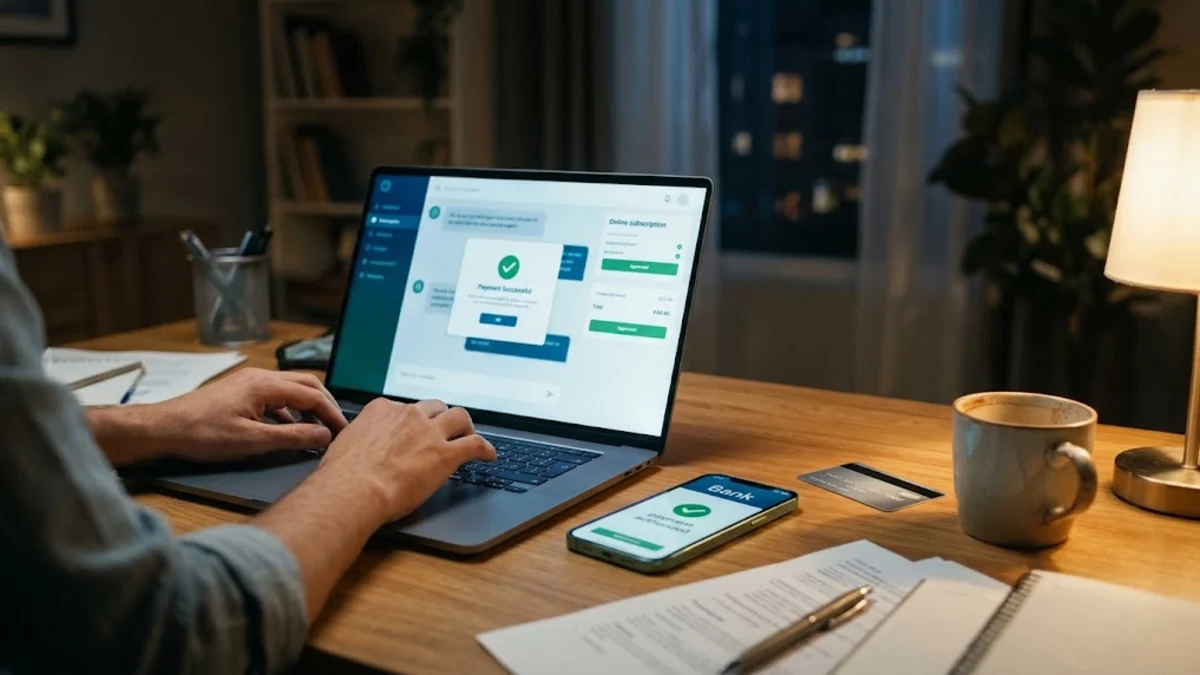
When you see the message stating your ChatGPT payment was not approved, OpenAI's billing processor—Stripe—has declined the transaction before charging your account. This error most commonly occurs due to automated anti-fraud security filters, a missing 3D Secure verification prompt, an address mismatch, or your bank blocking an international recurring transaction.
Resolving the issue usually takes just a few minutes once you identify whether the block originated with your financial institution or Stripe's risk engine. Follow these troubleshooting steps in order, starting with the fastest verification checks and moving to guaranteed alternative billing routes.
Why OpenAI and Stripe Reject Subscription Payments
OpenAI uses Stripe as its global payment infrastructure to process subscriptions for ChatGPT Plus, Team, and API platform credits. Stripe employs a rigorous automated fraud prevention system known as Radar. When you enter your card details and click submit, Radar evaluates dozens of risk indicators in real time, including your network IP location, browser fingerprint, card issuing country, and past decline history across Stripe's merchant network.
If Radar detects any anomaly—such as an active commercial VPN, an IP address located in a different jurisdiction from the card's issuing country, or repetitive checkout attempts within a short window—it flags the attempt as high-risk and rejects it immediately. Beyond automated merchant flags, traditional banks frequently decline OpenAI billing attempts because OpenAI is registered as an international merchant in the United States, triggering automated travel and foreign transaction restrictions on standard domestic debit cards.
Step 1: Contact Your Bank and Enable International Transactions
The single most frequent reason behind an unapproved payment is your bank's automated fraud department blocking the transaction. Because OpenAI charges originate as recurring digital services, many financial institutions in the United Kingdom, Canada, Australia, and parts of Europe halt the charge until you explicitly confirm its legitimacy.
Open your banking app or log into your online banking dashboard on your computer to check for pending security notices:
- Navigate to your card settings, typically found under Manage Cards > Security & Permissions > International Transactions, and make sure overseas and online card-not-present purchases are enabled.
- Check your SMS inbox or banking app push notifications for a real-time fraud alert asking if you attempted a charge from "OpenAI" or "Stripe". Reply with confirmation (often texting "YES") if prompted.
- If no automated prompt appears, call the customer service number on the back of your card. Inform the representative that you are attempting a legitimate online software subscription to a United States-based merchant (OpenAI) and ask them to remove the temporary authorization hold on your card for the next 24 hours.
Step 2: Disable VPNs, Proxies, and Private Browsing Extensions
Using a virtual private network (VPN) or privacy extension while attempting to checkout is a primary cause of immediate payment rejection. Stripe's fraud detection engine automatically calculates a risk score based on the consistency between your physical network location, your browser's time zone, and your card's billing country. Connecting through a data center IP address or a rotating proxy triggers an instant security flag.
Before re-entering your payment details, shut down any desktop VPN client like NordVPN, ExpressVPN, or ProtonVPN completely. If you are using privacy-oriented browsers like Brave, temporarily lower the built-in shields, or turn off DNS-over-HTTPS tools and third-party ad-blocking extensions like uBlock Origin that might block Stripe's essential anti-fraud scripts (such as m.stripe.network).
For the cleanest connection, switch your computer to your standard home broadband Wi-Fi, or tether temporarily to your mobile phone's cellular network, which provides a clean residential IP address that passes merchant risk checks without resistance.
Step 3: Ensure Exact Address and Postal Code Matching
OpenAI enforces Address Verification Service (AVS) checks through Stripe. If the billing details you input into the checkout screen do not match the legal records held by your bank, the transaction is rejected automatically, even if the card number, expiration date, and CVV code are completely accurate.
Carefully review the address fields on the OpenAI payment screen:
- Postal / ZIP Code: Enter the exact postal code associated with your bank account statement. In the UK, enter the full alphanumeric post code including the center space; in Australia or Canada, verify that no extra digits or auto-filled foreign zip codes were injected by your browser's autofill.
- Street Address: Keep the address field concise. If your bank statement lists an apartment or unit number, make sure it matches the formatting on your monthly statement (for example, "Apt 4B" versus "Unit 4-B").
- Country Selection: The country dropdown on the checkout page must match the issuing country of your card. You cannot use an Australian credit card while selecting United States as your billing destination.
Step 4: Switch to a Supported Card Type
Not all payment cards are compatible with OpenAI's recurring subscription architecture. Stripe requires cards that support recurring continuous payment authorities (CPAs) and dynamic 3D Secure (3DS) two-factor authentication challenges.
| Card Type | Supported Status | Common Issues |
|---|---|---|
| Physical Visa / Mastercard Credit Cards | Fully Supported | Rarely fails if international charges are permitted. |
| Major Bank Debit Cards | Supported | Requires sufficient balance and online payment permissions enabled. |
| Prepaid & Gift Cards (Vanilla, etc.) | Not Supported | Lacks registered cardholder identity; automatically declined by Stripe. |
| Virtual Cards (Fintech / Disposable) | Varies | Single-use virtual cards fail recurring billing; Revolut multi-use cards generally pass. |
| American Express / Discover | Supported in Select Regions | Occasionally rejected outside the US due to higher interchange risk scores. |
If you have been attempting to use a prepaid gift card, a temporary virtual single-use card, or an unverified digital wallet card, replace it with a standard credit or debit card issued by an established national bank. Prepaid cards are categorically blocked by OpenAI to prevent trial abuse and fraudulent sign-ups.
Step 5: Bypass Stripe via Apple App Store or Google Play Billing
If your payment card continues to fail on the desktop web interface despite multiple attempts, the most effective workaround is to subscribe directly through the official ChatGPT mobile application on an iPhone, iPad, or Android device.
When you subscribe inside the mobile app, the payment is processed by Apple or Google rather than OpenAI's web-based Stripe portal. Both app stores use their own established billing accounts, which easily accept local payment methods, PayPal, carrier billing, and regional debit cards that Stripe frequently rejects.
- Download and install the official ChatGPT app by OpenAI from the Apple App Store or Google Play Store.
- Log in using the exact same OpenAI account credentials you use on your computer.
- Tap the sidebar menu icon in the top corner and navigate to Settings > Account.
- Tap Upgrade to ChatGPT Plus.
- Confirm the subscription using Face ID, Touch ID, or your Google account credentials.
Once the mobile in-app purchase completes, your Plus entitlement is instantly linked to your OpenAI account. You can immediately return to your web browser on your PC or Mac, refresh the page, and access all Plus features across every device without ever running your card through Stripe.
Step 6: Clear Checkout Cookies and Reset Your Session
When a payment attempt fails repeatedly, Stripe and OpenAI's checkout session caches the failure state in your browser's local storage. Subsequent clicks on the subscribe button can result in an instant decline before the browser even sends a new request to your card issuer.
To clear the corrupted checkout state:
- Log out of ChatGPT completely by clicking your profile name in the bottom-left corner and selecting Log out.
- Open a private browsing window by pressing Ctrl + Shift + N on Windows or Cmd + Shift + N on a Mac.
- Alternatively, in your browser settings, navigate to Settings > Privacy and security > Cookies and other site data, search for
openai.comandstripe.com, and delete all associated cookies and site data. - Log back into ChatGPT inside the fresh incognito window and try the checkout process once more. Avoid making more than three rapid attempts; if three consecutive attempts fail, wait 24 hours before trying again to prevent your IP address from receiving an extended security cooldown.
The bottom line
Encountering the ChatGPT payment was not approved error is frustrating, but it rarely means your card is invalid. In almost every case, the rejection stems from your bank's default international transaction blocks or Stripe's strict automated fraud filters catching VPNs and mismatched postal codes. By verifying online permissions with your bank, disabling network privacy tools, or bypassing the web checkout entirely by subscribing through the Apple App Store or Google Play Store, you can get your ChatGPT Plus or Team account running without delay.
Frequently asked questions
Why did ChatGPT decline my card but still hold funds in my account?
When a payment fails late in the checkout process, your bank may issue a temporary pre-authorization hold while Stripe rejects the transaction settlement. These pending holds are not actual charges and automatically drop off your statement within 2 to 5 business days depending on your bank.
Can I use PayPal to pay for ChatGPT Plus?
OpenAI does not accept PayPal directly on its website checkout. However, you can link your PayPal account to your Apple ID or Google Play account, then subscribe to ChatGPT Plus via the official mobile app to pay using your PayPal balance.
Does ChatGPT accept prepaid debit cards?
No, OpenAI's billing processor rejects anonymous prepaid cards and non-reloadable gift cards. To pay on the website, you must use a standard credit or debit card registered under your legal name with matching billing address records.
How long should I wait after multiple payment declines before trying again?
If your payment was rejected three or more times in a row, wait at least 24 hours before attempting another transaction on the web platform. Repeated attempts in a short timeframe trigger Stripe's automated velocity limits, which decline any card regardless of its status.