How to Fix AirPods Microphone Not Working
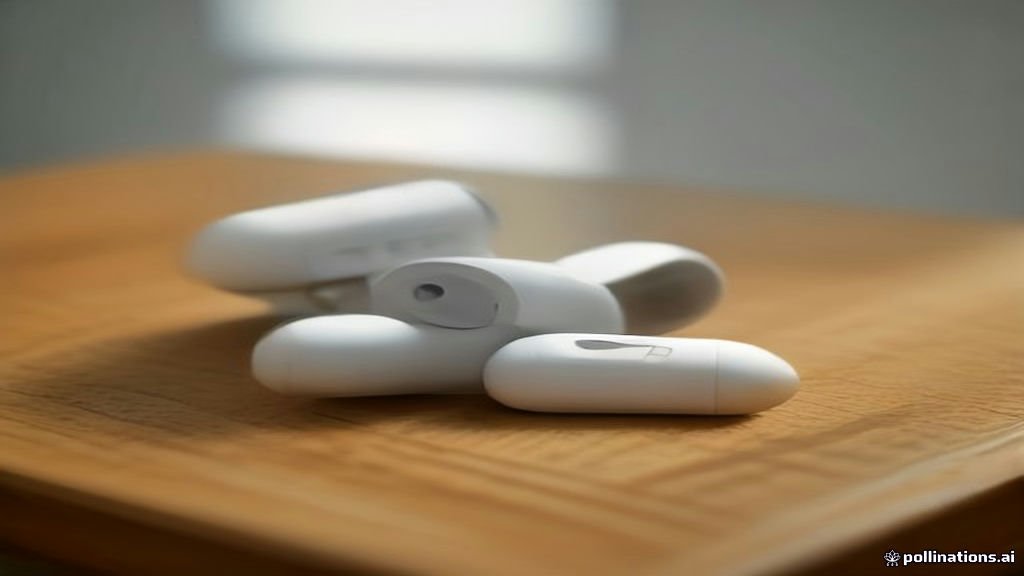
When your AirPods microphone stops working, phone calls, voice notes, and video meetings become frustratingly difficult. This common issue often stems from debris buildup, temporary Bluetooth glitches, or incorrect audio routing settings on your paired device.
Fortunately, most microphone problems can be resolved in just a few minutes using simple troubleshooting techniques that do not require technical expertise or professional repair services.
Clean the AirPods Microphone Grilles
Debris, earwax, and lint frequently accumulate inside the tiny microphone grilles of your AirPods, blocking your voice entirely. Over time, daily use in pockets and bags causes particulate matter to pack tightly into these openings, rendering the mic unresponsive. To check for this, inspect both the stem microphone at the bottom and the inner grilles using a bright light. Cleaning them safely requires a dry, soft-bristled toothbrush or a clean cotton swab. Gently brush away any visible buildup without pushing debris deeper into the cavity. Never use sharp metal objects, compressed air, or excessive liquid, as these methods can permanently damage the internal acoustic mesh and delicate electronics. After a careful cleaning, test the microphone again to see if audio clarity and volume have returned to normal levels.
Check Bluetooth Settings and Audio Routing
Change the Active Microphone Setting
Reset Your AirPods Completely
Test the Microphone with the Voice Memos App
Diagnosing whether the issue is isolated to a specific third-party application like Zoom, FaceTime, or WhatsApp is crucial for effective troubleshooting. Open the built-in Voice Memos application on your iPhone, tap the red recording button, and speak normally into your AirPods while walking around or standing still. Play back the resulting audio file to evaluate the volume, background noise cancellation, and overall clarity. If the audio sounds crisp and clear in Voice Memos, your AirPods hardware and primary Bluetooth connection are functioning properly. In this scenario, the microphone failure within calls points directly to permission settings or bugs inside the specific communication app you were using previously. Check your app permissions to ensure microphone access is explicitly granted.
Update Your Connected Device Firmware
The bottom line
Fixing an AirPods microphone that has stopped working usually requires nothing more than routine cleaning, a quick Bluetooth refresh, or a complete factory reset. By systematically checking each potential cause from hardware obstructions to software settings, you can restore full functionality to your earbuds without unnecessary hassle or expense.
Frequently asked questions
Why is only one AirPod microphone working?
By default, AirPods use an automatic switching system that assigns the mic to whichever earbud is in your ear. If one earbud has a depleted battery or a dirty grille, it may fail to activate, or your settings might be locked to a single earbud.
How do I clean my AirPods microphone safely?
Use a dry, soft-bristled toothbrush to gently brush away earwax and debris from the outer grilles. Never use liquids, compressed air, or sharp metal pins, as these can ruin the acoustic mesh.
Can a low battery cause the AirPods microphone to fail?
Yes. When battery levels drop extremely low, AirPods may disable certain power-heavy features or disconnect individual sensors to conserve remaining energy for basic audio playback.
Why does my AirPods microphone work in some apps and not others?
This usually happens because specific applications lack the necessary system permissions to access your microphone. Check your device privacy settings to ensure microphone access is enabled for that app.
What should I do if resetting my AirPods does not fix the microphone?
If physical cleaning and full resets fail, one of the internal microphones may be damaged from a drop or liquid exposure. Contact Apple Support to check your warranty status or service options.