Why Is My Google Account Not Letting Me Log In

Running into a roadblock when your Google account is not letting you log in can disrupt your entire workflow, blocking access to Gmail, Google Drive, and your synced devices. This frustrating issue typically stems from mistyped passwords, security flags triggered by unrecognized sign-in locations, or browser cache glitches.
Fortunately, you can systematically diagnose the root cause and regain access to your profile by working through a series of practical troubleshooting steps. Here is everything you need to know to fix sign-in errors and secure your account.
Checking for Password Typos and Keyboard Settings
The most common reason your Google account is not letting you log in is a simple typing error. It sounds basic, but small mistakes like an accidental space at the end of your password, an active Caps Lock key, or an unintended keyboard language shift can cause authentication to fail repeatedly. Take a moment to type your password into a visible text field, such as a notepad app, to verify every character before pasting it into the sign-in box.
If you recently changed your password on another device, make sure your current device has synced the change and is not attempting to authenticate with old credentials. If you use a password manager, ensure it has not auto-filled an outdated password entry. Clearing out old autofill data in your browser settings can also prevent your system from automatically feeding incorrect login credentials into the Google sign-in portal.
Resolving Two-Factor Authentication Prompt Delays
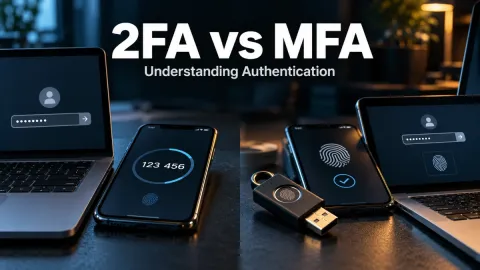
If your password is correct but Google still blocks access, a two-factor authentication (2FA) issue is likely the culprit. When Google does not recognize your device or network, it triggers an extra verification step, such as sending a prompt to your smartphone, sending an SMS code, or requesting a physical security key. Network congestion can severely delay SMS delivery, leaving you staring at an expiration timer while you wait for a text message that refuses to arrive.
To fix this, check that your phone has an active cellular or Wi-Fi connection capable of receiving verification messages. If you have another trusted device already logged into your Google account, check that device for a pending sign-in prompt notification. Alternatively, select the try another way option on the login screen to use backup codes or an authenticator app that generates codes offline without needing cellular reception.
Clearing Browser Cache and Cookie Conflicts
Corrupted browser cache and outdated cookies frequently interfere with authentication tokens, causing continuous login loops where Google accepts your password only to bounce you back to the login page. This happens when stored session data conflicts with Google's active security servers. Clearing your browser data forces the browser to fetch fresh authentication scripts and establishes a clean connection with Google services.
To clear your cache in Google Chrome, press Ctrl + Shift + Delete on Windows or Cmd + Shift + Delete on Mac. Select Cached images and files and Cookies and other site data, then click Clear data. Restart your browser entirely and attempt to sign in again in a fresh window or an incognito tab to test whether the interference persists.
Overcoming Security Lockouts from Unusual Activity
Google constantly monitors sign-in attempts for suspicious behavior. If you are logging in from a new public Wi-Fi network, a newly purchased laptop, or while traveling abroad, Google's automated security systems may temporarily lock the account to prevent unauthorized access. This safeguard is designed to protect your personal data, but it can lock out legitimate users who forgot to notify Google of their travel or hardware changes.
When a security lockout occurs, Google typically requires you to verify your identity through your recovery email address or phone number. Navigate to the official Google recovery flow and provide the exact recovery details linked to your profile. Avoid submitting multiple rapid recovery requests, as this can trigger automated rate limits and extend your lockout period. Once verified, follow the prompts to secure your account and update your recovery contact information if necessary.
Bypassing VPN and Network Interference
Using a Virtual Private Network (VPN), proxy service, or strict corporate firewall can cause Google account login failures. Because VPNs frequently route your internet traffic through shared IP addresses that are often flagged for automated bot activity, Google may block your connection or demand endless CAPTCHA verifications that fail to resolve.
If you are connected to a VPN, temporarily disable it and try logging into your Google account directly through your standard internet service provider connection. Similarly, check your computer's security software or router firewall settings to ensure they are not blocking Google authentication domains or scripts. Once you successfully log in with your VPN disabled, you can re-enable it or switch to a dedicated, unshared VPN server location.
Using the Official Google Account Recovery Workflow
If standard troubleshooting fails and you still cannot access your profile, you must rely on the official Google Account Recovery process. This structured questionnaire is designed to prove your ownership when password and device prompts are insufficient. Answer every question as accurately as possible, utilizing a familiar device and a location where you have previously logged in successfully.
Go to the official support portal and enter your email address. When prompted, provide any previous passwords you remember using, access your recovery email to retrieve verification codes, and verify phone numbers associated with the account. Patience is essential during this process; rushing through or providing guessed answers will significantly lower your chances of automated account recovery success.
The bottom line
Experiencing sudden login blocks on your Google account can be stressful, but methodically checking your credentials, clearing browser cache, and verifying your identity through recovery options will usually restore access quickly. Always keep your recovery phone number and backup email updated to prevent future lockouts.
Frequently asked questions
Why does Google keep asking me to verify my identity when logging in?
Google triggers extra verification when you sign in from a new device, an unrecognized location, or a cleared browser, as these situations look suspicious to automated security systems.
What should I do if I no longer have access to my recovery phone number?
Go to the account recovery page, click try another way, and use your recovery email address or answer security questions if available to prove your identity.
Can browser extensions block me from logging into Google?
Yes, aggressive ad blockers, privacy extensions, or script blockers can interfere with Google authentication scripts. Try logging in using an incognito window with extensions disabled.
How long does a temporary Google account security lockout last?
Lockouts usually last anywhere from a few hours to 24 hours depending on the severity of the suspicious activity detected. Avoid making repeated failed attempts during this time.
Is there a phone number I can call for Google account support?
Google does not provide live telephone support for standard free consumer accounts. All account recovery and login issues must be resolved through their official online support pages.