Why Is My Router Flashing Green? Causes and Fixes
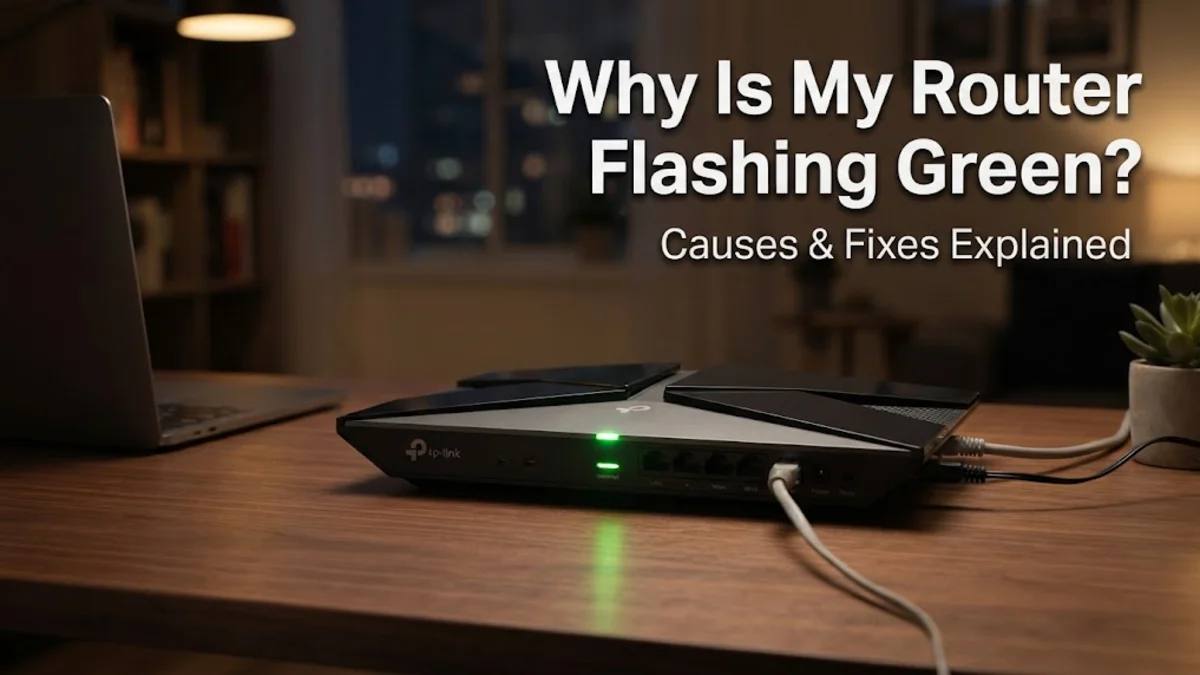
When your router starts flashing a green light, it usually means the device is trying to establish an internet connection, synchronizing with your service provider, or booting up after a power interruption. While a solid green light typically indicates a healthy connection, a continuous blink signals that your local network is offline or struggling to handshake with upstream servers.
Understanding the exact meaning behind this indicator helps you bypass guesswork and restore your internet access efficiently. Below is a breakdown of why this happens and a step-by-step troubleshooting guide to get your connection back to normal.
Understanding What a Flashing Green Light Means
Most modern broadband routers use LED indicators to communicate their operational status. A flashing or blinking green light is rarely a hardware failure; instead, it is a diagnostic signal. Depending on your specific internet service provider (ISP) and the brand of your hardware, a slow blink often means the router is searching for a digital subscriber line or cable signal, while a rapid blink might indicate firmware updates are downloading in the background.
If the flashing light persists for more than a few minutes without turning solid, it means your router cannot successfully communicate with the outside world. This communication breakdown can stem from loose physical cables, temporary network outages in your neighborhood, or an authentication failure with your ISP credentials. Identifying the root cause requires checking each component of your home networking setup systematically from the wall outlet outward.
Step 1: Check All Cable Connections and Secure Ports
The quickest and most common reason for a router flashing green is a loose or degraded physical connection. Environmental vibrations, accidental bumps, or pets can nudge coaxial, ethernet, or phone lines out of their ports just enough to disrupt data flow. Go behind your router and examine every single wire plugged into the back panel.
Unplug the incoming internet cable—whether it is an Ethernet cable coming from an optical network terminal, a DSL phone cord, or a coaxial cable—and inspect the connectors for bent pins or dust accumulation. Firmly plug the cable back in until you hear a distinct click. Ensure that the power adapter is also securely connected to both the wall socket and the router back panel to rule out intermittent power drops causing the device to constantly reboot.
Step 2: Perform a Full Power Cycle of Your Network Equipment
Electronic equipment often encounters minor software glitches or frozen routing tables that prevent proper network handshakes. Restarting your hardware clears temporary memory caches and forces the router to re-negotiate a fresh connection with your internet service provider. To do this correctly, unplug the power cords from both your modem and your router simultaneously.
Wait for at least 60 seconds to allow all internal capacitors to drain completely. Plug the modem back in first and wait a couple of minutes until its status lights stabilize. Next, plug your router back into the power source. Allow up to five minutes for the router to fully boot up, download configuration profiles, and attempt to establish a solid green connection status.
Step 3: Inspect Splitters, Wall Jacks, and Line Filters
If your internet relies on DSL or coaxial cable lines, external hardware accessories like wall splitters and line filters play a massive role in signal integrity. Over time, cheap splitters degrade, causing signal attenuation that prevents your router from locking onto the correct broadband frequency. Check if your router is connected through a signal splitter.
Temporarily bypass any splitters by plugging the incoming line directly from the primary wall jack into the router or modem. If the flashing green light turns solid after removing the splitter, you have found the culprit and will need to replace the damaged accessory with a high-bandwidth, low-loss splitter. Also, ensure that DSL line filters are properly installed on any active landline telephones sharing the same wall line.
Step 4: Check for Outages with Your Internet Service Provider
Sometimes the problem has nothing to do with the equipment inside your home. If your ISP is performing routine infrastructure maintenance, upgrading local node equipment, or experiencing an unexpected service outage, your router will flash green indefinitely because there is no external signal to receive. You can verify this by checking your provider's official mobile application or status page.
Many major internet providers offer automated text alerts or outage maps that show local service disruptions. If an area-wide outage is reported, no amount of troubleshooting inside your home will fix the flashing green light. In this scenario, you must wait for technicians to resolve the issue on the provider's end, after which your router should automatically return to a solid connection status.
Step 5: Reset Your Router to Factory Defaults
If you have verified your cables, power cycled the hardware, and confirmed there are no local outages, a corrupted configuration file might be blocking your connection. Restoring the router to its factory default settings wipes out custom configurations and forces the device to reload its base firmware parameters.
Locate the small recessed reset button on the back or bottom panel of your router. Using a paperclip or a SIM ejector tool, press and hold the button for about 10 to 15 seconds while the device is powered on. The status lights will flicker as the system reboots. Keep in mind that a factory reset will erase your custom Wi-Fi network name and password, so you will need to reconnect your devices using the default credentials printed on the router sticker afterward.
The bottom line
A router flashing green indicates that your device is actively trying to connect to the internet but cannot complete the handshake. By methodically checking physical cable connections, power cycling your modem and router, inspecting wall splitters, and ruling out regional service outages, you can quickly identify the root cause and restore stable internet access to your home.
Frequently asked questions
What does a flashing green light mean on a router?
It generally means the router is booting up, searching for an internet signal, or trying to synchronize with your service provider's network.
How long should a router take to stop flashing green?
A standard router boot-up and connection process takes between two to five minutes. If it flashes continuously for longer than ten minutes, there is a connection issue.
Can bad weather cause my router to flash green?
Yes. Severe storms can damage outside utility lines, flood outdoor connection boxes, or cause power surges that disrupt your ISP's local equipment.
Should I unplug my modem when troubleshooting my router?
Yes. Both the modem and the router should be powered down together to ensure they clear their connection caches and restart their handshake process correctly.
When should I call my internet service provider for help?
Call your ISP if you have verified all physical cable connections, performed a factory reset, and confirmed there are no local outages, yet the light continues to blink.