How to Create and Add an Outlook Signature
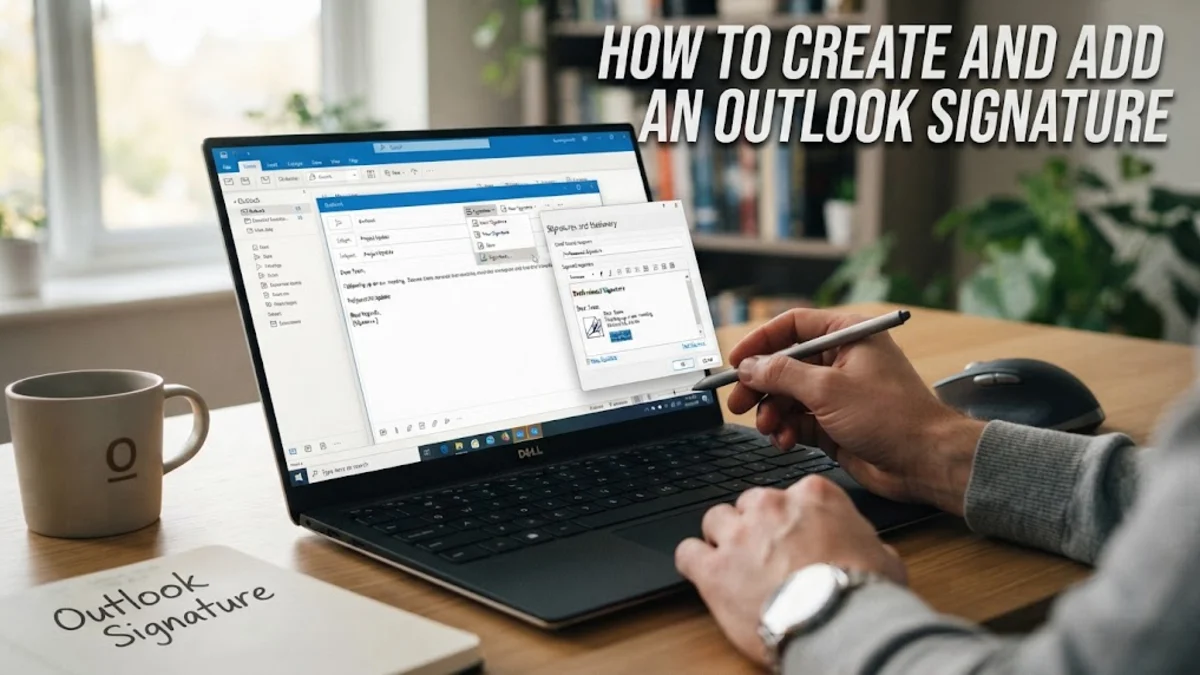
Adding a professional touch to your emails is easy when you set up a custom email signature in Microsoft Outlook. Whether you are using the modern desktop app, the web version, or mobile clients, a clean signature ensures recipients always have your correct contact details.
This guide walks you through navigating the settings, designing a balanced layout, applying your signature automatically, and troubleshooting any synchronization problems that may pop up along the way.
Accessing Signature Settings in Outlook
To begin creating or modifying your email signature, you first need to open the dedicated signature management panel. The exact path depends slightly on whether you are using the classic Outlook desktop application or the newer version of Outlook for Windows and the web.
If you are using the classic desktop app, open Outlook and click on File in the top-left corner, select Options, and then click on Mail. From there, locate the Compose messages section and click the Signatures... button. If you are using the web version or the newer Windows app, click the Settings gear icon in the top right corner, navigate to Accounts or Mail, and then select Compose and reply where your signature editor will be waiting.
Creating a New Signature From Scratch
Once you have opened the signature management panel, you can create a fresh signature profile by clicking the New button. Give your signature a clear, identifiable name, such as Work, Personal, or Concise, especially if you plan to manage multiple signatures for different email aliases or communication contexts.
In the text editing box provided below the name field, type out your basic professional details. A standard professional format typically includes your full name, job title, company name, phone number, and a link to your official website. Keep your typography clean and avoid mixing too many different font families or neon colors, as this can make your emails look cluttered and unprofessional on mobile devices.
Formatting Text and Adding Contact Information
The built-in text editor gives you basic formatting controls such as bold, italics, font size adjustments, and text alignment. Use bold styling selectively on your name and job title to help them stand out immediately to your readers.
When adding phone numbers and email addresses, make sure they are typed out clearly. If you want to include social media profiles or portfolio links, highlight the anchor text, click the hyperlink icon in the editor toolbar, and paste your destination URL. Double-check every link before saving to ensure you are not sending clients or colleagues to broken web addresses or outdated social pages.
Inserting Images and Professional Logos
Including a small company logo or a professional headshot can make your signature pop, but it requires careful handling to prevent distorted images. Click the picture icon within the editor menu to upload your image file from your local storage.
Always resize your image before uploading it rather than relying entirely on the email client's scaling tools, as large image files can slow down email loading times or trigger spam filters. Keep company logos under 150 pixels wide, and ensure that your image files are saved in standard formats like JPEG or PNG for universal compatibility across different email applications.
Assigning Default Signatures for New Messages and Replies
After designing your signature, you need to tell Outlook when and where to apply it automatically. Look for the choose default signature panel located on the right side or upper section of your signature settings window.
Select your newly created signature profile from the dropdown menus for New messages and Replies/forwards. If you prefer to manually insert your signature only when needed, you can leave these set to none and simply choose your signature from the Message tab while composing an outgoing email by clicking Signature.
Troubleshooting Outlook Signature Synchronization Issues
One common frustration users face is a signature failing to appear across multiple devices, such as when a desktop signature does not sync with the Outlook mobile app on iOS or Android. Because mobile apps often store signatures locally rather than pulling them directly from server profiles, you may need to manually recreate your signature inside the mobile app settings.
If your desktop signature disappears after a software update, check your Microsoft 365 account profile settings or verify that your local signature files located in the roamingAppData folder have not been altered or blocked by security software. Re-saving your signature profile through the main application preferences usually resolves most lingering synchronization hiccups instantly.
The bottom line
Setting up a polished Outlook signature takes only a few minutes, but it leaves a lasting impression on everyone you email. By keeping your design clean, checking your links, and configuring your default options correctly, you ensure your professional communications always look sharp and reliable.
Frequently asked questions
Can I have multiple signatures in Outlook?
Yes, you can create as many signature profiles as you like and choose which one to apply when composing a new message or reply.
Why is my signature image appearing blurry?
Images often look blurry if they are scaled down drastically within the editor. Resize your image to the exact dimensions you want to display before uploading it.
How do I add a hyperlink to my signature text?
Highlight the text you want to link, click the insert hyperlink icon in the editor toolbar, paste your URL, and click save.
Why won't my signature sync to my phone?
Outlook mobile apps generally do not sync desktop signatures automatically. You will need to manually recreate your signature within the settings menu of the mobile app.
What font should I use for my email signature?
Stick to standard web-safe fonts like Arial, Calibri, or Helvetica to ensure your signature renders correctly on every recipient's device.