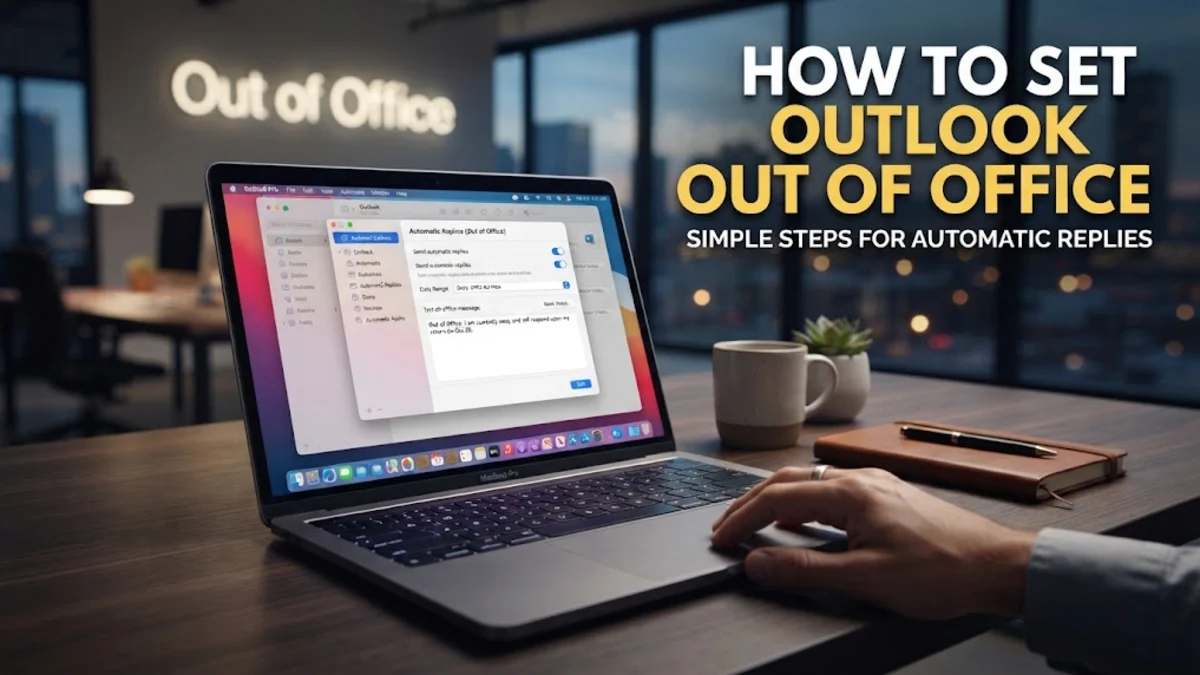
Setting your out of office status in Microsoft Outlook ensures clients and colleagues know when you are away and unable to respond. Whether you are using the desktop application, the web version, or the mobile app, configuring automated replies takes only a few quick steps.
By setting up a proper schedule and distinct messages for your internal team and external contacts, you can maintain professional communication while you enjoy your time away from your desk.
1Setting Out of Office in Outlook Desktop
If you are using the classic Microsoft Outlook desktop application on Windows, setting up your automatic replies is handled directly through your account settings. Open Outlook and click on File in the top-left corner to access the backstage view. From there, select the Automatic Replies button, which is typically marked with a gear or mailbox icon depending on your version. If you do not see this option, you may be using an account type like a personal Outlook.com or Gmail account in classic Outlook, which manages automatic replies slightly differently through web settings.
Once the Automatic Replies window opens, click the radio button next to Send automatic replies. You can choose to check the box for Only send during this time range and input your precise start and end dates and times so you do not have to remember to turn the replies off manually when you return. Type your message into the text box provided, format it using the built-in toolbar if desired, and click OK to activate it across your work network.
2Configuring Automatic Replies in Outlook on the Web
For users who access their email through Outlook on the web, managing your out of office status is streamlined within the browser settings menu. Click the Settings gear icon in the top-right corner of the page to open the main configuration panel. In the left-hand menu, navigate to Mail and then select Automatic replies to open the setup interface. This method is ideal if you are working remotely or using a shared computer without the desktop client installed.
Inside the automatic replies screen, toggle the switch to turn automatic replies on. Check the box labeled Send replies only during a time period and enter your departure and return schedule. Type your customized message into the rich text editor box at the bottom of the pane. Make sure to review your settings to ensure replies are sent to external senders as well, then click the Save button at the bottom of the window to apply your changes immediately.
3Activating Out of Office on the Outlook Mobile App
If you need to set your out of office message while away from your computer, you can easily configure it directly from the Outlook mobile app on your iOS or Android device. Tap your profile icon or initials in the top-left corner of the app screen to open the slide-out navigation menu. Scroll down to the bottom of this menu and tap the Settings gear icon. This will bring up your account preferences where you can manage all connected email addresses.
Under the mail accounts list, tap on the specific work or school account for which you want to set the away message. Scroll down until you find the Automatic Replies option and tap it to open the configuration settings. Toggle the switch to active, set your desired schedule if supported by your organization, type your away message, and tap the checkmark or Save button in the corner to confirm your setup.
4Setting Specific Start and End Times
Configuring exact start and end times prevents your automated replies from lingering after you have already returned to work. When you check the time range box in Outlook, you can specify the exact hour your leave begins and the hour you plan to resume normal operations. This automation is particularly useful for short absences, half-day leaves, or weekend trips where manual toggling can easily be forgotten amidst the chaos of catching up on missed tasks.
Always double-check your computer or account timezone settings before scheduling your automatic replies. If your Outlook account is synced to a different timezone than your physical location, your out of office message might start or stop hours earlier or later than intended. Setting a calendar reminder on your phone for your return day is also a smart habit to ensure your automated responder turned off correctly.
5Crafting Separate Internal and External Messages
Microsoft Outlook allows you to create two distinct messages: one for people within your organization and another for external contacts. To set this up, look for the two tabs inside the Automatic Replies window labeled Inside My Organization and Outside My Organization. Customizing these tabs allows you to provide a casual or more detailed update to your coworkers while keeping your message to clients professional and concise.
For internal colleagues, you might include the name of the person covering your duties and your preferred emergency contact method, such as a messaging app handle or phone number. For external senders, keep the message focused on your return date and direct them to a general company support email or help desk so they receive prompt assistance while you are away.
6Troubleshooting Why Your Out of Office Is Not Sending
If your out of office replies are not sending, the most common culprit is a mismatch between your account type and the menu settings you used. Consumer email accounts like Outlook.com or Gmail connected to Outlook often handle automatic replies through web-based rules rather than the traditional Exchange server settings found in the desktop app. Verify your account type by going to File > Account Settings > Account Settings to check if your server connection is Microsoft Exchange or IMAP/POP.
Another common issue arises when users forget to check the box for sending replies to external organizations. If your clients are not receiving your away message, open your settings, go to the external contacts tab, and ensure the setting is switched from My contacts only to Anyone outside my organization. If problems persist, restarting the Outlook application or clearing your app cache can often resolve synchronization glitches.
Frequently asked questions
Can I set an out of office message without specific end dates?
Yes, you can leave the time range box unchecked and your automatic replies will continue sending until you manually turn them off in your settings.
Why don't I see the Automatic Replies option in my Outlook?
The Automatic Replies button is primarily available for Microsoft Exchange, Microsoft 365, and Outlook.com work or school accounts. Standard personal accounts may manage this feature differently through webmail settings.
Can I set different messages for clients and coworkers?
Yes, Outlook provides separate tabs for inside your organization and outside your organization, allowing you to tailor your message for different audiences.
Will my out of office reply send multiple times to the same person?
No, Outlook is designed to send the automatic reply only once to each sender during a single out of office period, preventing your contacts from receiving duplicate emails.