How to Fix Laptop Keyboard Keys Not Working
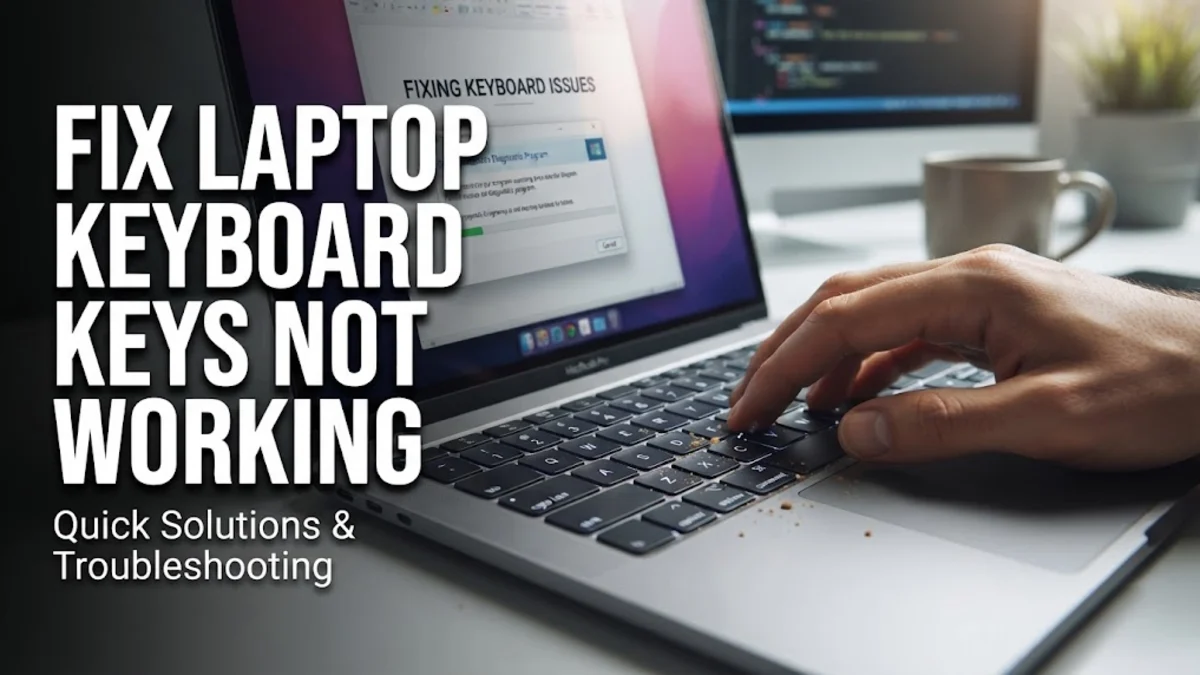
Dealing with laptop keyboard keys not working can bring your daily productivity to a complete halt. Whether a few specific buttons refuse to register or the entire typing pad is unresponsive, this issue typically stems from software glitches, outdated drivers, or minor physical obstructions under the keycaps.
Before you rush out to buy an expensive replacement or take your computer to a repair shop, you can resolve most keyboard problems right at home. Follow this structured, step-by-step troubleshooting guide to diagnose the root cause and restore full functionality to your Windows 10 or Windows 11 laptop.
Restart Your Laptop and Clear Static Charge
The very first thing you should try when laptop keyboard keys stop working is a complete system restart. Sometimes, temporary software conflicts freeze the input driver communication between the hardware and the operating system. Simply clicking restart through your mouse or touchscreen can clear these minor background glitches.
If a standard restart does not work, perform a hard reset to clear any static electrical charge trapped on the motherboard. Shut down your laptop completely, unplug the power adapter, and disconnect all USB accessories. If your model has a removable battery, take it out. Press and hold the power button down continuously for about 30 to 45 seconds. Reconnect the power supply without the battery first, turn the laptop back on, and check if your keyboard keys start responding normally.
Run the Built-In Windows Keyboard Troubleshooter
Windows features automated diagnostic tools specifically designed to detect and repair hardware and driver anomalies. Running the dedicated troubleshooting utility can automatically identify why your laptop keyboard keys are failing and apply immediate fixes without requiring manual configuration changes.
To access this tool on Windows 11 or Windows 10, open your system settings by pressing Win + I or clicking through the start menu. Navigate to System > Troubleshoot > Other troubleshooters. Scroll down until you find the Keyboard option and click the Run button next to it. Follow any on-screen prompts provided by the wizard, restart your laptop once the process finishes, and test your keys in a text editor.
Update, Roll Back, or Reinstall Keyboard Drivers
Corrupted, missing, or outdated keyboard drivers are frequent culprits behind unresponsive keys. Your operating system relies on these software packages to properly interpret the signals sent from your keyboard hardware. Updating or reinstalling the driver forces Windows to establish a fresh connection with your internal keyboard.
Right-click the Start menu icon and select Device Manager from the shortcut list. Expand the category labeled Keyboards, right-click your internal keyboard device, and choose Update driver. If that does not work, select Uninstall device and restart your laptop. Windows will automatically detect the missing hardware upon reboot and reinstall a fresh, clean copy of the generic driver during startup. If you recently updated your system and the problem started immediately after, select Properties > Driver > Roll Back Driver instead.
Disable Filter Keys and Ease of Access Settings
Windows includes accessibility features designed to assist users with motor difficulties, but these features can sometimes misfire and cause your keyboard keys to behave erratically or refuse to register keystrokes entirely. Filter Keys, for example, ignores brief or repeated keypresses, which mimics the appearance of broken keys.
To check and disable these settings, open Settings and go to Accessibility > Keyboard. Look for the toggle switch associated with Filter Keys and ensure it is turned off. Additionally, check that Sticky Keys and Toggle Keys are also disabled if you do not actively use them. Once turned off, test your keyboard in a web browser or notepad window to see if normal responsiveness has returned to all keys.
Clean Physical Debris and Inspect Keycaps
If only specific keys or a single row of your keyboard fail to work, physical dust, crumbs, or sticky liquid residue trapped beneath the mechanical scissor switches is usually to blame. Over time, everyday debris builds up and prevents the underlying electrical contacts from meeting when you press down.
Power down your laptop completely and disconnect the charger for safety. Hold the laptop at a slight angle and use a can of compressed air to spray short bursts between the keys, clearing out hidden particles. If a key feels sticky due to a spill, gently pop off the keycap if your model allows it, clean the area underneath with a cotton swab dipped in a tiny amount of rubbing alcohol, and let it dry completely before snapping the key back into place.
Test in BIOS or with an External Keyboard
To definitively determine whether your issue is hardware-based or strictly software-related, you need to test your keyboard outside of the Windows operating system environment. Restart your computer and repeatedly press the designated key (such as F2, F12, or Del) to enter the BIOS or UEFI setup utility. Once inside, try navigating using your arrow keys or typing characters. If the keys work in the BIOS, your hardware is fine, and a Windows software glitch is causing the issue. If they do not work in the BIOS, you are dealing with a permanent hardware failure.
Alternatively, plug a USB or wireless external keyboard into your laptop port. If the external keyboard works perfectly while your built-in keyboard remains unresponsive, your internal keyboard ribbon cable may have loosened or suffered physical damage requiring professional replacement.
The bottom line
Fixing laptop keyboard keys not working can range from a quick software restart or driver reinstall to a more involved physical cleaning. By systematically working through these troubleshooting steps, you can pinpoint the exact cause of the failure and get your typing workflow back on track quickly.
Frequently asked questions
Why did my laptop keyboard keys suddenly stop working?
Sudden keyboard unresponsiveness is usually caused by a corrupted driver, a temporary operating system freeze, sticky filter accessibility settings, or accumulated physical debris underneath the physical keycaps.
How do I type if my laptop keyboard is completely broken?
You can temporarily use the built-in Windows On-Screen Keyboard by searching for it in the start menu, or plug any standard USB or wireless external keyboard directly into one of your USB ports.
Can a Windows update break my keyboard?
Yes, occasionally a newly installed Windows update can conflict with older laptop manufacturer drivers, causing keyboard malfunction. Rolling back the driver or reinstalling it through Device Manager usually resolves this.
How do I know if my laptop keyboard hardware is damaged?
If your keys do not register inside the BIOS or UEFI settings screen during system startup, the problem is almost certainly a hardware failure or a loose internal ribbon cable rather than a software issue.
Is it safe to clean my laptop keyboard with rubbing alcohol?
Yes, you can use a small amount of isopropyl alcohol (90 percent or higher) on a cotton swab to clean sticky residue, provided the laptop is fully powered off and unplugged from any power source.