How to Fix Google Login Not Working in 2026
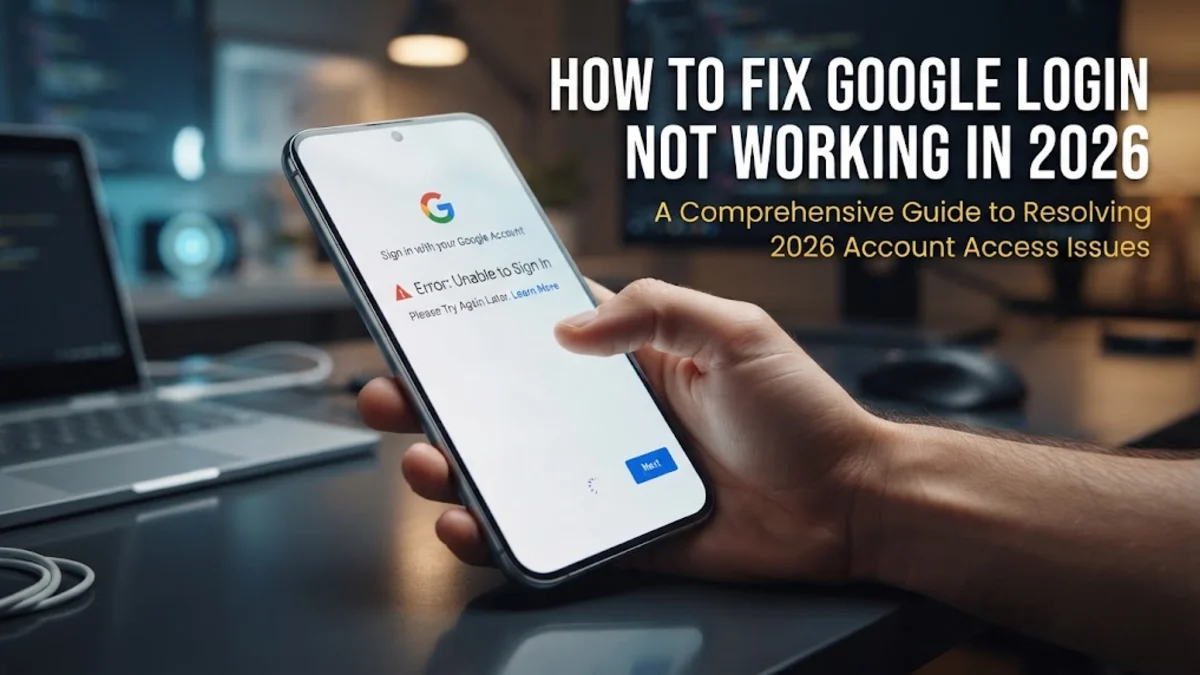
Dealing with a situation where google login not working can halt your entire workflow, blocking access to Gmail, Google Drive, and essential workplace applications. Whether you encounter an endless loading screen, an incorrect password error, or a blank page, troubleshooting the root cause helps you regain entry quickly.
This guide covers the most effective troubleshooting steps, ranging from clearing browser data and checking network settings to managing two-factor authentication prompts and app permissions. By following these practical methods in order, you can isolate the error and successfully sign back into your account.
Clear Browser Cache and Cookies
Corrupted browser cache and outdated cookies are frequently the primary culprits behind authentication failures. When local site data conflicts with Google servers, authentication loops or blank pages occur during sign-in attempts. To resolve this, you need to clear the stored data specifically for Google domains without necessarily wiping your entire browsing history.
In Google Chrome, navigate to Settings > Privacy and security > Third-party cookies or Delete browsing data. Alternatively, you can click the settings icon next to the URL bar when visiting the login page, select Site settings, and click Clear data. Restart your browser entirely using Ctrl + Shift + Q on Windows or Cmd + Q on Mac, then attempt to log in again to see if the session initializes normally.
Verify Internet Connection and Network Settings
An unstable or restricted network connection can prevent authentication requests from reaching Google authentication servers. Public Wi-Fi networks at cafes, airports, or hotels often block specific ports or require captive portal login pages that interfere with secure HTTPS traffic required by Google services.
To test your connection, try loading a different secure website or switch temporarily to a mobile hotspot. If you use a virtual private network or proxy service, disable it temporarily, as security restrictions or blacklisted IP addresses associated with VPN nodes often trigger automated security blocks on Google accounts. Once your network is verified and stable, retry your credentials.
Check Two-Factor Authentication and Backup Codes
If you have two-factor authentication enabled, a failure to receive verification codes or approve mobile prompts will block your login. Ensure your mobile device has cellular service or active internet to receive prompt notifications from the Google Smart Lock service or authenticator apps.
If your primary verification method fails, look for the Try another way link on the verification screen. From there, you can choose to use pre-generated backup codes, a physical security key, or an SMS code if configured. Keeping your recovery phone number and backup codes updated in your account settings prevents permanent lockouts during unexpected hardware changes.
Disable Conflicting Browser Extensions
Third-party browser extensions—particularly aggressive ad blockers, privacy enhancers, cookie managers, and script blockers—can inadvertently strip required security tokens or block JavaScript code executed during the Google sign-in process. These conflicts often manifest as endless spinning circles or unclickable sign-in buttons.
To check if an extension is causing the issue, open an incognito or private browsing window using Ctrl + Shift + N on Windows or Cmd + Shift + N on Mac. Because most extensions are disabled by default in private mode, attempting to log in here will instantly reveal if an add-on is responsible. If login succeeds in private mode, disable your extensions one by one in normal mode to identify the offender.
Update Your Web Browser to the Latest Version
Running an outdated web browser can cause compatibility issues with modern cryptographic protocols and security certificates required by Google authentication services. Security standards evolve rapidly, and older browser builds may fail to complete modern OAuth handshake sequences.
To update Google Chrome, click the three-dot menu icon in the top right corner, select Help > About Google Chrome. The browser will automatically check for and install any pending updates. For other browsers like Mozilla Firefox or Microsoft Edge, look for similar update options in the main menu or settings panel. After updating, relaunch the application and attempt your login.
Check Google Workspace Status and Service Outages
Occasionally, the problem is not on your end at all. Google services experience regional or global infrastructure outages that temporarily disrupt account sign-ins across platforms and applications. When authentication microservices fail, users experience login loops or server error messages.
You can verify current service health by checking official status dashboards such as the Google Workspace Status Dashboard. If an active outage is reported, waiting for Google engineers to restore service is the only viable solution. Once the incident is marked as resolved, clear your browser cache and sign in normally.
The bottom line
Resolving Google login issues typically involves clearing corrupt local data, disabling conflicting extensions, or verifying two-factor authentication methods. By systematically ruling out network blocks, outdated browser software, and potential server outages, you can restore access to your account safely and efficiently.
Frequently asked questions
Why does my Google login page keep refreshing in a loop?
A login loop is usually caused by corrupted browser cookies or a conflict with privacy extensions that block tracking cookies necessary to maintain session state. Clearing your browser cache or testing in an incognito window usually resolves this.
What should I do if I am not receiving my 2FA verification prompt?
Check your internet connection on your mobile device, ensure notifications are enabled for Google services, or select 'Try another way' on the login screen to use backup codes or a hardware security key.
Can a VPN cause Google login to fail?
Yes. VPNs route your traffic through shared IP addresses that Google's automated security systems may flag for unusual activity, leading to blocks or mandatory CAPTCHA verifications that fail to load.
How do I check if Google's login servers are down?
You can check the public Google Workspace Status Dashboard or independent outage tracking websites to see if other users are reporting similar authentication failures.
Does clearing my browser cache delete my saved passwords?
Clearing cache and cookies removes temporary site data and session tokens, but saved passwords managed by your browser's password manager are stored separately and will not be deleted unless you explicitly select the password clearing checkbox.