Password Manager vs Google Password Manager: Which Is Best?
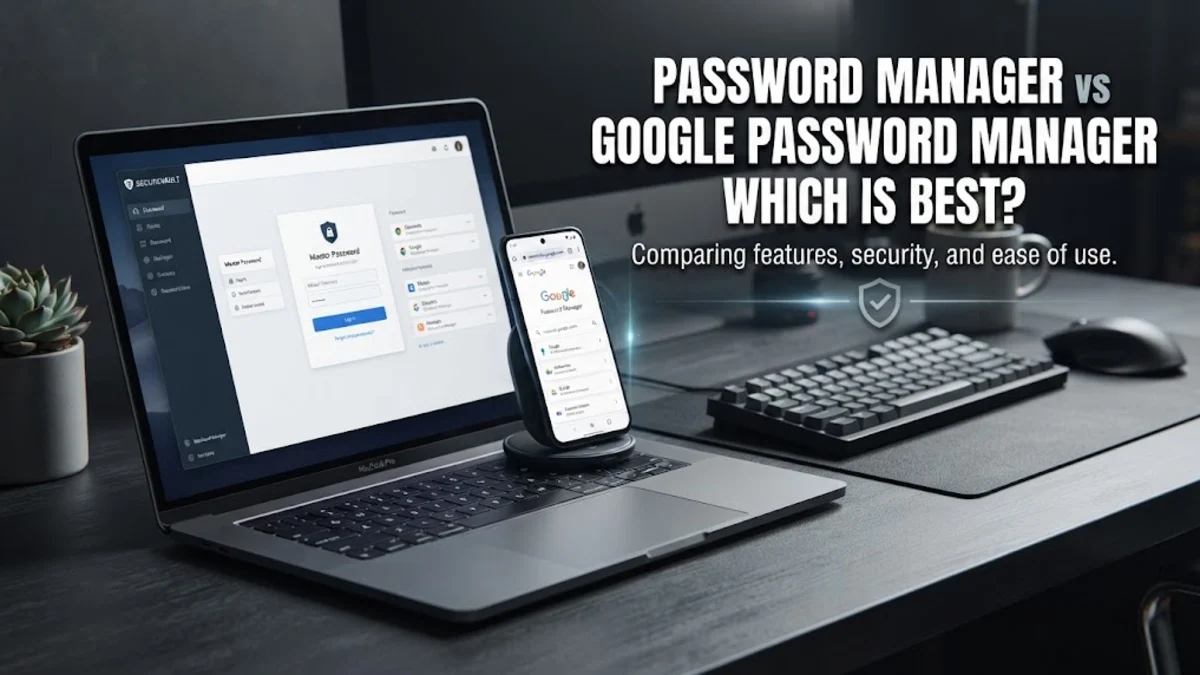
Choosing between a dedicated password manager and Google Password Manager comes down to your device ecosystem and security needs. While Google's built-in tool offers effortless convenience for Chrome users, dedicated third-party apps provide advanced vault sharing, independent security audits, and cross-platform flexibility.
Understanding Dedicated Password Managers
Dedicated password managers like Bitwarden or 1Password operate as independent vault applications designed exclusively for credential storage. These tools use zero-knowledge architecture, meaning your master password encrypts your data locally before it ever reaches company servers. This ensures that even if the provider suffers a data breach, unauthorized actors cannot read your sensitive information. Furthermore, these platforms support advanced multi-factor authentication methods, secure credential sharing with trusted family members, and emergency access features that let designated contacts recover your vault if something happens to you. Because they are not tied to a single browser ecosystem, dedicated password managers excel at managing logins across desktop software, mobile apps, and various web browsers without forcing you into a specific digital environment.
How Google Password Manager Works
Google Password Manager is built directly into the Google ecosystem, making it instantly accessible on any device where you sign into your Google account. When you use Google Chrome or an Android device, Google automatically prompts you to save passwords, generate secure credentials, and sync them seamlessly across your phone, tablet, and computer. The service uses robust encryption to protect your data in transit and at rest, and it includes built-in security checkups that alert you if any of your saved credentials have appeared in known data leaks. For casual users who live primarily within Chrome and Android, this tool requires zero setup and eliminates the need to remember another master password. However, its security depends entirely on the security of your primary Google account, meaning a compromised Google login could potentially expose all your stored credentials unless you enforce strong two-factor authentication on your account.
Security and Encryption Architecture
When comparing security standards, both dedicated password managers and Google offer high-level encryption, but their underlying architectures differ significantly. Dedicated options typically rely on client-side encryption using AES-256 bit algorithms combined with a unique master password and a secret key or pepper. The provider never stores your master password, giving you absolute ownership of your encryption keys. Google Password Manager also encrypts your data using strong standards, and you can enable an additional layer of security called on-device encryption with your own screen lock or passphrase. However, because Google manages the encryption keys within its infrastructure to enable seamless web access and account recovery, some security purists prefer the strict zero-knowledge model offered by independent services. Additionally, open-source dedicated managers allow security researchers to inspect their code regularly, offering a level of transparency that proprietary ecosystem tools rarely match.
Cross-Platform Compatibility and Browser Support
Platform flexibility is often the deciding factor for users who juggle multiple operating systems and web browsers. Dedicated password managers shine in mixed environments, offering dedicated apps for Windows, macOS, Linux, iOS, and Android, alongside browser extensions for Chrome, Firefox, Safari, Edge, and Brave. If you use an iPhone alongside a Windows PC and prefer Firefox, a dedicated manager ensures your passwords sync smoothly across all devices. In contrast, Google Password Manager is optimized heavily for Google Chrome and Android devices. While you can access your Google passwords on iOS via the Chrome app or a dedicated shortcut, and on other desktop browsers by logging into your Google account, the experience is noticeably less integrated outside of the core Google ecosystem. If you frequently switch between different browsers and operating systems, a third-party manager provides a much more cohesive user experience.
Advanced Features and Sharing Capabilities
Beyond basic credential storage, advanced features separate standard browser vault tools from comprehensive password management suites. Dedicated password managers offer secure digital wallets, encrypted note storage, file attachments, biometric unlocking, and granular sharing controls that let you share specific logins or credit card details securely with family members or coworkers. Many also include dark web monitoring services that proactively scan for compromised personal data. Google Password Manager provides basic credential sharing within family groups and includes a password checkup tool to spot weak or reused passwords, but it lacks advanced features like secure file storage, customizable emergency access protocols, and detailed security score dashboards. If you require more than just simple login autofill, dedicated apps provide far greater utility and control over your digital footprint.
Feature Comparison Table
To clearly understand how these two approaches stack up against each other, consider the following feature comparison. Dedicated password managers typically require a paid subscription for advanced features, whereas Google Password Manager is entirely free for anyone with a Google account. Ecosystem flexibility is universal for dedicated apps, while Google tools are optimized for Chrome and Android. Zero-knowledge encryption is standard on independent managers, while Google utilizes account-based encryption. Finally, vault sharing and secure notes are robust in third-party software, compared to the more limited sharing options available through Google accounts. Evaluating these core differences helps clarify which tool aligns best with your daily workflow and security expectations.
Making Your Final Decision
Choosing between a dedicated password manager and Google Password Manager depends entirely on your digital habits and security preferences. If you use Android, rely almost exclusively on Google Chrome, and want a hassle-free, zero-cost solution that requires no extra apps or master passwords to remember, Google Password Manager is a practical and secure choice. On the other hand, if you use a mix of different browsers and operating systems, value strict zero-knowledge encryption, and need advanced features like secure file storage, emergency access, and robust vault sharing, investing in a dedicated password manager is well worth it. Assess your current device setup and privacy requirements carefully before committing to either option.
The bottom line
Both Google Password Manager and dedicated third-party options offer robust protection compared to reusing passwords or writing them down on paper. By weighing your browser preferences, device ecosystem, and need for advanced features, you can select the ideal credential manager to keep your online accounts secure in 2026.
Frequently asked questions
Is Google Password Manager safe to use?
Yes, Google Password Manager uses strong encryption to protect your data and includes built-in alerts for compromised credentials. However, its security is tied directly to your primary Google account security.
Can I use a dedicated password manager for free?
Yes, most reputable dedicated password managers offer robust free tiers that include basic multi-device syncing and strong encryption, with paid plans unlocking advanced features like sharing and cloud storage.
What happens if I forget my master password for a dedicated manager?
Because dedicated managers use zero-knowledge architecture, the provider cannot reset your master password. You must rely on your recovery code or emergency access setup to regain entry.
Can Google Password Manager work on Safari or Firefox?
While you can access your saved Google passwords by logging into your Google account on the web, autofill functionality is heavily optimized for Google Chrome and Android devices.
How do I transfer passwords from Google to a dedicated manager?
You can easily export your saved credentials from Google Password Manager as a CSV file through your Google account settings and then import that file directly into your new dedicated password manager.