Why Is Your Google Account Restricted and How to Fix It
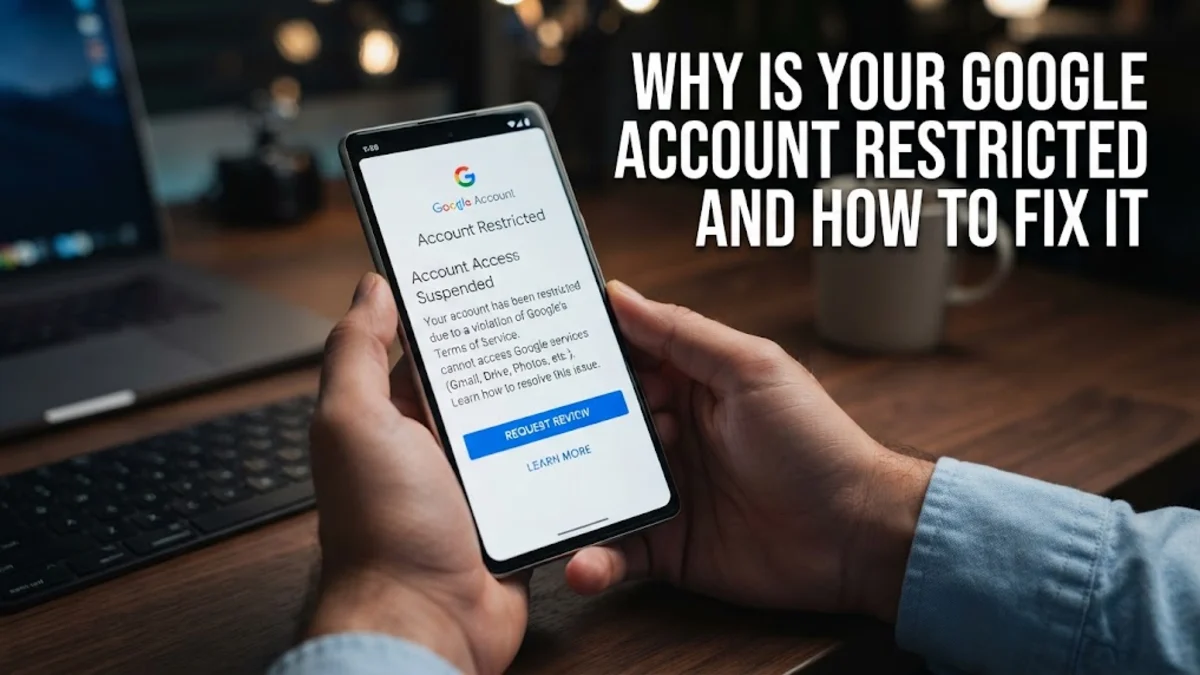
Finding out that your Google account is restricted can be a stressful experience, especially when you rely heavily on it for email communication, cloud storage, document editing, and daily mobile services. Google typically restricts or disables accounts when their automated security systems detect unusual behavior, potential compromise, or a suspected violation of their terms of service.
Fortunately, you can often restore your access by verifying your identity, submitting a formal review appeal, and securing your login credentials against future threats. This comprehensive guide walks you through the exact technical causes behind account restrictions and provides actionable steps to get your account back safely and quickly.
Understanding Why Your Google Account Was Restricted
Google implements account restrictions as a protective measure to shield both individual users and the broader digital ecosystem from malicious activities, automated bots, and fraud. When Google's automated threat-detection algorithms notice unusual behavior patterns associated with your credentials, they may temporarily lock or restrict your access to core services like Gmail, Google Drive, YouTube, and Google Play. This sudden blockade can be incredibly frustrating, but understanding the underlying cause is the first step toward a successful resolution. Common triggers include sudden login attempts from foreign countries or unfamiliar IP addresses, sending a high frequency of emails in a short time frame that resembles spam, uploading files or media that violate community standards, or even using a device infected with malware that attempts unauthorized data scraping.
Furthermore, creating multiple accounts rapidly or failing to complete required security checkups can also prompt algorithmic flags. By diagnosing what triggered the restriction, you can tailor your recovery approach, whether that means completing a simple identity verification challenge or submitting a formal policy appeal to Google Support. Knowing whether the block is temporary or permanent helps you set realistic expectations for the restoration timeline and prevents common troubleshooting mistakes.
Check Your Account Status and Security Alerts
Before you attempt any recovery procedures, you need to diagnose the precise nature of the restriction by attempting to sign into your primary Google account through a trusted web browser on a computer or smartphone. When the restriction screen appears, pay close attention to the specific error message provided by Google. The prompt will usually clarify whether your account has been temporarily disabled due to suspicious sign-in attempts, locked because of automated policy violations, or restricted due to billing issues on connected Google Workspace services. Next, check your designated recovery email address and secondary phone messages for any official correspondence from Google Support. These security notifications often include detailed explanations and direct links to specialized recovery wizards.
To check your active security standing and recent sign-in history directly once you regain minimal entry, navigate through your device settings by opening Settings > Google > Manage your Google Account > Security. Reviewing the list of authorized devices and recent third-party app connections will help you identify whether a compromised session or malicious application caused the security block in the first place.
Submit a Formal Account Appeal
If your Google account has been disabled or heavily restricted due to a perceived violation of their terms of service, standard password resets will not resolve the issue. Instead, you must request a formal manual review through Google's dedicated account appeal channels. When you are presented with the account disabled screen, click on the link that prompts you to request a review or contact support. You will be directed to an appeal form where you must provide accurate details, including your current contact email address and a clear description of why you believe the restriction was applied in error. It is essential to remain professional, honest, and concise in your explanation.
Avoid emotional language or vague statements; instead, explicitly state that you follow Google's terms and suspect a false positive or an unauthorized third-party intrusion. Keep in mind that manual reviews are conducted by human moderation teams and can take anywhere from a few hours to several business days depending on current support volumes. Do not submit multiple duplicate appeals for the same issue, as this can clutter the review queue and delay your response.
Verify Your Identity with Phone Numbers or Backup Codes
One of the most common and effective ways to lift a temporary security restriction is to complete an identity verification challenge using your registered phone number. Google utilizes this mechanism to confirm that a genuine, authorized human user is attempting to regain control of the credentials. When prompted on the recovery screen, enter a valid mobile number capable of receiving SMS text messages or automated voice calls. Once the verification code arrives, type it carefully into the designated input field without delay, as these security codes expire within a few minutes for your protection. If you encounter an error where your primary phone number is rejected or fails to receive the code, do not panic.
You can often select an alternative verification method, such as entering backup codes generated previously, confirming information tied to your account history, or using a trusted secondary phone number belonging to a family member or close friend. Ensuring your phone has stable cellular reception and is not blocking shortcode messages is vital for success during this verification step.
Secure Your Devices and Change Your Password
Once you successfully regain access to your restricted Google account, your job is not finished. If the restriction was triggered by suspicious activity, you must immediately secure your hardware and credentials to prevent a recurring lock. Begin by logging out of all active remote sessions across all computers, tablets, and mobile devices by visiting your security dashboard and selecting the option to sign out of unknown devices. Next, change your account password immediately. Choose a robust, unique combination consisting of uppercase and lowercase letters, numbers, and symbols that you have never used on any other website or service to eliminate vulnerability risks.
Finally, elevate your defense posture by enabling two-factor authentication through Security > 2-Step Verification. You can choose to receive verification prompts via an authenticator app or physical security keys. Running a comprehensive malware scan on your personal computers and phones using trusted security software will also ensure that any hidden keyloggers or malicious scripts are completely eradicated before you resume normal daily activities.
The bottom line
Dealing with a restricted Google account requires patience and careful adherence to security verification protocols. By identifying the root cause, submitting an honest review appeal when necessary, and strengthening your login security, you can successfully regain access and protect your personal digital data moving forward.
Frequently asked questions
How long does a Google account restriction last?
Temporary security locks often lift within 24 hours after you secure your device or verify your identity. Policy violation reviews can take a few business days.
Can I recover my data if my Google account is permanently deleted?
Once an account is permanently deleted or terminated for severe violations, data recovery is usually impossible. Always back up important files locally.
Why did Google restrict my account without warning?
Google instantly restricts accounts when automated security systems detect severe threats like malware distribution, phishing attempts, or massive spam output.
Who can I contact if my appeal is rejected?
Google does not provide phone support for free consumer accounts. The online appeal form is the only official channel for requesting a secondary review.