How to Make Your Facebook Account Private
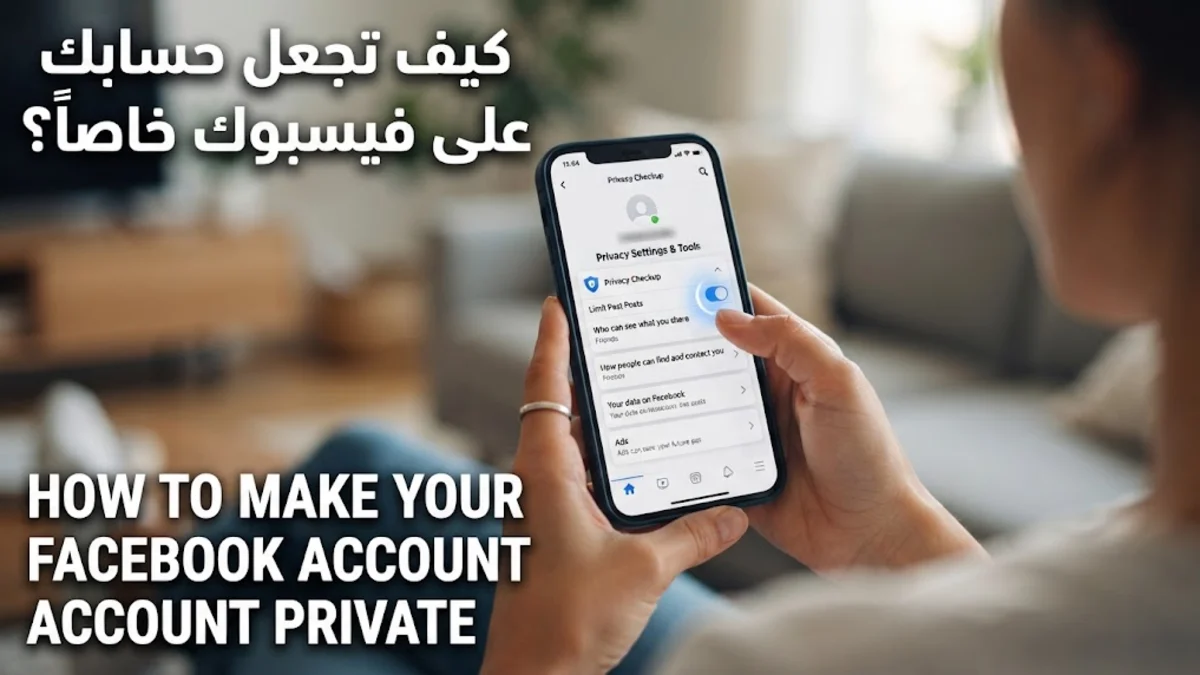
Whether you are using the mobile app or the desktop website, Facebook divides its privacy controls across multiple menus. Taking a few minutes to configure these settings properly will dramatically reduce your digital footprint and keep unwanted viewers away from your personal content.
Changing Your Default Audience for Future Posts
The first and most important step to making your account private is changing who can see what you share on your timeline. If your default setting is set to Public, anyone on the internet can read your status updates and view your uploaded media. To change this, open Facebook and navigate to your settings menu. On the desktop site, click your profile picture in the top right corner, select Settings & privacy > Settings, and click on Privacy in the left sidebar.
Look for the section labeled Your activity and locate the option that asks who can see your future posts. Click Edit next to this option and change the dropdown menu from Public or Friends to Friends. This ensures that every new photo, link, or status update you publish from now on is automatically restricted to your approved friends list only, keeping your day-to-day sharing safely away from the general public.
Restricting Who Can See Your Past Posts
Changing your default future post audience does not automatically retroactively protect everything you have shared on Facebook over the years. Any old photos or updates that were previously set to public will remain visible to anyone unless you update them. Fortunately, Facebook provides a bulk tool called Limit Past Posts that instantly applies friend-only visibility to your entire historical archive with just a single click.
To use this feature, go to Settings & privacy > Settings > Privacy. Scroll down to the Your activity section and look for the option titled Limit who can see past posts. Click the Limit Past Posts button next to it. Confirm your choice when prompted. Keep in mind that this is a global action; if you want specific old posts to remain public for business or community reasons, you will need to manually change those individual posts back afterwards.
Hiding Personal Info and Contact Details
Your profile page often displays sensitive personal information such as your phone number, email address, hometown, work history, and relationship status. Leaving these details public makes it easy for data scrapers and strangers to piece together your identity. You can easily lock down each piece of personal data individually to ensure complete privacy.
Click on your name to visit your profile page, then click the About tab beneath your cover photo. Go through each category including Contact and basic info, Family and relationships, and Details about you. Hover your mouse over individual items like your phone number or email address, click the audience selector icon next to each entry, and change the setting from Public to Friends or Only me. This granular control prevents casual visitors from harvesting your personal contact data.
Controlling Who Can Send Friend Requests and Messages
True privacy also involves managing who is allowed to interact with you directly. You can stop random strangers from flooding your notifications with unwanted friend requests or sliding into your direct messages without your permission. Restricting these communication channels creates a much more secure and peaceful social media experience.
Navigate to Settings & privacy > Settings > Audience and visibility > How people find and contact you. Here, you can change Who can send you friend requests from Everyone to Friends of friends. Similarly, check your messaging preferences in your Messenger settings to ensure that message requests from unknown accounts are routed directly to your message requests folder rather than pinging your main inbox.
Turning on Review for Tags and Mentions
Even if your own profile is locked down tightly, friends can sometimes compromise your privacy by tagging you in unflattering photos, controversial posts, or spammy advertisements that then appear on your timeline. To prevent this, you should enable timeline review features that give you veto power over anything other people try to attach to your name.
Go to Settings & privacy > Settings > Profile and tagging. Locate the settings for reviewing tags and posts. Turn on the switch that says Review posts you are tagged in before they appear on your profile. Also, enable the setting to review tags that people add to your posts before the tags show up on Facebook. This ensures nothing slips onto your feed without your explicit approval.
Checking Your Settings with View As
After adjusting all your privacy toggles, it is wise to verify that your changes took effect properly. Relying on assumptions can leave blind spots, so testing your profile from the perspective of an outsider is the best way to guarantee absolute security before you finish your configuration session.
Go to your main profile page by clicking your name in the top navigation bar. Click the three horizontal dots menu located just below your cover photo, next to the Edit profile button. From the dropdown menu, select View as. This switches your view to show how your profile looks to a random member of the public. If you still see personal details, public posts, or open friend lists that should be hidden, return to your settings and tighten those specific controls immediately.
The bottom line
Making your Facebook account private is an essential step in protecting your personal life and online security. By taking control of your post audiences, personal details, tagging permissions, and contact settings, you can enjoy social media safely without exposing yourself to strangers.
Frequently asked questions
Can I make my entire Facebook profile completely invisible to everyone?
No, Facebook does not offer a complete invisibility cloak for profiles. Your profile picture, cover photo, name, and current city will always remain visible to everyone on the platform. However, you can hide all your posts, photos, friends list, and personal details from non-friends.
Will my friends know if I change my privacy settings?
No, Facebook does not notify your friends when you update your privacy settings, change who can see your posts, or lock down your personal information details.
How do I hide my friends list from the public?
Go to your profile page, click on the Friends tab, click the three dots icon in the corner of the friends section, select Edit privacy, and change the audience setting to Only me or Friends.
What is the difference between Friends and Friends of friends?
Selecting Friends means only people you have directly accepted as connections can view your content. Friends of friends expands that circle to include the direct connections of your friends, which can still encompass thousands of strangers.
Can search engines like Google index my Facebook profile?
Yes, by default. To stop search engines outside of Facebook from linking to your profile, go to Settings & privacy > Settings > How people find and contact you, and turn off the setting that allows search engines outside of Facebook to link to your profile.