What Is Android Phone Manager and How It Works
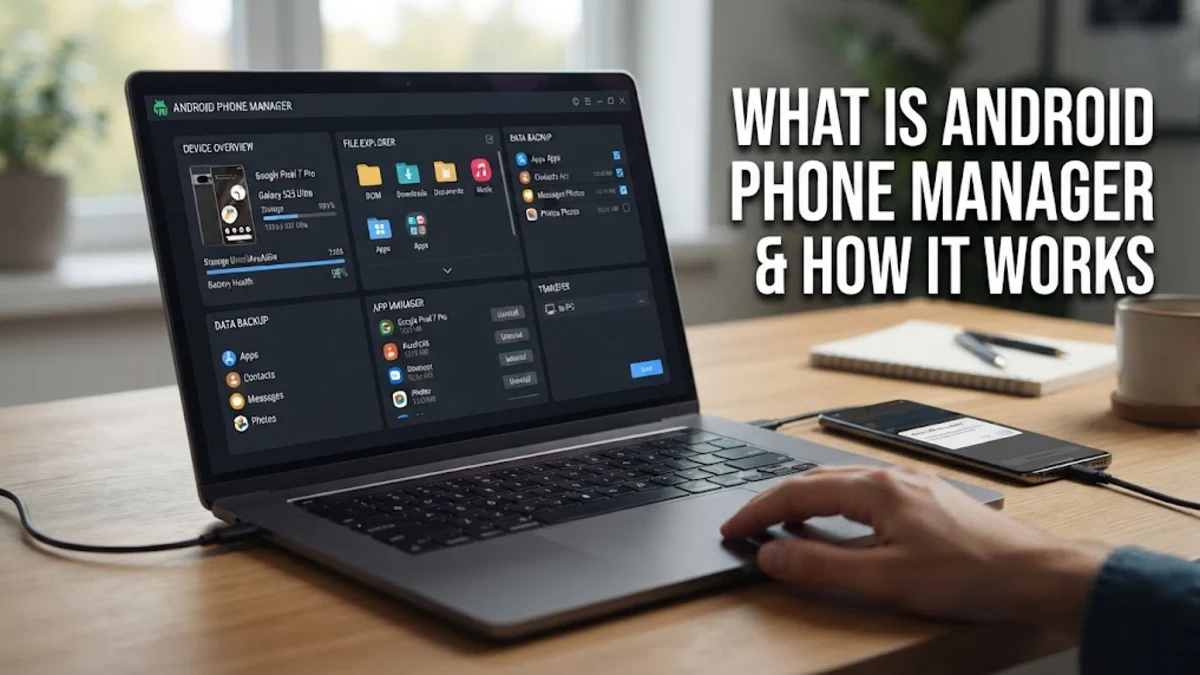
An android phone manager is a software tool or built-in system utility designed to help you organize files, monitor storage, track device location, and control settings across your mobile device. Whether accessed directly on your handset or through a companion desktop application, these tools streamline how you interact with your phone data.
Understanding how these management utilities operate enables you to free up valuable storage space, secure personal files, and transfer data seamlessly between your phone and computer without frustration.
Understanding Android Phone Manager Basics
At its core, an android phone manager bridges the gap between your mobile device and other computing platforms. When you connect your phone to a laptop or desktop computer, the management software allows you to view internal storage and SD card directories as structured folders. This makes moving large batches of photographs, documents, and music files significantly faster than relying on wireless transfers alone.
Beyond simple file browsing, modern management tools offer centralized dashboards where you can review battery health, check RAM utilization, and uninstall unused applications in bulk. Instead of navigating through multiple nested submenus on your phone screen, you get a bird-eye view of your entire device ecosystem in a single window.
Core Features and Capabilities
Comprehensive management solutions provide a wide array of features tailored to everyday maintenance and troubleshooting. One of the most frequently used functions is data backup and restoration. You can create complete archives of your text messages, call logs, contacts, and app data, storing them safely on an external drive or cloud storage provider in case your phone encounters a critical failure.
Another essential capability is application management. Rather than tapping through individual app info screens to clear caches or check permissions, a desktop-based manager lists every installed package alongside its exact storage footprint. You can batch-update software components, isolate misbehaving background processes, and organize home screen shortcuts efficiently.
Built-In Tools Versus Desktop Suites
Android operating systems include native device management features accessible directly through your system settings. By navigating to Settings > Storage or Settings > Battery, you can monitor resource consumption and clear junk files without installing third-party software. These native utilities are lightweight, secure, and optimized specifically for your device hardware.
On the other hand, manufacturer-specific desktop suites offer deeper integration for specific brands, such as transferring data during phone upgrades or managing device synchronization. While native settings handle day-to-day optimization admirably, dedicated desktop suites shine when you need to perform heavy file migrations, system backups, or firmware repair procedures.
Managing Storage and Media Files
Running out of storage space is a common issue for smartphone users, and an android phone manager serves as the primary tool for reclaiming lost gigabytes. By connecting your device to a computer, you can easily identify bulky video files, duplicate photographs, and forgotten download archives that clog your internal memory.
Once identified, you can archive these files to local storage or cloud platforms with a few clicks. Furthermore, media managers automatically sort your pictures and audio tracks into proper directories, preventing media player errors and ensuring your gallery app loads smoothly without missing thumbnails or corrupted file indexes.
Security and Remote Tracking Features
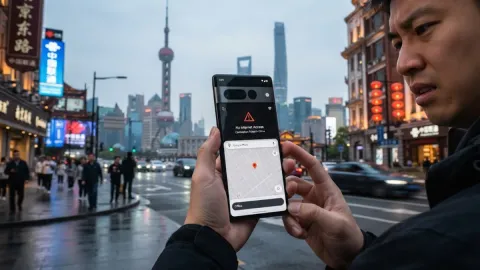
Device management extends far beyond file organization into the realm of security and remote recovery. Ecosystem management tools allow you to locate a misplaced phone on a live map, trigger a loud alarm even if the device is set to silent, or lock the screen remotely to prevent unauthorized access to your private data.
In worst-case scenarios where your phone is permanently lost or stolen, these management platforms provide a remote wipe option to clear all personal information instantly. Configuring these security features beforehand ensures you maintain control over your digital footprint regardless of physical circumstances.
Choosing the Right Management Solution
Selecting the appropriate manager depends heavily on your device manufacturer and your specific workflow requirements. Pixel owners often rely on Google cloud dashboard utilities and native system settings for streamlined maintenance, while Samsung users frequently utilize manufacturer-tailored software suites for advanced data migration and PC connectivity.
Evaluate whether you need a lightweight tool for quick file transfers or a robust suite for comprehensive backups. Sticking to official tools provided by your phone manufacturer or trusted ecosystem developers guarantees compatibility, security, and consistent software support across updates.
The bottom line
Mastering your android phone manager empowers you to take full control of your device performance, storage allocation, and personal data security. By utilizing both built-in system settings and reliable desktop utilities, you can keep your smartphone running smoothly for years to come.
Frequently asked questions
What is an android phone manager used for?
It is used to organize files, back up personal data, monitor battery and storage usage, manage applications, and track device location.
Do I need to install third-party software to manage my phone?
Not necessarily. Android includes robust built-in management tools under your system settings for storage, battery, and app control.
How do I connect my phone to a computer for file management?
Connect your phone using a USB cable, swipe down from the top of your screen, tap the USB notification, and select File Transfer or MTP mode.
Can I locate a lost phone using a device manager?
Yes, official ecosystem management tools allow you to track your phone location on a map, ring it remotely, or secure your data.
Are third-party phone managers safe to use?
Always stick to official software provided by your phone manufacturer or established tech companies like Google to protect your privacy and security.