How to Factory Reset a Windows Laptop
A factory reset wipes your Windows laptop clean, returning it to its original out-of-the-box state by removing all personal apps, settings, and files. This process is essential if you are planning to sell your computer, give it to someone else, or troubleshoot deep-seated performance issues that standard cleaning tools cannot resolve.
You can complete a factory reset directly through the built-in Windows recovery environment without needing installation media like a USB drive. Follow the structured steps below to safely back up your data, choose the correct reset options, and successfully restore your laptop.
Back Up Your Important Files Before You Begin
Before initiating a factory reset, you must safeguard your personal files, photos, documents, and downloads. Even if you choose the option to keep your files, unexpected power interruptions or system glitches can occasionally corrupt data during major operating system modifications. Transfer your vital files to an external hard drive, a USB flash drive, or a secure cloud storage provider such as OneDrive, Google Drive, or Dropbox.
Take time to make a note of software license keys, browser bookmarks, and account credentials that might not automatically sync. Check your downloads folder, desktop workspace, and hidden application data directories like AppData to ensure nothing important gets left behind. Once your critical data is safely secured elsewhere, you can proceed to the reset process with total peace of mind, knowing your personal history will not be permanently lost.
Access the Windows Recovery and Reset Settings
To begin the reset process on Windows 11 or Windows 10, open your system configuration menu by pressing the Windows + I keys simultaneously. From the main window, click on System in the left sidebar, and then scroll down to select Recovery. This panel controls advanced startup options, troubleshooting tools, and your primary operating system reset utility.
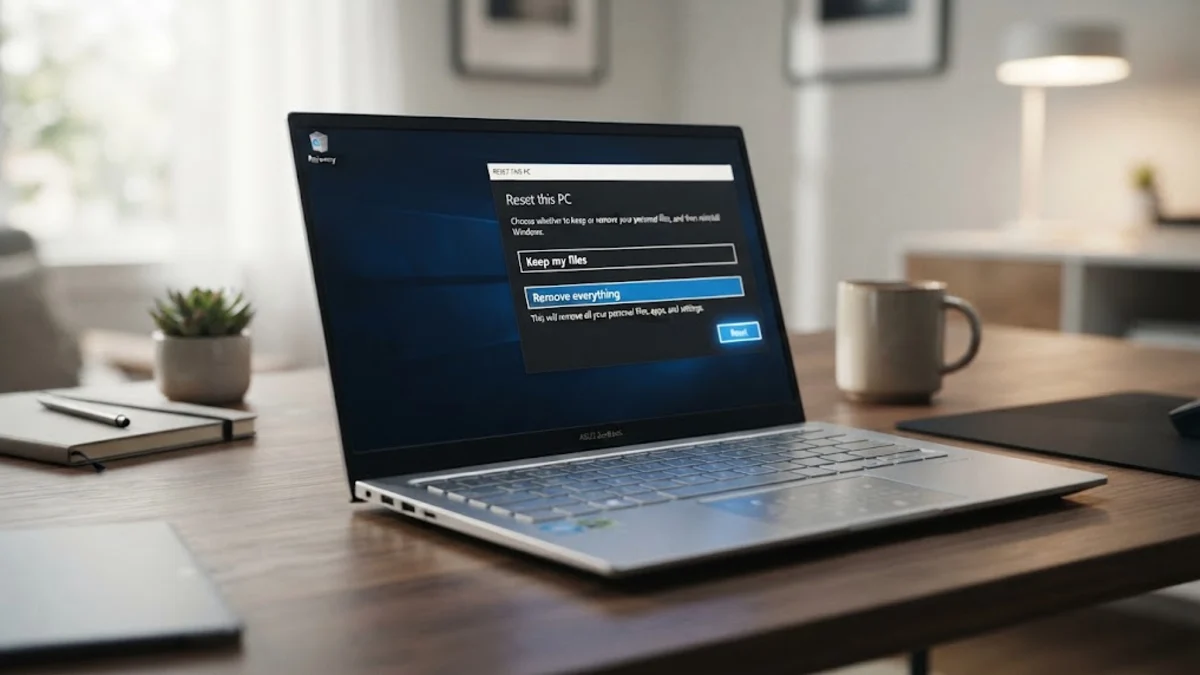
Under the recovery options list, locate the entry labeled Reset this PC and click the Reset PC button next to it. A dedicated blue and white configuration window will immediately pop up on your screen, guiding you through the initial choices regarding your data preservation preferences and system reinstallation method.
Choose Between Keeping Your Files and Removing Everything
The next screen will present you with two primary choices: Keep my files or Remove everything. Selecting Keep my files removes downloaded applications and personal settings while leaving your personal documents and media folders intact within the user directory. This is the ideal choice if you are experiencing performance slowdowns and want a fresh system state without losing your homework, photos, or work files.
Choosing Remove everything deletes all personal files, accounts, applications, and settings completely, formatting the main system partition. You should always select this option if you are preparing the laptop for sale, donation, or recycling to ensure your personal data remains private and unrecoverable by standard recovery software.
Select Cloud Download or Local Reinstall
After choosing your data handling preference, Windows will prompt you to select how you want to reinstall the operating system. Your two choices are Cloud download and Local reinstall. The cloud download option downloads fresh system files directly from Microsoft servers, requiring a stable internet connection but ensuring you get the absolute newest system binaries without needing subsequent updates.
Local reinstall uses the existing recovery image stored on your laptop partition to rebuild the operating system. This method is much faster and does not consume internet bandwidth, but it may require you to run Windows Update immediately afterward to download missing security patches and driver updates released since your laptop was manufactured.
Configure Advanced Settings and Drive Cleaning
Review your final settings summary before confirming the operation. If you clicked Remove everything, you will see an additional settings link allowing you to configure data cleaning options. Clicking Change settings lets you toggle clean data options on or off. Turning data cleaning on securely overwrites the drive, which takes significantly longer but prevents data recovery tools from piecing back your old files.
If you are keeping your files, the summary will simply list your chosen preferences. Double-check that all options match your intended goal, keeping in mind that once you click the final confirmation button, the process cannot be safely interrupted without risking operating system corruption.
Complete the Reset and Perform Initial Setup
Click the Reset button to kick off the procedure. Your laptop will restart automatically, enter the pre-boot recovery environment, and begin formatting partitions and installing the fresh operating system. This entire process can take anywhere from twenty minutes to over an hour depending on whether you selected a local reinstall or cloud download, as well as the speed of your laptop storage drive.
Once the reset concludes, your laptop will reboot into the Out-of-Box Experience setup screen. Follow the on-screen prompts to connect to your Wi-Fi network, sign in with your Microsoft account, configure privacy settings, and customize your new desktop environment to complete the restoration.
The bottom line
Factory resetting your Windows laptop is a reliable method to clear out clutter, resolve complex bugs, or prep your device for a new owner. By backing up your files ahead of time and selecting the proper recovery paths, you can restore peak performance with minimal frustration.
Frequently asked questions
Will a factory reset delete my files?
It depends on the option you choose. If you select 'Keep my files', your personal documents remain safe while apps and settings are cleared. Choosing 'Remove everything' deletes all personal files and data from the drive.
Do I need an internet connection to factory reset a laptop?
An internet connection is only required if you choose the 'Cloud download' option to pull fresh installation files from Microsoft. Local reinstalls rely entirely on the files already stored on your hard drive.
How long does a factory reset take?
Most factory resets take between 20 minutes and an hour. The exact duration depends on your laptop hardware specifications, whether you are using an SSD or traditional hard drive, and your internet speed if downloading files.
Can I cancel a factory reset once it has started?
No, you should never interrupt a factory reset once it begins. Stopping the process midway can corrupt system files and leave your operating system unbootable, requiring manual recovery media to fix.
Will a factory reset remove my Windows license?
No, your Windows license is digitally tied to your laptop motherboard hardware. Once the reset finishes and you connect to the internet, Windows will automatically activate itself.