Microsoft Word vs Microsoft 365: Which One Do You Need?
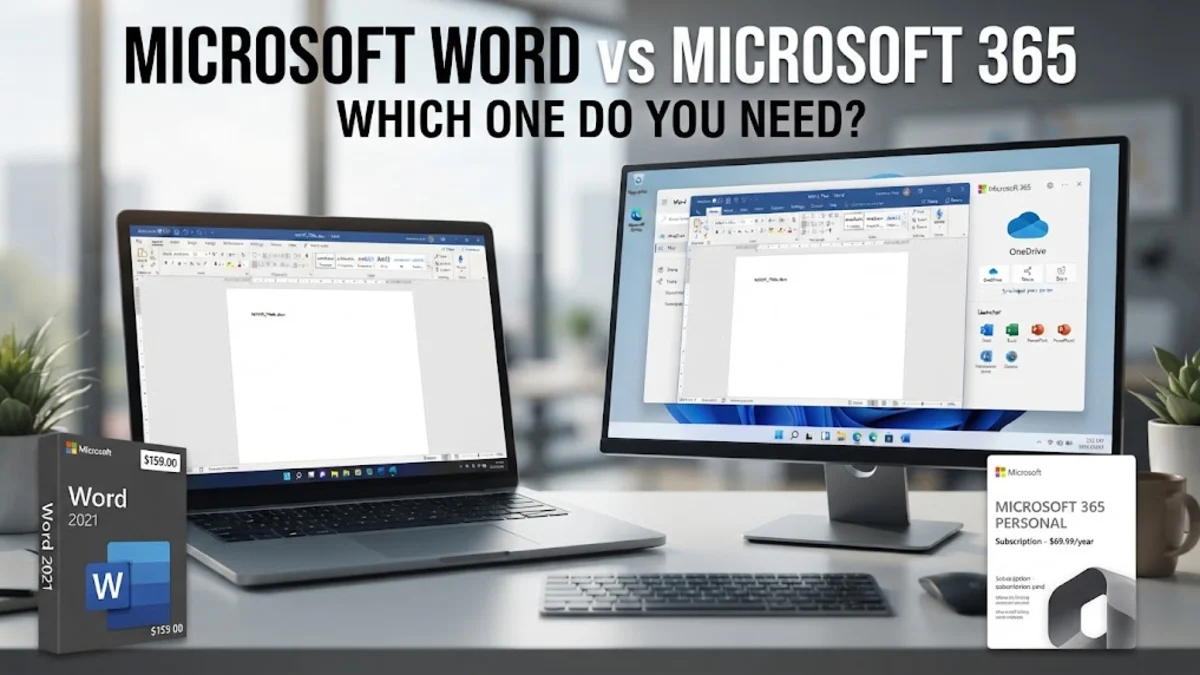
Microsoft Word is a standalone word-processing application, while Microsoft 365 is a subscription service that includes Word along with other productivity apps like Excel, PowerPoint, and Outlook. If you are looking to buy one of these in 2026, the primary choice is between a one-time purchase for a single device or a recurring subscription that offers cloud storage and continuous feature updates. Choosing the right version depends entirely on whether you prioritize long-term cost savings or access to the latest AI-driven tools. For most modern users, the gap between these two options has never been wider. While the core writing tools remain similar, the ecosystem surrounding them—specifically cloud integration and artificial intelligence—sets them apart. This guide will help you understand the licensing models, feature differences, and total cost of ownership to ensure you make an informed decision for your home or office setup.
The Core Difference: Ownership and Licensing Models
The most significant distinction between Microsoft Word (standalone) and Microsoft 365 is how you pay for and own the software. When you purchase the standalone version of Microsoft Word, often referred to as a perpetual license, you pay a one-time upfront fee. This grants you the right to use that specific version of Word indefinitely on a single PC or Mac. You own the software for life, but you are stuck with the feature set that exists on the day of purchase. There are no major upgrades; if a new version with better tools is released in 2027 or 2028, you would have to buy the software all over again at full price. This model is preferred by individuals who want to avoid monthly bills and do not need the latest technology to get their work done. In contrast, Microsoft 365 is a subscription service. You pay a monthly or annual fee to maintain access to the entire suite of Office apps. The moment you stop paying the subscription, the desktop applications enter a 'view-only' mode, meaning you can no longer create or edit documents. While this recurring cost might seem less appealing, it ensures you are always running the most current version of the software. You never have to worry about 'buying' the next version because updates are pushed automatically as part of your active subscription. For users who want the latest security patches and features without any manual intervention, the 365 model is the standard choice in 2026.
Feature Sets and the Role of Microsoft Copilot
In 2026, the feature gap between standalone Word and the 365 version is defined by Artificial Intelligence. Microsoft 365 users have full access to Microsoft Copilot, an AI assistant integrated directly into the Word interface. Copilot can draft entire documents based on a short prompt, summarize long legal files, and even suggest stylistic changes to match a specific tone. These generative AI tools require a constant connection to Microsoft’s cloud servers, making them exclusive to the subscription model. If you rely on AI to enhance your productivity, the standalone version of Word will feel significantly limited. Standalone Word includes all the classic formatting tools, templates, and basic spellchecking you expect. It is a robust, stable, and highly capable editor for offline tasks. However, it lacks the 'connected experiences' found in 365. For example, 365 subscribers get advanced grammar and style suggestions through the Editor tool, which uses cloud-based machine learning to provide deeper insights than a standard spellchecker. If your writing is largely personal or for simple documentation, the standalone version is more than sufficient. But for professionals who need to synthesize information quickly, the AI tools in 365 provide a competitive edge that the perpetual license simply cannot match.
Cloud Storage and Real-Time Collaboration
Cloud integration is another area where Microsoft 365 offers a massive advantage. Every Microsoft 365 subscription includes 1TB of OneDrive cloud storage. This integration allows Word to automatically save your progress as you type, ensuring you never lose work due to a power outage or a crashed computer. More importantly, it enables real-time collaboration. With a 365 subscription, you can share a document link with a colleague, and both of you can edit the file simultaneously. You can see their cursor moving across the screen, leave comments, and track changes in real-time. This is the gold standard for modern teamwork in 2026. Standalone Word users do not get the 1TB storage bonus. While you can still save files to a free OneDrive account (which typically offers only 5GB), the experience is not as seamless. Collaboration in the standalone version is largely 'offline.' If you want someone else to edit your work, you usually have to email them the file, wait for them to finish, and then manage the different versions manually. This often leads to version control issues, such as having multiple files with names like 'Report_Final' and 'Report_Final_v2.' For students working on group projects or businesses with remote employees, the collaboration tools in Microsoft 365 are essentially a requirement for an efficient workflow.
Device Flexibility and Mobile Support
The way we work has shifted toward a multi-device approach, and this is where the licensing for standalone Word often falls short. A perpetual license for Microsoft Word is tied to a single device. If you install it on your desktop, you cannot legally install that same license on your laptop or tablet. If you buy a new computer, you must go through the process of deactivating the license on the old machine before you can activate it on the new one. This 'one-license-one-machine' rule is increasingly restrictive for users who move between an office desktop and a mobile laptop. Microsoft 365, on the other hand, allows you to install and sign into the Office apps on up to five devices simultaneously. This includes PCs, Macs, iPads, and Android smartphones. Your settings, recent files, and custom dictionaries follow you from device to device. Furthermore, the mobile versions of Word for iOS and Android offer 'Premium' features that are only unlocked with a 365 subscription. Without a subscription, the mobile apps are limited to basic editing and viewing. If you frequently need to review or tweak documents on your phone while traveling, the 365 subscription is the only way to get the full feature set on a mobile platform.
Comparison Table: Standalone Word vs. Microsoft 365
| Feature | Microsoft Word (Standalone) | Microsoft 365 (Subscription) |
|---|---|---|
| Payment | One-time upfront fee | Monthly or annual subscription |
| Major Updates | No (security patches only) | Yes (continuous new features) |
| AI & Copilot | Not included | Full integration included |
| Cloud Storage | Standard (5GB free) | 1TB included per user |
| Devices | 1 PC or Mac only | Up to 5 devices simultaneously |
| Collaboration | Manual file sharing | Real-time co-authoring |
| Mobile Apps | Basic features only | All premium features unlocked |
Long-Term Cost and Which You Should Choose
When deciding which to buy, you must consider your 'refresh cycle.' A standalone version of Word typically costs between $80 and $150 depending on the specific edition and region. A Microsoft 365 Personal subscription is roughly $70 per year. If you plan to use the same computer and the same version of Word for more than three years without caring about AI updates or cloud storage, the standalone version is the more economical choice. You pay once and forget about it. However, the value proposition changes if you have a family or multiple computers. The Microsoft 365 Family plan allows up to six people to share a single subscription, with each person getting their own 1TB of storage and 5-device limit. For a household or a small business, the cost per person for a 365 Family plan is significantly lower than buying six individual standalone licenses. Ultimately, if you are a power user who wants the latest AI features, works on multiple devices, and needs a robust backup solution, Microsoft 365 is the superior investment. If you are a casual user who only writes the occasional letter and prefers the simplicity of owning your software, the standalone version remains a solid, reliable choice.
The bottom line
The choice between Microsoft Word and Microsoft 365 in 2026 comes down to your personal workflow. If you want a predictable, one-time cost and only work on a single computer, the standalone version provides a stable writing environment. However, for anyone who values collaboration, multi-device access, and the game-changing potential of AI through Microsoft Copilot, the Microsoft 365 subscription is the clear winner. Carefully assess your needs for storage and mobility before committing to either path.
Frequently asked questions
Can I open a Microsoft 365 Word document in a standalone version?
Yes. Both versions use the standard .docx file format, so files are fully compatible. However, if the 365 document uses advanced features or specific AI-generated elements, they might not be editable in the standalone version.
Do I need an internet connection to use Microsoft 365?
You need an internet connection to install the apps and to sign in once every 30 days to verify your subscription. However, the core Word application runs locally on your computer, so you can write and edit documents offline.
Can I switch from standalone Word to Microsoft 365 later?
Yes. You can subscribe to Microsoft 365 at any time. You should uninstall the standalone version before installing the 365 version to avoid software conflicts and ensure your account is correctly linked to your new subscription.
Is there a free version of Microsoft Word available in 2026?
Microsoft offers a free web-based version of Word at Office.com. It has fewer features than the desktop versions and requires a constant internet connection, but it is a good option for basic document editing without a subscription.