How to Connect Your Laptop to a TV
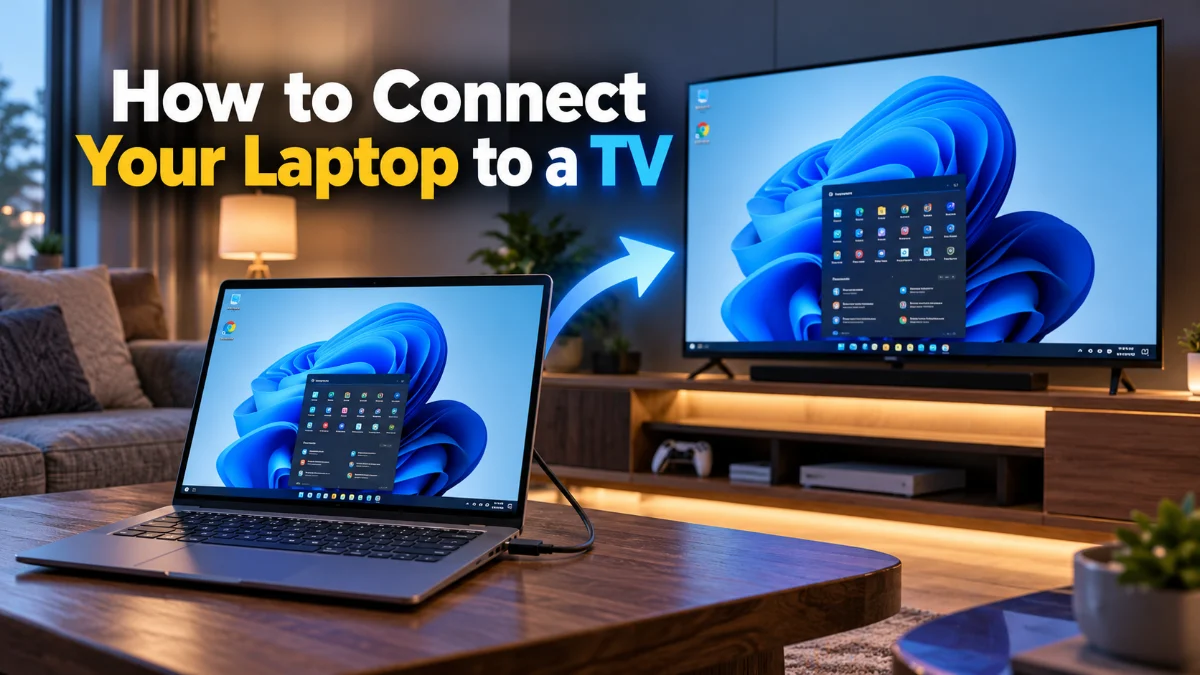
Connecting your laptop to a television is one of the best ways to enjoy movies, stream presentations, or play video games on a much larger display. Whether you want to set up a secondary workstation in your living room or simply share vacation photos with your family, linking the two devices is a straightforward process that takes only a few minutes. Depending on your specific hardware and preferences, you can choose between a reliable physical wired connection using an HDMI cable or a convenient wireless casting method. This guide walks you through every essential step required to get your video and audio working perfectly without unnecessary hassle.
Using an HDMI Cable for a Reliable Connection
Using a standard HDMI cable is by far the most reliable, lag-free, and straightforward method to connect your laptop to a television. Almost all modern laptops and flat-screen TVs feature at least one HDMI port. To get started, plug one end of the HDMI cable into your laptop and the other end into an available HDMI port on your television. Once physically connected, turn on your television and use your TV remote to select the correct input source, such as HDMI 1 or HDMI 2, matching the port where you plugged in the cable. If your laptop has a newer USB-C or Thunderbolt port instead of a standard HDMI slot, you can easily use an inexpensive USB-C to HDMI adapter or cable to bridge the gap. This physical connection instantly transmits both high-definition video and multi-channel audio without requiring any active internet connection or software configuration. If nothing appears on the screen immediately, do not panic; your laptop simply needs to recognize the external monitor through your operating system settings. A physical cable remains the top choice for gaming or watching fast-paced media because it eliminates the risk of wireless interference, dropped frames, or audio-video desynchronization that can occasionally plague wireless setups.
Configuring Your Display Settings in Windows
Setting Up Wireless Casting via Miracast
Troubleshooting Common Display and Audio Issues
Sometimes your laptop and TV might connect successfully, but you may run into annoying issues like a black screen, missing audio, or cut-off edges. If your television displays a No Signal message even though the cable is plugged in firmly, double-check that your TV input source matches the exact physical port you are using. Another common problem is overscan, where the picture edges are cut off because the TV is zooming in on the incoming video signal. To fix this, look at your TV remote settings menu, find the picture size, aspect ratio, or screen fit options, and switch it from 16:9 or Zoom to Just Scan, Screen Fit, or 1:1 pixel mapping. If your laptop display shows up fine on the TV but you hear no sound coming from the television speakers, the audio output device needs to be redirected manually. Click on the speaker icon in your Windows taskbar notification area, click the small arrow next to your volume slider, and select your television model or the digital audio output associated with your HDMI port. If your wireless casting keeps disconnecting randomly, move both your laptop and TV closer to your wireless router to reduce signal interference, or temporarily disconnect other heavy bandwidth-consuming devices sharing the same Wi-Fi frequency band.
Tips for Optimizing Resolution and Performance
The bottom line
Connecting your laptop to a television opens up a world of entertainment and productivity possibilities. Whether you choose a physical HDMI cable for zero-lag gaming and reliable video streaming or opt for wireless casting for quick sharing without wires, getting set up takes only a few moments. By adjusting your display layout, fixing audio output defaults, and enabling game mode on your TV, you can enjoy a crisp, responsive viewing experience tailored to your exact needs.
Frequently asked questions
Can I connect my laptop to a TV without an HDMI cable?
Yes, you can connect wirelessly using Miracast on Windows or AirPlay if you use an Apple ecosystem. Your TV must be a smart TV or have a compatible streaming device attached.
Why is there no sound on my TV when connected via HDMI?
If video works but audio does not, your laptop is likely still routing sound through its built-in speakers. Click the volume icon on your taskbar and change the audio playback device to your television.
Why does my laptop screen look blurry on my TV?
Blurry text usually happens because the TV is applying picture scaling or overscan. Check your TV display settings and switch the picture mode to Just Scan, PC Mode, or Game Mode.
Can I close my laptop lid while it is connected to a TV?
Yes, but you must change your power settings first. Go to power settings in Windows and configure the lid-close action to do nothing when your laptop is plugged into a charger.
How do I fix lag when casting my laptop to a TV wirelessly?
Wireless casting naturally introduces slight latency due to network transmission. To minimize lag, ensure both devices are on a strong 5 GHz Wi-Fi network and close unnecessary background apps.