How to Sign In to Outlook on Any Device in 2026
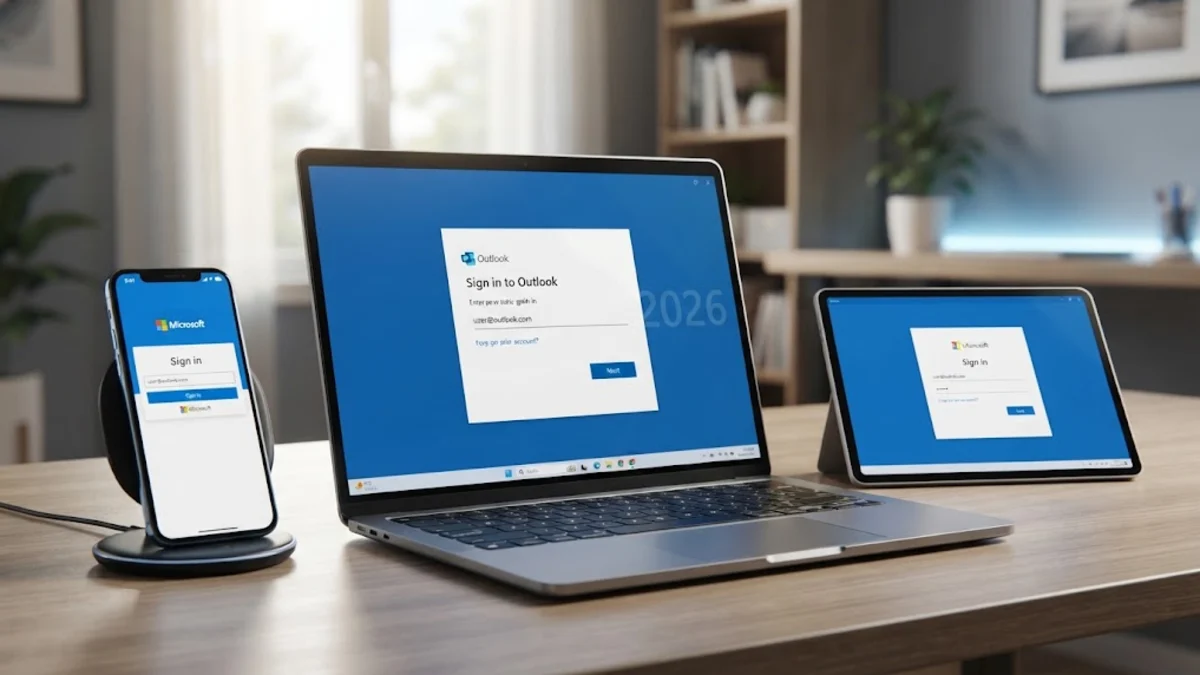
Signing in to your Outlook account gives you seamless access to your emails, calendar, and contacts across all your devices. Whether you are using a brand-new computer or setting up a mobile app for the first time, getting into your account takes just a few moments.
This guide walks you through the exact steps to sign in to Outlook on the web, desktop applications, and mobile platforms, ensuring you can access your inbox without interruption.
Signing In to Outlook on the Web
Using Outlook on the web is the quickest way to check your emails without installing any additional software. All you need is a standard web browser and an active internet connection to get started right away. This method works identically across Windows, macOS, and Linux operating systems.
To access your inbox through a browser, follow these precise steps to complete your sign-in safely and efficiently:
- Open your preferred web browser and navigate to the official Outlook login page.
- Click on the Sign in button located usually in the top right corner of the page.
- Enter your complete Microsoft account email address, phone number, or Skype ID, then click Next.
- Type your account password into the secure password field and click Sign in.
- If prompted to stay signed in, choose whether to trust your current device to reduce the number of login prompts in the future.
Make sure you always check the browser address bar to confirm you are on the legitimate Microsoft domain before entering sensitive credentials. Avoiding third-party redirect links prevents credential harvesting and keeps your personal data secure from malicious actors.
Signing In to Outlook on Windows Desktop
If you are using a Windows computer, the native Outlook application or the built-in Mail and Calendar replacement provides deep operating system integration. Signing into the desktop client allows you to manage multiple email accounts, sync your local calendar entries, and receive native desktop notifications whenever a new message arrives in your inbox.
To configure and sign in to your account through the Windows desktop application, follow these structured instructions:
- Launch the Outlook application from your Windows Start menu or taskbar shortcut.
- When the application opens, enter your email address in the designated login prompt field.
- Click Continue or Next to let Outlook automatically detect your account type and server settings.
- Enter your account password when redirected to the secure Microsoft authentication window.
- Complete any two-factor authentication prompts if your account security requires an approval notification or text message code.
Once the authentication finishes syncing, your folders will populate in the left sidebar. If you encounter errors during auto-discovery, you can switch to manual setup mode by selecting advanced settings and entering your IMAP or Exchange server details directly.
Signing In to Outlook on macOS
Mac users can access Outlook through either the web browser or the dedicated Microsoft Outlook app available via the Mac App Store. The desktop app brings a familiar ribbon interface and robust organizational tools to macOS environments, making it a favorite for professionals managing heavy correspondence.
Setting up and signing into your account on a Mac involves a straightforward authentication procedure:
- Open the Outlook app from your Applications folder or Launchpad.
- Type your email address into the initial welcome screen prompt.
- Click Add Account to initiate the secure Microsoft sign-in workflow.
- Enter your account password on the authentication popup window that appears.
- Approve any additional security verifications sent to your authenticated recovery devices.
After successful verification, your mailbox will begin downloading recent messages. Depending on the size of your archive, initial synchronization may take several minutes, during which searching or indexing might run slowly in the background.
Signing In on iOS and Android Mobile Devices
Accessing your emails on the go requires installing the official Outlook mobile app on your smartphone or tablet. The mobile app consolidates your inbox, cloud attachments, and calendar events into a unified interface designed for touchscreens.
To sign in on an iOS or Android device, execute the following workflow:
- Download and install the official Microsoft Outlook app from the Apple App Store or Google Play Store.
- Open the app and tap on Add Account or enter your email address directly on the splash screen.
- The app will redirect you to the standard Microsoft sign-in portal. Enter your password and complete authentication.
- Grant permissions for notifications and calendar access if you want real-time alerts for incoming messages.
If you prefer not to use the dedicated app, you can also add your Outlook account directly to your phone's native mail client by navigating to your device Settings > Mail > Accounts > Add Account and selecting Microsoft Exchange.
Troubleshooting Common Sign-In Errors
Even with a straightforward login process, users occasionally run into frustrating obstacles such as endless loading loops, incorrect password prompts, or server connection timeouts. Knowing how to systematically diagnose these issues saves time and restores access quickly.
When sign-in fails, apply these proven diagnostic steps to clear roadblocks:
- Verify your internet connection by loading a neutral webpage to ensure your network is fully functional.
- Clear your web browser cache and cookies, or attempt to sign in using an incognito or private browsing window.
- Check the official Microsoft service status dashboard to confirm whether an active server outage is affecting authentication services.
- Reset your password using the official account recovery portal if you suspect your credentials have expired or been mistyped.
Avoiding common mistakes like entering outdated server settings or ignoring two-factor prompts ensures a smooth troubleshooting experience. Always ensure your app version is fully updated to prevent compatibility conflicts.
Managing Account Security and Recovery
Securing your Outlook login goes beyond entering the correct password. Because your email account often serves as the master recovery key for your other online services, establishing robust security safeguards is critical for protecting your digital identity from unauthorized access.
To maintain high security standards around your sign-in process, implement these best practices:
- Enable two-factor authentication (2FA) using an authenticator app rather than relying solely on SMS text messages.
- Regularly review your recent sign-in activity page to check for unrecognized login attempts from unfamiliar locations or devices.
- Keep your recovery phone number and backup email address up to date in your Microsoft account security panel.
- Revoke access permissions for old third-party apps and browsers that you no longer use actively.
Taking these preventative measures ensures that even if someone manages to guess your password, they cannot breach your inbox without passing your secondary verification device checkpoint.
The bottom line
Signing in to Outlook is a straightforward process once you know the correct portal or application settings for your device. By keeping your credentials secure and knowing how to troubleshoot common login errors, you can maintain uninterrupted access to your professional and personal correspondence.
Frequently asked questions
Why does Outlook keep asking for my password repeatedly?
This usually happens due to corrupted credential cache files, outdated app versions, or strict security policies requiring periodic re-authentication. Try clearing your saved credentials or updating your app.
Can I sign in to multiple Outlook accounts at the same time?
Yes. Both the desktop apps and mobile applications allow you to add multiple accounts and switch between them seamlessly from the sidebar or settings menu.
What should I do if I forget my Outlook password?
Click on the 'Forgot password' link on the sign-in screen. You will be guided through a verification process using your recovery phone number or secondary email address to reset it safely.
Is it safe to check Outlook on public computers?
Yes, provided you always use a Private or Incognito browser window and remember to sign out completely and close the browser when you finish your session.
How do I enable two-factor authentication for my Outlook sign-in?
Navigate to your Microsoft account security dashboard, select advanced security options, and follow the setup wizard to link an authenticator app to your account.