How to Fix an iPhone Not Working Properly
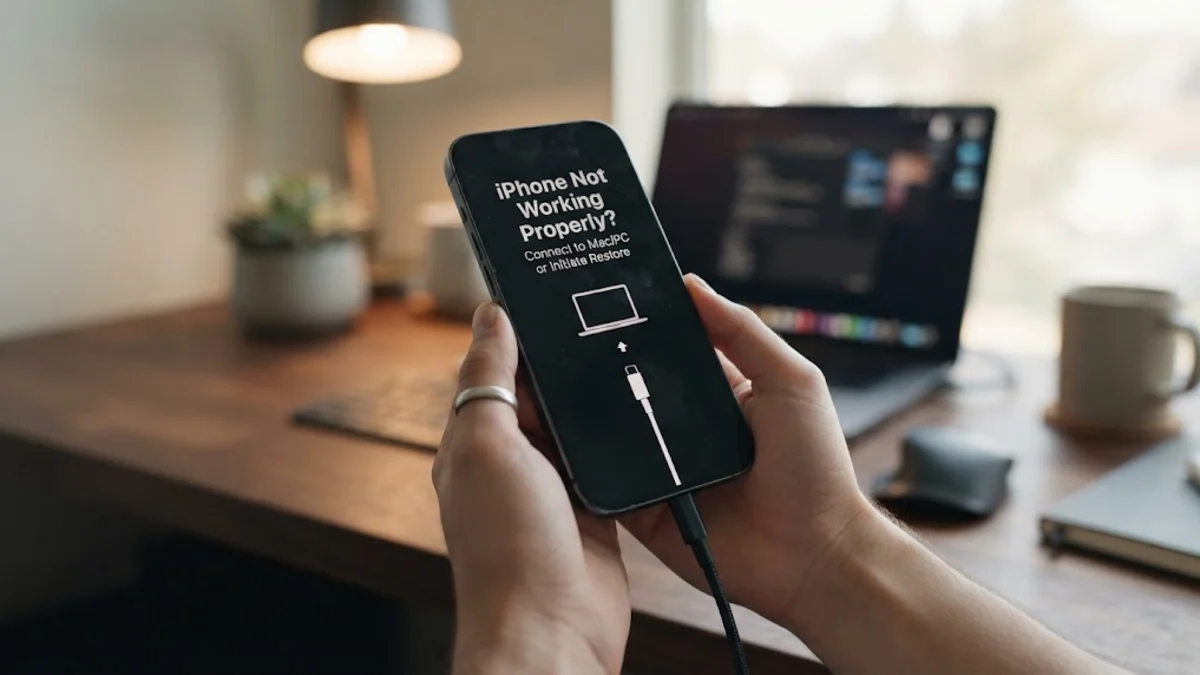
When your iPhone starts lagging, freezing, or behaving unexpectedly, daily tasks can grind to a halt. Fortunately, most performance issues stem from minor software glitches, temporary memory leaks, or outdated system files rather than hardware failure.
Force Restart Your iPhone
A force restart is the quickest and most effective first step when your iPhone is not working properly. Unlike a standard shutdown, this process cuts power directly to the hardware components and forces the operating system to clear its temporary memory cache without erasing any of your personal data, photos, or messages.
To perform a force restart on modern devices, quickly press and release the Volume Up button, quickly press and release the Volume Down button, and then press and hold the Side button. Keep holding the button down until the screen goes completely dark and the Apple logo appears on the display. Once the phone boots back up, test the affected apps or features to see if the erratic behavior has stopped. If your device continues to freeze, move on to the next troubleshooting method.
Check and Free Up Storage Space
An iPhone operating at or near maximum storage capacity will frequently slow down, drop frames during animations, and refuse to open apps properly. iOS requires a healthy buffer of free storage space to manage virtual memory, temporary cache files, and background system processes effectively. If your storage is completely full, the system struggles to write new data.
To check your available space, open Settings > General > iPhone Storage. Review the recommendations provided by iOS, such as offloading unused applications, reviewing large attachments, or moving your media library to cloud storage. Delete unnecessary apps and large files until you have at least ten percent of your total storage capacity free. Restart your phone after clearing space to allow iOS to reorganize its file system and restore normal performance.
Update iOS to the Latest Version
Software bugs are a frequent culprit behind an iPhone not working properly, especially if you are running an older build of the operating system. Apple regularly releases software updates that patch hidden bugs, resolve memory management issues, and optimize overall system stability across supported device models.
To check for and install the latest updates, connect your iPhone to a stable Wi-Fi network, plug it into a power source, and navigate to Settings > General > Software Update. If an update is available, tap Update Now and follow the onscreen prompts. Avoid interrupting the installation process, as a corrupted update file can lead to further system instability. Once the update finishes installing, check if the original performance issues have been resolved.
Reset All Settings Without Data Loss
Corrupted system configurations, misconfigured network settings, or conflicting preference files can cause specific features on your iPhone to fail. While you could hunt down every individual setting, performing a general settings reset clears out all custom configurations—such as saved Wi-Fi networks, Bluetooth pairings, and display preferences—returning them to factory defaults.
Crucially, this process does not delete your personal photos, videos, text messages, or downloaded applications. To initiate this reset, go to Settings > General > Transfer or Reset iPhone > Reset > Reset All Settings. Enter your device passcode to confirm the action. Your iPhone will restart automatically. Once rebooted, you will need to reconnect to your Wi-Fi networks and re-enter your preferences, but persistent system glitches should be gone.
Manage Background App Refresh and Battery Health
Sometimes an iPhone feels broken because runaway background processes consume all available processor cycles, causing severe thermal throttling and interface lag. Restricting unnecessary background activity can instantly revive a sluggish device and improve overall responsiveness throughout the day.
To limit background resource hogs, go to Settings > General > Background App Refresh and toggle it off entirely or disable it for individual apps that do not require live updates. Additionally, check your battery status by navigating to Settings > Battery > Battery Health & Charging. If your maximum capacity is severely degraded, Apple may throttle processor performance to prevent unexpected shutdowns, meaning a battery replacement might be required.
Factory Reset as a Last Resort
If you have exhausted all other software troubleshooting steps and your iPhone is still not working properly, a complete factory reset is your final option. This procedure wipes all data, applications, and corrupted system files from the device, giving you a completely clean slate.
Before proceeding, ensure you have a complete backup of your device via iCloud or a computer. Once your data is safely stored, go to Settings > General > Transfer or Reset iPhone > Erase All Content and Settings. Follow the setup assistant once the phone reboots, and choose whether to restore your backup or set the device up as new to completely eliminate lingering software corruption.
The bottom line
Fixing an iPhone that is not working properly usually comes down to methodical troubleshooting, starting with simple reboots and moving toward storage management and software updates. By addressing the root cause, you can restore your device to peak performance without needing an expensive repair service.
Frequently asked questions
Will a force restart delete my photos or messages?
No, a force restart simply cuts power to the hardware and reboots the system. It does not erase any personal data, photos, or app settings.
How much free storage should I keep on my iPhone?
It is recommended to keep at least 10% to 15% of your total iPhone storage free so iOS has enough room for virtual memory and cache files.
What does resetting all settings actually do?
It returns all customized system preferences—such as Wi-Fi passwords, Bluetooth connections, and display layouts—back to factory defaults without deleting your personal files.
Why is my iPhone lagging even after a restart?
Persistent lag can be caused by a lack of free storage space, an outdated iOS version, or a degraded battery that triggers performance throttling.
Should I restore my backup after a factory reset?
If your backup contains corrupted configuration files, restoring it might bring the bug back. Setting the phone up as new is safer if persistent issues continue.