How to Format an Android Phone Safely
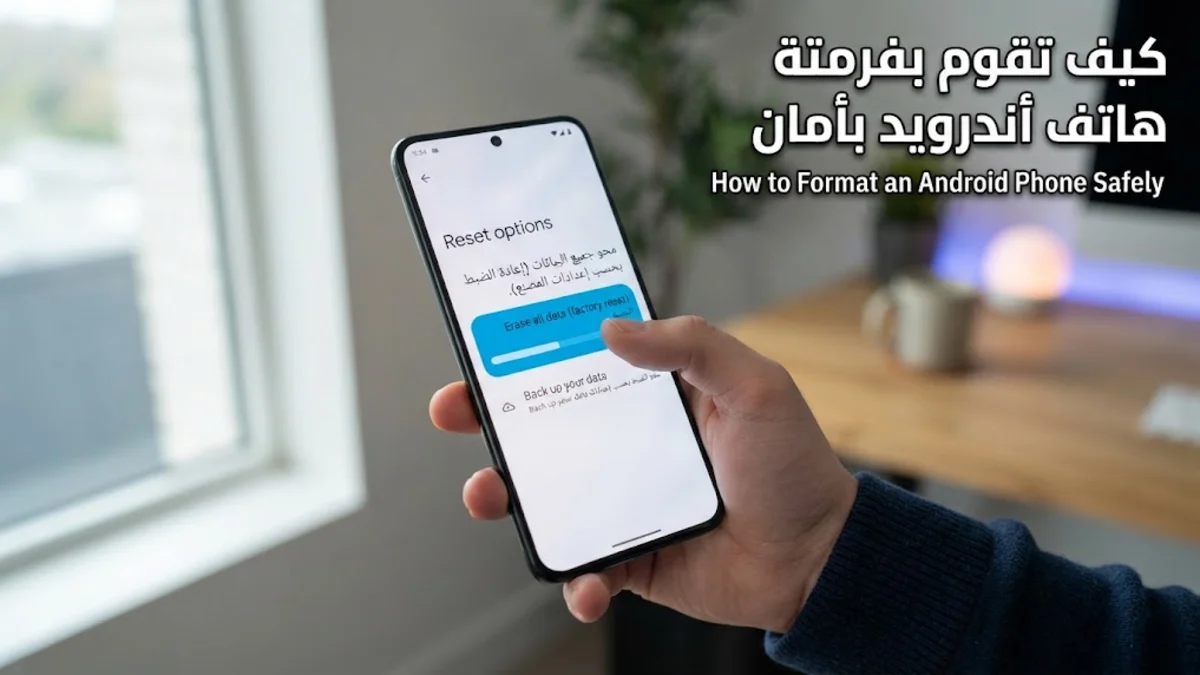
Formatting your Android phone completely wipes all personal data, apps, and settings, returning the device to its original factory state. Whether you are preparing to sell your phone, giving it to a family member, or trying to resolve deep-seated performance issues and persistent bugs, a clean slate is often the most effective solution.
Why and When You Should Format Your Android Phone
Formatting your phone, commonly referred to as a factory data reset, is a powerful troubleshooting tool and a necessary security step before transferring device ownership. Over time, cached data, corrupted system files, and leftover residual folders from uninstalled applications can clog your internal storage and degrade overall performance. If your phone freezes constantly, apps crash unexpectedly, or battery life plummets despite trying software updates, a fresh installation of the operating system can restore responsiveness.
Beyond performance tuning, formatting is mandatory when you decide to upgrade or switch devices. Simply deleting photos or contacts manually is not enough, as fragments of your personal files can often be recovered by sophisticated software unless the entire storage partition is wiped and encrypted memory is cleared. Performing a proper factory reset ensures that your private messages, banking information, and personal media remain completely secure away from the next owner.
Step 1: Backing Up Your Photos, Contacts, and Files
Before you initiate any formatting process, securing a complete and up-to-date backup of your personal data is vital because a factory reset cannot be undone. Start by backing up your photos and videos using Google Photos or an alternative cloud storage provider, ensuring all items are fully synced to the cloud. Next, verify that your contacts, calendar events, and device settings are safely linked to your primary Google account by checking your device sync settings.
For larger files, local documents, and chat histories, connect your phone to a computer using a USB cable or transfer critical files to an external microSD card if your device supports expandable storage. If you use messaging apps like WhatsApp, navigate to the app settings and manually back up your chat history to Google Drive. Taking these precautions guarantees you will not lose cherished memories or essential work documents during the wipe.
Step 2: Removing Your Google Account Before Resetting
A crucial security feature built into modern Android versions is Factory Reset Protection (FRP), which is designed to prevent unauthorized users from wiping and using a stolen phone. However, this feature can accidentally lock you out of your own device after a format if you do not remove your Google account manually beforehand. To prevent this headache, open Settings > Users & accounts or Passwords & accounts.
Tap on your Google account and select Remove account. Confirm the action when prompted by entering your device PIN, pattern, or password. Once the account is completely unlinked from the operating system, the system will no longer trigger security verification locks when you complete the factory reset. This simple step saves considerable time and prevents unnecessary activation delays.
Step 3: Using the Settings Menu to Factory Reset
The easiest and safest way to format your Android phone is through the standard system settings menu, provided your screen is responsive and you can navigate the user interface normally. Open your phone settings app and scroll down to locate System or General management, depending on your specific phone manufacturer such as Samsung or Google Pixel.
Tap on Reset options and then select Erase all data (factory reset). The system will display a comprehensive warning list showing every account, downloaded app, and media file that will be permanently deleted from the internal storage. Review this list carefully, tap the confirmation button at the bottom of the screen, enter your security PIN or password one final time, and tap Delete all to begin the formatting procedure.
Step 4: Using Recovery Mode for Hard Resets
If your Android phone is completely frozen, stuck in a boot loop, or refusing to turn on past the vendor logo, you cannot access the standard settings menu to format it. In these situations, you must use physical hardware buttons to boot your device into Android Recovery Mode. First, ensure the phone is completely powered off by holding down the power button; if it refuses to turn off, wait for the battery to drain entirely and plug it in briefly before starting.
Press and hold the Power and Volume Down buttons simultaneously until the recovery boot menu appears on the screen. Use the volume buttons to highlight Wipe data / factory reset, and press the power button to select it. Confirm your choice by navigating to Factory data reset and pressing the power button again. Once the formatting sequence finishes, select Reboot system now to restart your freshly wiped phone.
What to Do After Formatting Your Phone
When your phone reboots after a successful format, it will greet you with the standard initial setup wizard screen, exactly like when you first unboxed it out of the box. Select your preferred language, connect to a secure Wi-Fi network, and sign in using your Google account credentials. When prompted during the setup process, choose the option to restore your backup from your previous cloud storage save.
Allow your phone some time in the background to reinstall your essential applications, synchronize your contacts, and download pending system updates. Keep the phone connected to a stable Wi-Fi network and a charger during this period to prevent battery depletion while large application files and media libraries synchronize back onto your internal storage.
The bottom line
Formatting your Android phone is a straightforward process that breathes new life into sluggish hardware and secures your personal data before a device transfer. By carefully backing up your files, removing your accounts beforehand, and following the correct reset path, you can complete the format safely without encountering technical roadblocks.
Frequently asked questions
Does formatting an Android phone delete everything?
Yes, a factory data reset erases all personal data, downloaded applications, photos, accounts, and custom settings stored in the internal memory of the phone.
Will formatting remove my operating system version?
No, formatting only deletes user data and installed apps. The core operating system remains intact at its current version level.
Why is my phone asking for my old Google password after a format?
This is due to Factory Reset Protection (FRP). If you do not remove your Google account before formatting, the phone requires verification from the original owner for security reasons.
Can I recover my files after formatting the phone?
Once a modern encrypted Android device is formatted, file recovery is extremely difficult to impossible without specialized forensic software, which is why making a prior backup is critical.
How long does a factory reset take to complete?
The actual formatting process usually takes between two to five minutes, though the initial reboot and setup restoration may take longer depending on your data size.