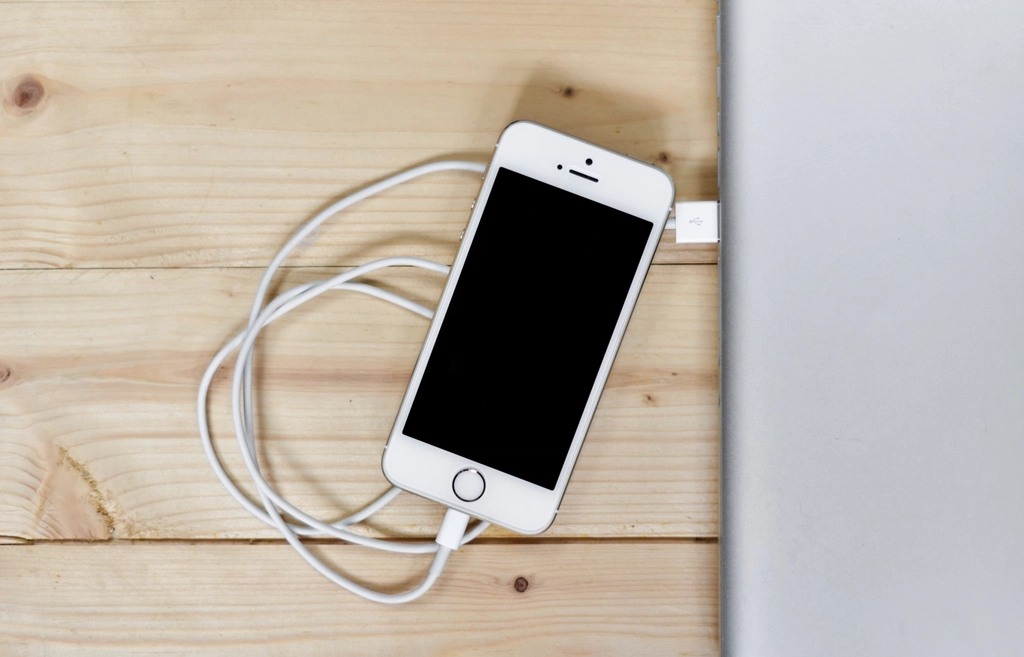
Knowing how to iCloud backup your iPhone or iPad ensures your precious photos, messages, and app data remain secure against loss or hardware failure. Apple's cloud storage service provides a seamless way to safeguard your digital life without needing a physical computer connection.
1Checking Your iCloud Storage Space Before You Begin
Before starting your backup, you need to verify whether you have enough free storage space in your Apple account. Free accounts typically offer 5 GB, which fills up quickly if you back up large photo libraries and heavy app data. To check your available capacity, open your device settings and look at your account profile. If your storage is nearly full, your backup might fail or only save partial data until you upgrade your plan or delete old files. Navigate to Settings > [Your Name] > iCloud to review your current storage breakdown. Here, you will see a detailed visual bar showing which apps consume the most space. If necessary, you can clear out redundant device backups from older Apple devices you no longer use or clean up large video attachments in your Messages app. Taking a few moments to audit your storage prevents unexpected error messages when you initiate the backup process.
2Connecting to Wi-Fi and Preparing Your Device
Apple requires a stable wireless network connection to upload large backup files securely over the internet. You cannot complete a full cloud backup using standard cellular data unless you have an unrestricted data plan and manual settings adjusted, but Wi-Fi remains the safest and fastest route. Plug your device into a reliable power source using a wall adapter and a certified Lightning or USB-C cable. Keeping your device plugged into power prevents unexpected shutdowns during extended backup transfers, especially if your battery percentage is low. Lock your device screen to let the backup run uninterrupted in the background once you trigger it. Ensure your operating system is up to date by checking for software patches under Settings > General > Software Update, as outdated firmware can occasionally cause synchronization bugs with Apple servers during data uploads.
3Setting Up Automatic Daily iCloud Backups
Configuring your device to back up automatically removes the stress of remembering to do it manually every week. Once enabled, your device will back up its data every single day as long as it meets three specific conditions: it must be locked, connected to a power source, and joined to a trusted Wi-Fi network. This process usually happens overnight while you sleep, keeping your most recent text messages, device settings, and app configurations safe without requiring any active input. To activate this feature, go to Settings > [Your Name] > iCloud > iCloud Backup and toggle the switch to the on position. You will see a confirmation prompt indicating that your device is ready to perform automatic uploads whenever the required conditions are met. This hands-off approach guarantees that even if your phone gets lost or damaged unexpectedly during the day, your most critical files from the previous night are already safely stored in the cloud.
4How to Trigger a Manual iCloud Backup Instantly
If you are about to install a major software update, trade in your device, or simply made important changes to your photo library and want immediate peace of mind, you can force a manual backup right away. Manual backups bypass the waiting period required for automatic overnight schedules and upload your latest changes immediately. To perform this action, open your device preferences and navigate directly to your cloud storage menu. Tap on Settings > [Your Name] > iCloud > iCloud Backup and locate the prominent button labeled Back Up Now. Tap that button, and keep your device connected to Wi-Fi and power while the progress bar moves across the screen. The time required depends entirely on your internet upload speed and the amount of new data added since your last sync. Leave the screen on or let it lock naturally without disconnecting from the network until the timestamp updates to show the current date and time.
5Managing What Data Gets Backed Up to Save Space
Not every file on your device needs to occupy precious cloud storage space, especially if you already sync items like photos or documents to alternative cloud services. You can customize your storage preferences to exclude heavy apps or media libraries that you can easily redownload later. This selective approach helps users with standard storage tiers avoid paying for upgraded monthly plans. Head over to Settings > [Your Name] > iCloud > Saved to iCloud or iCloud Backup, then tap on Show All or select your specific device name under the backup list. From this menu, you will see a comprehensive list of installed applications with individual toggle switches next to them. Turn off the toggles for apps that store non-essential cache or large offline media files to shrink your overall backup size drastically. Remember that turning off an app backup means its local data will not be restored if you set up a brand new device from that backup.
6Troubleshooting Common iCloud Backup Errors and Failures
Sometimes backups fail midway through due to temporary server glitches, unstable network connections, or corrupted cache files on your device. If you encounter an error message stating that the backup could not be completed, the first step is to restart your device completely to clear out temporary background processes. Next, check your network connection by switching between different Wi-Fi networks or resetting your network configurations if problems persist. Another frequent cause is an interrupted connection with Apple servers; in such cases, signing out of your Apple ID and signing back in under Settings > [Your Name] can re-establish a healthy session token. If a previous corrupted backup file is blocking new attempts, you can delete the old backup file directly from your storage management menu and start fresh with a clean slate. Always ensure you have a stable broadband connection rather than relying on weak public hotspots when handling large data transfers.
Frequently asked questions
Why does my iCloud backup say it cannot be completed?
This usually happens due to a weak Wi-Fi connection, insufficient cloud storage space, or a temporary server glitch. Try restarting your device and checking your available storage before attempting the backup again.
Does iCloud back up my photos automatically?
Yes, if you have iCloud Photos enabled, your pictures and videos sync continuously. However, your device backup also includes your general settings, app data, home screen arrangement, and text messages.
Can I back up my iPhone to iCloud using cellular data?
By default, Apple restricts backups to Wi-Fi networks to prevent high mobile data usage. You can check your carrier settings or use a personal hotspot from another trusted device if Wi-Fi is unavailable.
How long does an initial iCloud backup take?
The first backup can take anywhere from several minutes to a few hours depending on the total amount of data on your device and your internet upload speed. Subsequent backups are much faster because they only upload new changes.
What should I do if my iCloud storage is full?
You can free up space by deleting old device backups, removing unused apps, clearing out large attachments in Messages, or upgrading to a paid iCloud+ storage plan through your device settings.