Why Is Your AirPods Case Chirping and How to Fix It
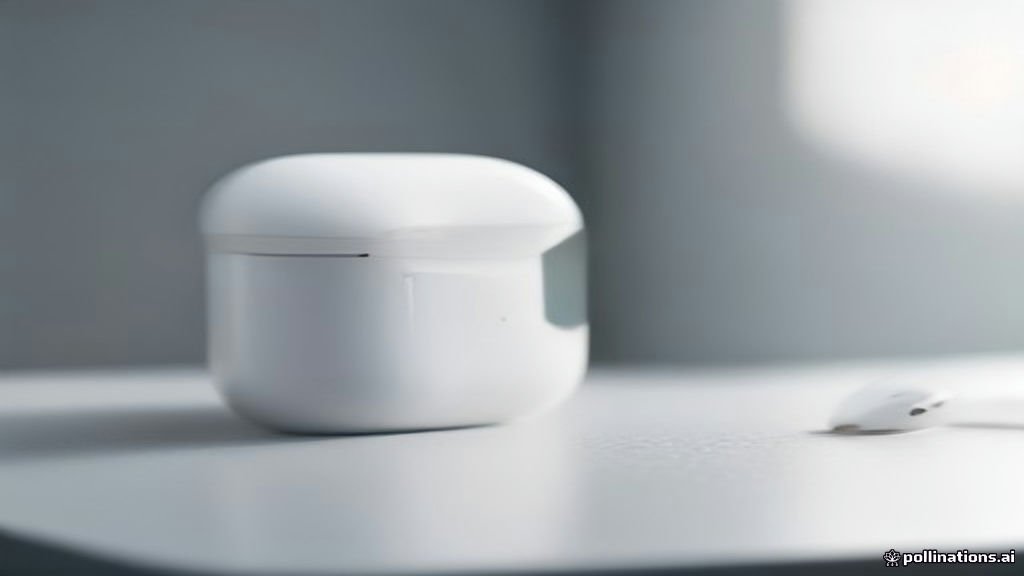
If your AirPods charging case is suddenly emitting a strange chirping or beeping sound, it usually means your device is trying to alert you to a specific status change, a low battery level, or an active Find My tracking event. This unexpected noise can be frustrating, especially when you cannot immediately figure out what is triggering it.
Fortunately, you can easily identify the exact source of the sound and silence it by checking your connected Apple device settings, resetting the hardware, or resolving power connection glitches. Here is everything you need to know to stop your AirPods case from chirping for good.
Understanding the Causes Behind AirPods Case Chirping
Modern AirPods charging cases, particularly those equipped with MagSafe and built-in speakers for the Find My network, are designed to emit audio cues to help you locate them or warn you of system states. When you hear a repeated chirping or series of beeps, it is rarely a random glitch. Most commonly, the case is broadcasting its location because it has been separated from its paired iPhone for a prolonged period, or it is signaling that the internal battery is critically depleted and struggling to hold a charge.
Another frequent cause is a firmware desynchronization between the case and your earbuds. If one earbud is seated improperly or if the metal contact pins inside the charging well are obstructed by debris, the case may repeatedly cycle through connection attempts, resulting in short audio alerts. Understanding this root cause allows you to target the exact fix rather than guessing blindly through your settings menu.
Disabling Find My Network Alerts on Your iPhone
If your AirPods case is chirping because it has entered separation alert mode, you can quickly silence it by interacting with the Find My application on your iPhone. Open the app and navigate to your devices list to see if your AirPods case is marked as lost or separated. You can temporarily mute tracking alerts or disable the play sound command if it was accidentally triggered.
To manage these alerts permanently, go to Settings > Bluetooth, tap the i icon next to your AirPods name, and scroll down to review your Find My network preferences. Ensuring your device is properly synced prevents the case from panicking and chirping when it loses immediate Bluetooth proximity to your phone.
Resetting Your AirPods and Charging Case
A complete hardware reset clears out temporary memory glitches that often cause repetitive audio loops or false alarm chirping in the case speaker. Place both AirPods inside the charging case and close the lid, waiting about thirty seconds before opening it again. Next, navigate to Settings > Bluetooth, tap the i icon next to your AirPods, and select Forget This Device to clear the old pairing profile.
With the case open, press and hold the setup button on the back of the case. Keep holding it for about fifteen seconds until the status light flashes amber and then white. Once the light flashes white, bring the case close to your iPhone and follow the on-screen prompts to reconnect them as a fresh device, which usually resolves lingering speaker errors.
Cleaning Charging Contacts and Resolving Power Issues
Power delivery issues can cause the charging case to chirp repeatedly as it fails to establish a stable connection with either the earbuds or an external power source. Inspect the inside of the charging wells for lint, dust, or earwax buildup that might prevent the AirPods from making solid contact with the metal pins. Use a clean, dry, lint-free microfiber cloth or a soft-bristled brush to gently clean the interior.
If the chirping happens specifically when you plug the case into a Lightning or USB-C cable, the issue may stem from a faulty power brick or a dirty charging port. Switch to a certified Apple cable and a different wall adapter, or try placing the case on a wireless charging pad to see if the power-related warning sounds stop immediately.
Updating AirPods Firmware and Checking iOS Compatibility
Outdated firmware can sometimes introduce bugs where the charging case speaker misinterprets normal operational states as critical alerts. Unlike iPhones, AirPods update their firmware automatically in the background when they are docked, connected to your iPhone, and connected to Wi-Fi while plugged into a power source.
To ensure your devices are running the latest software, place your AirPods in the case, connect them to power, and place them right next to your iPhone for at least thirty minutes. You can verify your current version by going to Settings > General > About > AirPods, ensuring you are operating on the most stable build available.
The bottom line
A chirping AirPods case can be startling, but it is almost always a sign that the device is trying to communicate a battery status, power interruption, or tracking alert. By cleaning the contacts, performing a manual hardware reset, and checking your Find My settings, you can easily restore peace and quiet to your audio accessories.
Frequently asked questions
Why does my AirPods case make a sound when I move it?
This usually happens because the case has a built-in speaker for the Find My network and is either signaling separation from your phone or experiencing a temporary firmware glitch that requires a reset.
Can I turn off the speaker on my AirPods charging case?
While you cannot permanently disable the speaker hardware, you can silence tracking alerts and prevent unwanted sound triggers by adjusting your Find My settings on your connected iPhone.
Does a chirping AirPods case mean the battery is dead?
It can indicate low battery status or power failure, especially if the internal battery is failing to charge properly due to dirty contact pins inside the case.
How do I force my AirPods case to stop beeping immediately?
The fastest way to stop the beeping is to open your iPhone's Find My app, locate the AirPods, stop any active sound playback, or perform a manual hardware reset by holding the setup button.
What should I do if resetting the AirPods does not stop the chirping?
If resetting and cleaning do not help, contact Apple Support, as the speaker or internal logic board within the charging case may have suffered hardware damage.