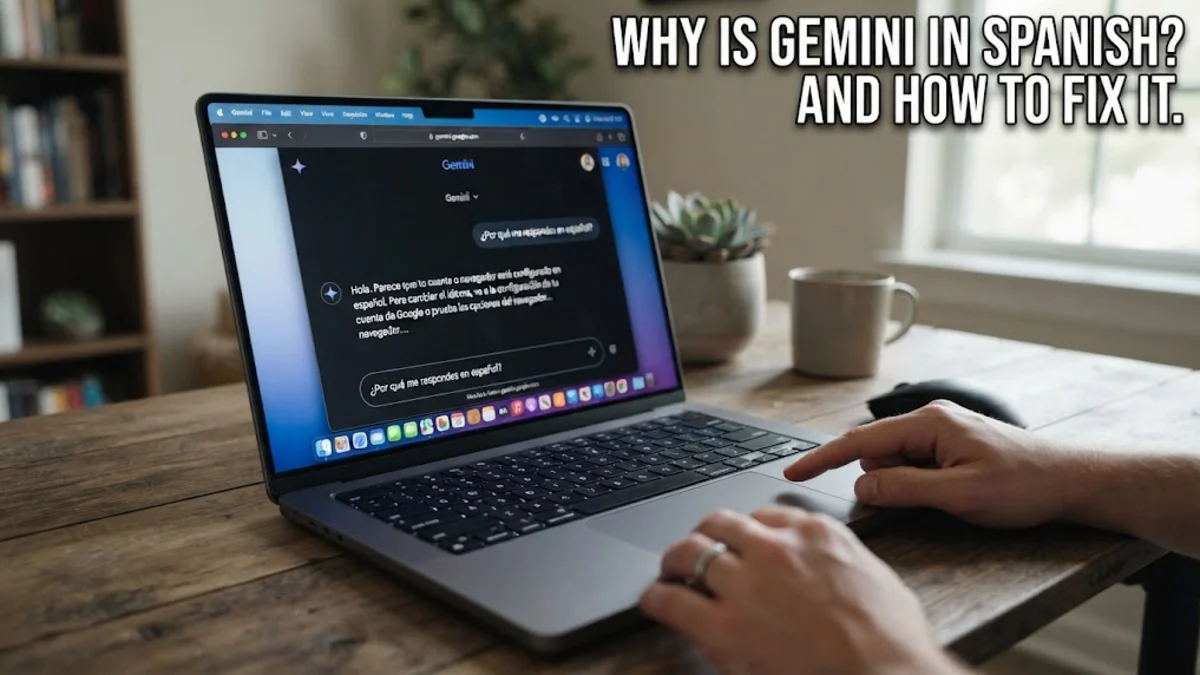
If you opened Google Gemini and found yourself staring at a completely Spanish interface, you are likely wondering what happened. This sudden shift usually occurs because your primary Google account language, browser locale, or device region settings have unexpectedly synchronized with a Spanish-speaking profile or network node.
1Understanding Why Gemini Changes Language Unexpectedly
Google Gemini relies heavily on your overarching Google account profile, browser preferences, and IP geolocation to determine which language to display. When Gemini suddenly switches to Spanish, it is rarely a permanent glitch or a hack. Instead, it typically happens because a connected device, a recent account synchronization, or a virtual private network route has flagged your region or preferred language differently. For instance, if you share a Google account with family members who primarily use Spanish, or if your browser recently updated its default locale settings, Gemini will automatically adapt to match those perceived preferences. Furthermore, browser extensions that manage localization or translation can sometimes override your manual selections, forcing web apps like Gemini to render text in Spanish without your direct consent. Recognizing this root cause allows you to target the exact setting that triggered the change rather than randomly guessing. By checking your account profile, browser settings, and device operating system parameters systematically, you can restore your preferred language within a few minutes and prevent the issue from recurring in future browsing sessions.
2Checking Your Google Account Language Settings
The most common culprit behind Gemini shifting to Spanish is your central Google account language configuration. Because Gemini is deeply integrated into the broader Google ecosystem, it inherits language rules directly from your account profile rather than maintaining a completely separate preference list. To fix this, you need to navigate to your Google Account management page. First, open your web browser and go to your Google Account dashboard. Click on Personal info in the left-hand navigation menu. Scroll down until you find the General preferences for the web section and click on Language. Here, you will see your default language along with any other languages you have added. If Spanish is listed as your primary language, or if it sits above English in your preference list, Gemini will default to it. Click the edit icon next to Spanish and remove it, or ensure that English is selected as your primary default language. Once you save these changes, close your browser tab, clear your browsing cache, and reopen Gemini. The interface should immediately update to reflect your corrected Google account preferences across all connected Google services and web applications.
3Updating Language Preferences in the Gemini Web App
Even after fixing your main Google account settings, the Gemini web interface itself might retain a cached language state or require a manual refresh of its specific parameters. Accessing the Gemini web app directly allows you to verify whether localized settings are overriding your global profile. Open your browser and navigate to the official Gemini website. Look at the lower left-hand corner of the screen where account options, help links, and settings reside. Click on Settings to open the configuration panel. Within this menu, check for any language-specific toggles or region selectors. If you see that the web app is locked into a localized Spanish version, look for an option to manage your Google Account language settings directly from that prompt, which will redirect you to the authoritative settings page. Additionally, make sure that you are signed into the correct Google account profile, as switching between personal and work accounts can frequently cause language discrepancies. After verifying these settings within the Gemini web app interface, perform a hard refresh of your browser tab by pressing Ctrl + F5 on Windows or Cmd + Shift + R on macOS to clear any lingering Spanish cache files.
4Adjusting Browser and Region Settings
Your web browser acts as the primary bridge between your computer and web applications like Gemini, meaning local browser settings can frequently override cloud-based preferences. If your browser language is set to Spanish or if your region is misconfigured, Gemini may interpret those signals and render its text accordingly. To resolve this, open your browser settings. For Google Chrome, click the three vertical dots in the top right corner and select Settings. Navigate to Languages on the left sidebar. Under the Preferred languages section, check to see if Spanish is listed at the top. If it is, click the three dots next to Spanish and select Move down or Remove, ensuring English is set as the top preference. Furthermore, check your browser's spelling and translation features, as aggressive auto-translate extensions can sometimes force web pages into a different language. If you are using a VPN or proxy service, disable it temporarily, as routing your connection through a server located in a Spanish-speaking country will instantly trick Gemini into displaying Spanish content. Once you have cleaned up your browser language priorities and disabled any conflicting VPN routes, restart your browser and check Gemini again.
5Fixing Language Issues on the Mobile App
If you are experiencing this language glitch within the Gemini mobile app on your smartphone or tablet, the troubleshooting steps differ slightly from the web version. Mobile apps rely heavily on the operating system language and region parameters set within iOS or Android rather than just your browser configuration. On an Android device, open your phone's main settings app, tap on System or General management, then select Languages & input and ensure English is your primary system language. On an iPhone or iPad, open the Settings app, scroll down to General, tap Language & Region, and verify that English is positioned at the top of your preferred language list. Next, check the specific app settings by opening the Google app or the standalone Gemini app, tapping your profile icon in the top right corner, and reviewing your account preferences. If your system language is correctly set to English but the app remains in Spanish, uninstall the Gemini app entirely, restart your mobile device to clear temporary application caches, and download a fresh copy from the official app store. This completely resets any corrupted local data files causing the unexpected language shift.
6Troubleshooting Persistent Language Glitches
When you have updated your Google account language, adjusted your browser priorities, and reinstalled mobile applications, yet Gemini stubbornly remains in Spanish, a deeper technical glitch may be at play. Persistent language issues are frequently caused by corrupted browser cookies or extension conflicts that refuse to let go of old cache data. To eliminate these stubborn variables, perform a comprehensive browser cleanup. Start by clearing all cached images and cookies specifically associated with Google domains. In your browser settings, navigate to Privacy and security, select Clear browsing data, choose a time range of All time, and ensure that Cookies and other site data along with Cached images and files are checked before clicking clear. Next, disable all third-party browser extensions, particularly ad blockers, translation tools, and script blockers, as these tools frequently interfere with dynamic web applications like Gemini and corrupt how scripts render text localization. Open an incognito or private browsing window, sign into Gemini, and test the interface. If the interface successfully loads in English while extensions are disabled, you can re-enable your extensions one by one to identify and isolate the specific tool causing the interference.
The bottom line
Fixing Google Gemini when it unexpectedly switches to Spanish is usually a matter of aligning your Google account profile, browser preferences, and device region settings. By systematically working through your global account language, browser configurations, and app caches, you can easily restore your preferred language and prevent future localization errors.
Frequently asked questions
Why did Gemini suddenly change to Spanish on its own?
This usually happens due to a recent account synchronization, a misconfigured browser locale, or an active VPN connection routing your traffic through a Spanish-speaking region.
How do I change my Google account language back to English?
Go to your Google Account dashboard, click on Personal info, scroll down to Language, and set English as your primary default language.
Will changing my language settings delete my Gemini chat history?
No, updating your language preferences only changes the interface display language and will not affect your past chat history or saved prompts.
What should I do if the Gemini mobile app is stuck in Spanish?
Check your phone's main operating system language settings to ensure English is primary, then uninstall and reinstall the Gemini app to clear local cache files.
Can a VPN cause Gemini to display in Spanish?
Yes, if your VPN is connected to a server located in Spain or Latin America, Google's servers will automatically detect that region and serve the application in Spanish.