What Is the Android Phone App Store Called
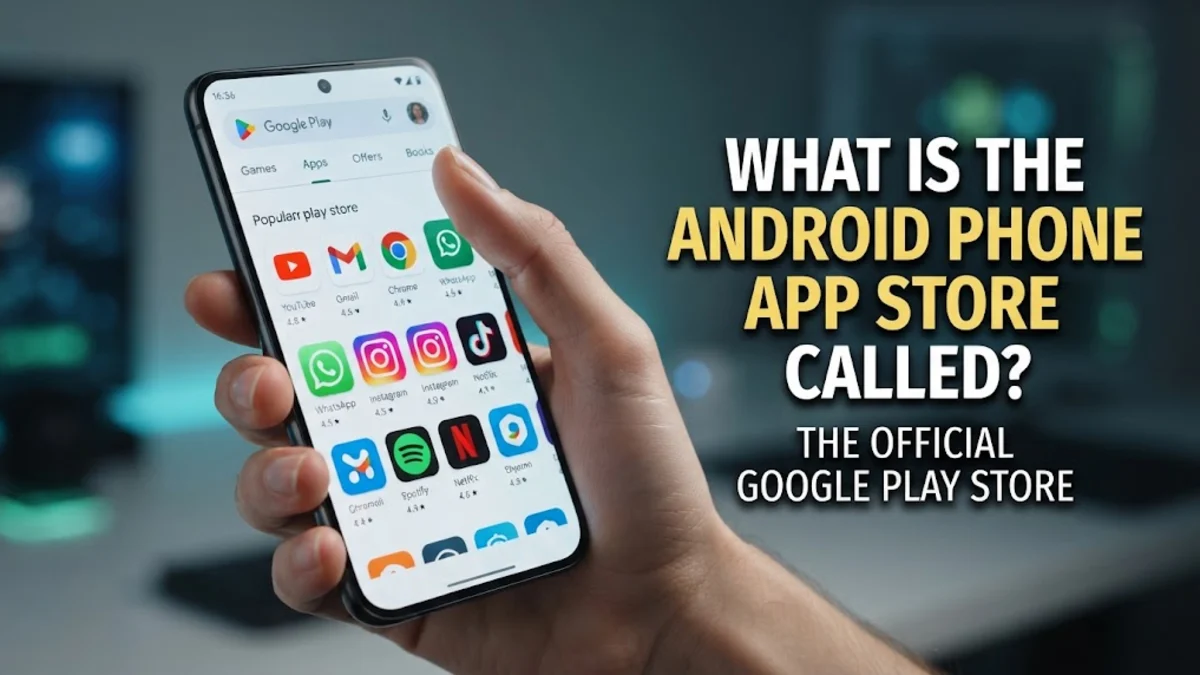
The official app store for Android phones is called the Google Play Store, serving as the central hub for downloading applications, games, movies, and books. Every major Android manufacturer—including Samsung, Google Pixel, Motorola, and OnePlus—pre-installs this marketplace on their devices out of the box.
Understanding how this store operates helps you safely manage your device, install essential utilities, and keep your software updated. Whether you are setting up a brand-new phone or switching from another operating system, knowing your way around the app repository ensures a secure mobile experience.
The Official Name and Core Function of the Android App Store
The official marketplace for Android applications is universally known as the Google Play Store. Launched initially as Android Market before rebranding in 2012, it has evolved into a massive digital distribution ecosystem operated by Google. It acts as the primary gateway for discovering and installing software on millions of smartphones and tablets worldwide. Millions of developers rely on this platform to distribute tools ranging from social media networks to banking applications and entertainment hubs.
Beyond just downloading apps, the Google Play Store manages automatic updates for your installed software, scans programs for security threats using Google Play Protect, and handles digital purchases. When you turn on a new Android device, the app store is already integrated into your Google account, allowing you to sync your app library instantly across multiple devices. It also provides ratings, reviews, and developer contact details to help users make informed decisions before installing any new software.
How to Find and Open the Play Store on Your Phone
Locating the app store on an Android phone is straightforward, though the exact icon placement varies slightly depending on your phone manufacturer and custom user interface. On Google Pixel devices, you will find a multi-colored triangle icon labeled Play Store inside your main app drawer or directly on the home screen. For Samsung Galaxy devices, it is typically located inside the Samsung folder or app drawer alongside other Google tools.
If you cannot find the icon on your home screen, swipe up from the bottom of your screen to open the app drawer and type Play Store into the search bar at the top. You can also access it through your device settings by navigating to Settings > Apps > See all apps, where you can tap on Google Play Store and select open. Creating a shortcut on your home screen ensures you can access your favorite downloads quickly whenever needed.
Setting Up Your Google Account for App Downloads
To download anything from the Android app store, your phone must be linked to a valid Google account. During the initial setup of a new Android phone, the system prompts you to sign in with an existing Gmail address or create a new one. This account acts as your digital identity, securing your purchases, managing subscription renewals, and backing up your app preferences automatically to the cloud.
If you need to add or switch accounts, open the Play Store, tap your profile icon in the top right corner, and select the dropdown arrow next to your name. From there, you can choose Add another account and follow the on-screen authentication prompts. Keeping your Google account secured with two-factor authentication ensures that unauthorized users cannot make purchases using your linked payment methods or download harmful files without your consent.
Alternative App Stores on Android Devices
While the Google Play Store is the default and most secure marketplace, Android's open nature allows alternative app stores to operate on the platform. Manufacturers often include their own secondary stores, such as the Galaxy Store on Samsung devices, which provides exclusive themes, specialized utilities, and manufacturer-specific software updates tailored to proprietary hardware features.
Advanced users sometimes explore third-party app repositories or download applications directly via APK files from the web. However, third-party sources bypass the rigorous security scans performed by Google Play Protect, increasing the risk of malware exposure. For standard users, sticking to the official Google Play Store remains the safest and most reliable way to acquire mobile applications without compromising device security or personal data privacy.
Managing Downloads and Updates in the Play Store
Keeping your applications updated is vital for performance, bug fixes, and security patches. The Google Play Store handles this automatically by default, typically downloading updates over Wi-Fi when your phone is charging overnight. You can also check for updates manually by opening the Play Store, tapping your profile icon, and selecting Manage apps & device followed by Updates available.
From the management screen, you can view pending updates, see download sizes, and choose whether to update specific apps individually or all at once. If an app is malfunctioning or crashing frequently, you can also use this section to check for recent patches or uninstall the program entirely to free up storage space on your device. Monitoring your app permissions and storage usage regularly keeps your phone running smoothly.
The bottom line
The Google Play Store serves as the indispensable cornerstone of the Android ecosystem, providing a secure, centralized location for all your application needs. By understanding how to navigate the store, manage your Google account, and keep your software updated, you ensure a smooth and protected mobile experience. Whether you are using a Pixel, Samsung, or another Android device, mastering the official app store helps you get the most out of your smartphone in 2026.
Frequently asked questions
Can I use an Android phone without the Google Play Store?
Yes, Android is an open-source operating system, meaning you can use alternative app stores or sideload apps. However, most mainstream apps and Google services require the Play Store to function correctly.
Is the Google Play Store free to use?
Yes, downloading the Play Store and browsing its contents is completely free. While many apps are free to download, some require in-app purchases, subscriptions, or upfront payments.
Why is my app store not downloading apps?
Download issues are usually caused by a poor internet connection, insufficient storage space, or a stuck cache. Clearing the Google Play Store cache via your device settings often resolves the problem.
How do I update the Google Play Store itself?
The Google Play Store updates automatically in the background. You can also check for manual updates by opening the store, tapping your profile icon, going to Settings > About, and tapping Play Store version.
Can I access the Google Play Store on a computer?
Yes, you can browse and initiate remote app installations to your phone by visiting the official Google Play website in any desktop web browser while signed into your Google account.