How to Fix Windows 11 Not Updating
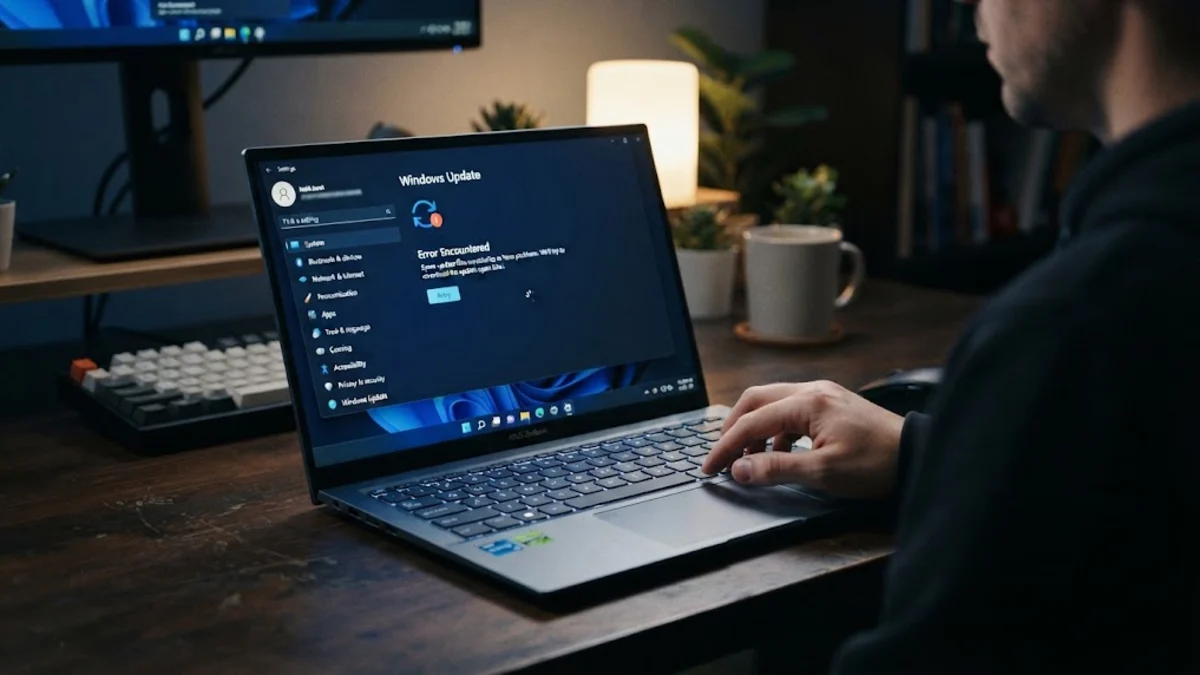
When your operating system refuses to install the latest patches or security releases, it can expose your computer to vulnerabilities and software incompatibilities. Windows 11 relies on background services, adequate storage, and stable network conditions to pull and apply new packages successfully, meaning a single bottleneck can halt the entire process.
Check Your Internet Connection and Network Settings
Run the Built-In Windows Update Troubleshooter
Clear the SoftwareDistribution Download Cache
Over time, temporary files stored in the system cache can become corrupted, causing subsequent update installations to hang indefinitely at zero percent or fail with generic error codes. To clear this cache safely, you must first terminate the underlying update processes. Open your start menu, type command prompt, right-click the result, and select run as administrator. Execute commands to stop the windows update and background intelligent transfer services. Next, navigate via File Explorer to your main drive directory, open the Windows folder, locate the SoftwareDistribution folder, and delete all files inside its datastore and download subdirectories. Once cleared, restart the background services or reboot your computer to regenerate clean cache files.
Restart Critical Windows Update Services
Free Up Disk Space on Your System Drive
Manually Install Updates Using the Microsoft Update Catalog
When automated background delivery fails repeatedly despite comprehensive troubleshooting, you can bypass the system settings app entirely by downloading and applying packages manually. Identify the specific knowledge base number associated with your failing update from the standard settings update history page. Open your web browser, navigate to the official Microsoft Update Catalog website, and enter the KB number into the search bar. Locate the exact version matching your system architecture, click download, and run the standalone installer package directly from your local downloads folder. This direct installation method often bypasses corrupted local update pipelines and successfully applies missing security patches.
The bottom line
Resolving update stalls on your computer usually requires addressing network interruptions, clearing corrupt cache directories, or ensuring sufficient drive space. By systematically working through these troubleshooting steps, you can restore normal update functionality and keep your system secure.
Frequently asked questions
Why does my update stay stuck at zero percent?
An update usually sticks at zero percent due to a corrupted download cache or a stalled background service. Clearing the SoftwareDistribution folder and restarting the Windows Update service resolves this issue in most cases.
Will clearing the update cache delete my personal files?
No, clearing the SoftwareDistribution cache only deletes temporary installation files downloaded by the operating system. Your personal documents, apps, and settings remain completely untouched.
How much free space do I need for updates?
You should maintain a minimum of twenty gigabytes of free space on your primary system drive to allow Windows to download, unpack, and install large cumulative updates safely.
Can a third-party antivirus block Windows updates?
Yes, overly aggressive third-party security software or active VPN connections can occasionally flag system update traffic as suspicious and block communication with Microsoft servers.
What should I do if manual installation also fails?
If manual package installation fails, run the System File Checker tool by executing sfc /scannow in an elevated command prompt to repair damaged core operating system components.