How to Set Up and Use Your Google Pixel 9 Pro
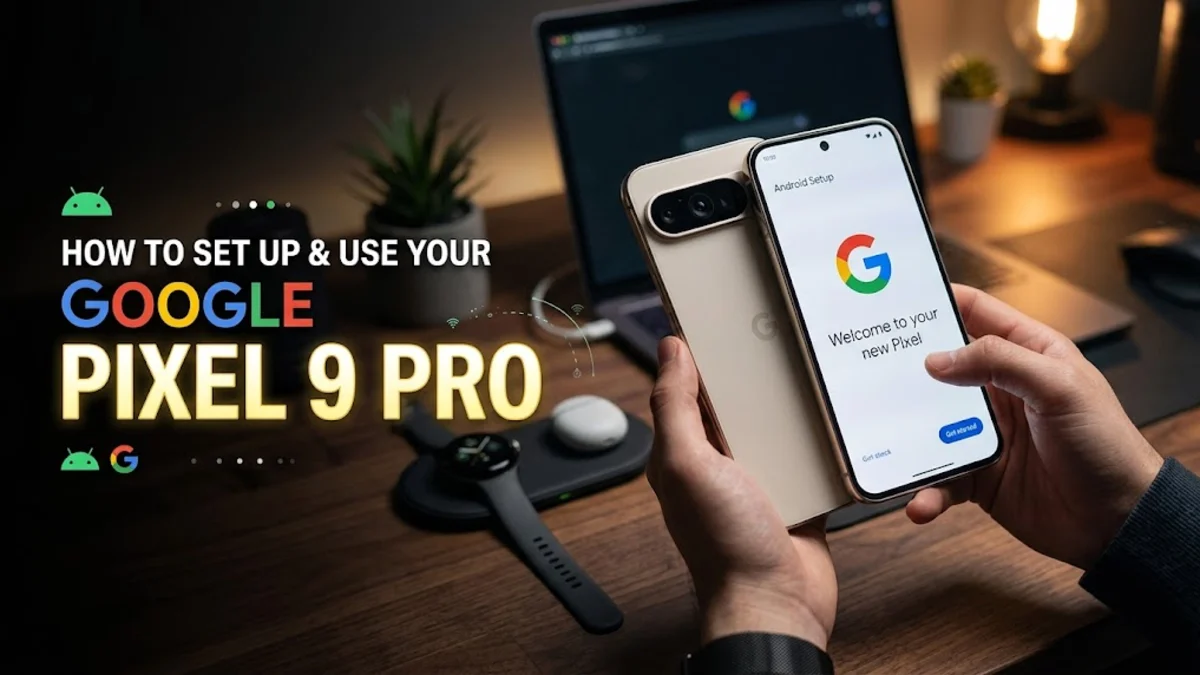
Setting up your Google Pixel 9 Pro involves powering on the device, inserting your SIM card or activating an eSIM, and following the initial on-screen prompts to connect to Wi-Fi. Whether you are upgrading from an older Android phone or switching from an iPhone, the built-in setup wizard streamlines the entire process.
This guide walks you through every essential phase of configuring your new smartphone, from transferring your personal data and setting up security features to optimizing battery life and mastering advanced camera capabilities.
Initial Hardware Setup and SIM Activation
Before turning on your Google Pixel 9 Pro, insert your physical nano-SIM card into the SIM tray located at the bottom of the device using a SIM ejector tool. If your carrier supports eSIM, you can skip the physical card and download your carrier profile during the software activation steps. Press and hold the power button until the Google logo appears on the display to begin the startup sequence.
Once the welcome screen appears, tap get started and select your preferred language and region. Next, connect to a secure Wi-Fi network to allow the phone to check for critical day-one system updates. Keeping your device connected to Wi-Fi during the initial setup ensures that security patches and system improvements download automatically before you proceed with restoring your personal data and applications.
Transferring Data From Your Old Phone
The setup assistant will prompt you to copy apps, photos, contacts, and messages from your previous device. If you are migrating from another Android device or an iPhone, plug the included Quick Switch Adapter or a compatible USB-C cable into both phones. Follow the on-screen instructions to establish a secure, direct wired connection which offers the fastest transfer speeds available.
When prompted, unlock your old phone and verify the connection. You can select specific data categories to transfer, such as Google account credentials, text message history, photos, and downloaded applications. Leave both devices resting on a flat surface until the progress bar reaches one hundred percent and the transfer completion notification appears on your new screen.
Configuring Biometric Security and Screen Lock
Securing your Google Pixel 9 Pro is a vital step to protect your personal information and banking data. Navigate to Settings > Security & privacy > Device unlock to establish your primary security credentials. You will be required to create a secure PIN, pattern, or alphanumeric password as a fallback security measure.
After setting your backup PIN, register your fingerprint using the ultrasonic under-display fingerprint reader and set up Face Unlock for rapid device access. Press your finger firmly against the designated sensor area on the screen and lift it repeatedly until the system captures your complete fingerprint geometry from multiple angles. Clean your screen periodically to maintain fast and accurate biometric recognition performance.
Customizing Display and Material You Themes
The Pixel interface adapts its visual color palette dynamically based on your chosen device wallpaper through Material You design principles. To personalize your interface, long-press any empty space on your home screen and select Wallpaper & style. Here, you can switch between dark theme, light theme, and customized color palettes that match your background image.
Adjust your screen refresh rate and resolution by heading to Settings > Display > Screen resolution and Smooth display. Enabling smooth display activates a dynamic refresh rate that scales up to 120Hz for fluid scrolling and drops down to lower rates during static tasks to conserve battery life. You can also configure screen timeout durations and adaptive brightness levels here.
Optimizing Battery Life and Background Settings
Maximizing the battery longevity of your Google Pixel 9 Pro requires configuring adaptive features and managing background application activity. Go to Settings > Battery > Adaptive battery and toggle the switch on to allow machine learning algorithms to limit power usage for apps you rarely open. You can also review battery usage details to identify power-hungry background processes.
Enable Extreme Battery Saver if you anticipate being away from a charger for an extended period, which pauses non-essential apps and notifications. For daily charging routines, navigate to Battery protection to enable optimized charging, which slows down charging speeds overnight to extend the overall lifespan of your physical battery cells over years of daily use.
Exploring Advanced Camera and AI Features
The camera system on your Google Pixel 9 Pro offers professional-grade photography tools powered by advanced computational photography and artificial intelligence. Open the Camera app and swipe through shooting modes like Night Sight, Portrait, and Pro mode to explore manual ISO, shutter speed, and focus adjustments. Utilize the telephoto lens for high-magnification optical zoom shots without losing image clarity.
To access built-in AI editing utilities, open any photo in the Google Photos app and tap the edit button followed by Magic Eraser or Magic Editor. These tools allow you to remove unwanted background distractions, reposition subjects within the frame, and generate contextual fills seamlessly. Review privacy settings related to cloud processing if you prefer handling specific AI photo editing tasks locally on the device processor.
The bottom line
Setting up and mastering your Google Pixel 9 Pro ensures a secure, personalized, and efficient mobile experience from day one. By properly transferring your data, configuring robust biometric security, and tailoring your display and battery settings, you can unlock the full potential of your new smartphone hardware and software ecosystem.
Frequently asked questions
How do I transfer data from an iPhone to a Google Pixel 9 Pro?
During the initial setup process, connect your iPhone to the Pixel using a USB-C cable and the Quick Switch Adapter. Follow the on-screen prompts to sign into your Google account and select the data categories you wish to copy.
Where is the fingerprint scanner located on the Google Pixel 9 Pro?
The Pixel 9 Pro features an advanced ultrasonic fingerprint scanner embedded directly underneath the lower section of the main OLED display screen.
How do I turn on Dark Theme on my Pixel 9 Pro?
Go to Settings, select Display, and toggle on the Dark theme option, or swipe down twice from the top of your screen to access Quick Settings and tap the Dark theme tile.
Can I use two different phone numbers on the Pixel 9 Pro?
Yes, the Pixel 9 Pro supports dual SIM functionality through a combination of one physical nano-SIM card slot and one active digital eSIM profile.
How do I update the software on my Google Pixel 9 Pro?
Navigate to Settings, select System, and tap Software updates to check for and install the latest available security patches and Android system upgrades.