How to Fix Zoom Not Working on Your Laptop
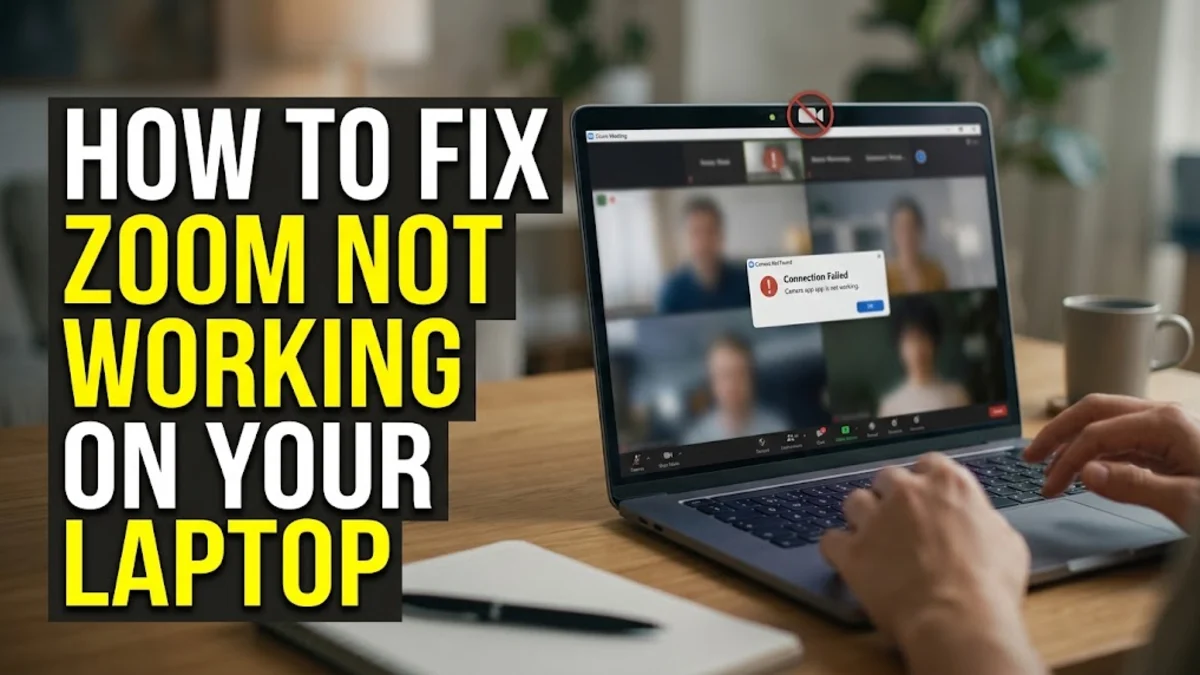
When zoom is not working on your laptop, it can completely disrupt your meetings, classes, and daily workflow. Whether the app refuses to open, your camera stays black, or audio fails to connect, resolving the problem usually comes down to checking system permissions, clearing corrupted cache files, or updating your software.
This guide walks you through the exact troubleshooting steps to diagnose why Zoom is failing on your Windows or Mac laptop and how to get it running smoothly again in a few minutes.
Check Your Internet Connection and Network Settings
A weak or unstable Wi-Fi connection is the most common reason Zoom fails to load meetings or drops you out unexpectedly. Before changing any app settings, verify that your laptop is properly connected to the internet and that other websites load without delay. If your signal is weak, move closer to your router or switch from a congested wireless network to a stable wired Ethernet connection if available.
Network firewalls, corporate VPNs, and overly strict antivirus programs can also block Zoom traffic entirely. If you are connected to a workplace or university network, check with your network administrator to ensure the required ports for Zoom are open. Temporarily disabling your third-party VPN or security suite is another quick diagnostic test to see if external software is blocking your connection.
Restart Zoom and Your Laptop
Temporary software glitches and background processes frozen in memory often prevent Zoom from launching properly. Start by completely closing the application. On Windows, open the Task Manager using Ctrl + Shift + Esc, select Zoom, and click End Task. On a Mac, press Cmd + Option + Esc, choose Zoom, and click Force Quit. This ensures no hidden background instances are interfering with a fresh launch.
Once you have terminated any lingering background tasks, perform a full restart of your laptop. Shutting down your machine clears the RAM, resets temporary system states, and gives your hardware a clean slate. After your laptop reboots, open Zoom again and check whether the application functions normally before trying more advanced troubleshooting steps.
Verify Camera and Microphone Permissions
If Zoom opens but your video is black or others cannot hear you, your operating system may be blocking the app from accessing your hardware. Modern Windows and macOS laptops have strict privacy controls that require explicit permission for apps to use your camera and microphone. You need to check these settings at the operating system level rather than just inside Zoom's internal preferences.
On Windows, go to Settings > Privacy & security > Camera and ensure that camera access is turned on and enabled for Zoom. Repeat this check for your microphone under Settings > Privacy & security > Microphone. On a Mac, navigate to System Settings > Privacy & Security > Camera and verify that the toggle next to Zoom is switched on, then do the same under the Microphone menu.
Update the Zoom Desktop Client
Running an outdated version of the Zoom desktop client can cause sudden crashes, compatibility issues with newer operating systems, and failure to connect to scheduled meetings. Zoom frequently releases patches that resolve critical bugs and security vulnerabilities. Keeping your application up to date ensures maximum stability and compatibility across different devices and meeting room setups.
To update Zoom on your laptop, open the application, click on your profile picture in the top-right corner, and select Check for Updates from the drop-down menu. If a newer version is available, Zoom will automatically download and install it. Once the update finishes, restart the app and verify if the performance issues have been resolved.
Clear Zoom Cache and Temporary Files
Over time, accumulated cache files and corrupted temporary data inside the Zoom directory can cause unexpected freezing, launch failures, and graphical glitches. Clearing out these old files forces the application to build fresh, uncorrupted configurations the next time you open it. This process is completely safe and will not delete your personal account settings or saved preferences.
To clear the cache on Windows, open the Run dialog by pressing Win + R, type %appdata%\zoom, and press Enter. Locate the data folder and delete its contents. On a Mac, open Finder, press Cmd + Shift + G, type ~/Library/Caches, find the zoom folder, and move it to the Trash. Restart your computer after completing this cleanup.
Reinstall Zoom Completely
If none of the previous steps resolve your issue, core application files may have been accidentally deleted or corrupted beyond simple repair. In this scenario, performing a clean reinstall is the most effective solution. Simply uninstalling the app through standard menus sometimes leaves behind broken registry keys or configuration files, so a thorough removal is recommended.
On Windows, go to Settings > Apps > Installed apps, find Zoom, click the three dots, and select Uninstall. On a Mac, drag the Zoom app from your Applications folder to the Trash. After removal, visit the official download page to get the latest installer package, run it with administrator privileges, and set up your account fresh.
The bottom line
Troubleshooting Zoom issues on your laptop does not have to be frustrating when you follow a structured approach. By verifying your internet connection, resetting hardware permissions, and keeping your software updated, you can eliminate most common technical roadblocks and return to your meetings without interruption.
Frequently asked questions
Why does Zoom keep crashing when I join a meeting on my laptop?
Zoom usually crashes due to outdated graphics drivers, corrupted application cache files, or interference from background security software. Updating your laptop drivers and reinstalling Zoom typically fixes this.
How do I test my audio and video before a Zoom meeting?
You can test your equipment by opening Zoom, clicking your profile picture, selecting Settings, and navigating to the Audio or Video tabs where you can test your speakers, microphone, and webcam.
Why is my camera working in other apps but not in Zoom?
This is almost always caused by operating system privacy settings blocking Zoom from accessing your camera hardware. Check your Windows or macOS privacy settings to ensure camera permissions are enabled for Zoom.
Does clearing the Zoom cache delete my recorded meetings?
No. Local recordings are stored in a separate designated folder on your laptop storage drive and clearing the application cache will not affect your saved video files or account data.
What should I do if Zoom says my connection is unstable?
Move closer to your Wi-Fi router, disconnect other bandwidth-heavy devices, or restart your internet modem and router to restore a stable signal.