How to Factory Reset Your iPhone Safely
Knowing how to factory reset your iPhone is essential whether you are preparing to sell your device, giving it to a family member, or troubleshooting a persistent software glitch. A factory reset wipes all personal data, apps, and customized preferences, returning the device to its original out-of-the-box state.
Before you begin the process, it is critical to take the right precautions to protect your data and prevent device lockouts. This comprehensive guide walks you through backing up your files, signing out of your accounts safely, and executing the reset using either the iOS settings menu or a computer.
Backing Up Your iPhone Before a Reset
The single most important step before initiating a factory reset is creating a complete backup of your data. Once a reset is finished, your photos, messages, app data, and settings cannot be recovered unless you have a saved copy in iCloud or stored on a computer. Taking ten minutes to verify your backup prevents permanent data loss.
To back up your device using iCloud, navigate to Settings > [Your Name] > iCloud > iCloud Backup. Tap Back Up Now and keep your iPhone connected to a Wi-Fi network and a power source until the progress bar reaches completion. Alternatively, you can connect your phone to a Mac or Windows PC using a cable, open Finder or iTunes, select your device summary page, and click Back Up Now to store a local copy on your hard drive.
Signing Out of iCloud and Find My
Failing to sign out of your Apple account before erasing your iPhone can trigger Activation Lock security protocols, which makes the device completely unusable for the next owner or causes endless setup loops. To avoid this frustration, you must manually sign out of iCloud and disable the Find My tracking feature prior to wiping the hardware.
Open Settings, tap on your name at the top of the screen to access your Apple ID menu, and scroll down to the very bottom to tap Sign Out. You will be prompted to enter your Apple ID password to confirm the action and turn off Find My iPhone. Once the password is verified, follow the remaining prompts to keep a copy of essential data on your device if desired before the final sign-out completes.
Performing the Factory Reset via Settings
If your iPhone is turning on normally and you can access your home screen, using the built-in iOS settings menu is the fastest and most convenient way to perform a factory reset. This method does not require any external cables or specialized computer software, handling the entire secure erasure process internally.
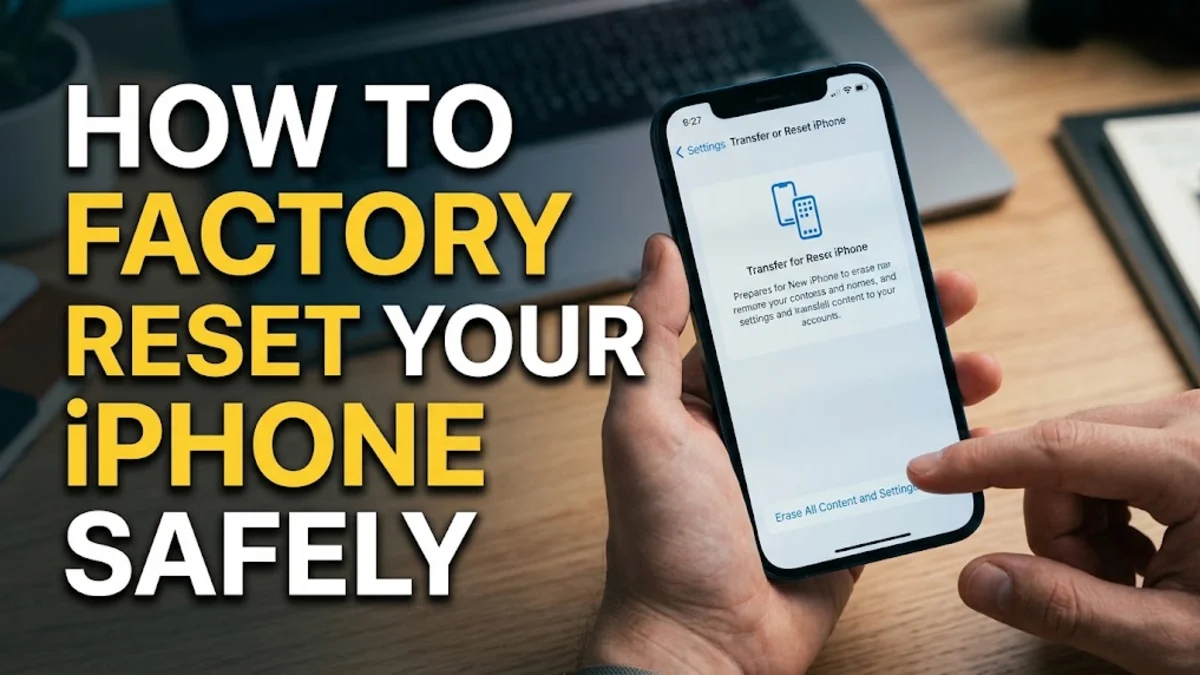
Go to Settings > General > Transfer or Reset iPhone. At the bottom of the screen, tap Erase All Content and Settings. Review the summary page showing which apps, cards, and data will be removed, tap Continue, and enter your device passcode or screen time passcode when prompted. Confirm your choice by tapping Erase iPhone, and allow the device to run through its automated reboot cycle.
Using a Computer for Unresponsive Devices
Sometimes an iPhone experiences severe software corruption, boot loops, or touch screen unresponsiveness that prevents you from accessing the standard settings menu. In these situations, you must rely on a trusted computer running macOS or Windows with an updated version of iTunes or Apple Devices installed to force a factory restore.
Connect your iPhone to the computer using an official USB cable. Depending on your model, press and quickly release the Volume Up button, press and quickly release the Volume Down button, and then press and hold the Side power button until the recovery mode screen featuring a computer icon and cable appears. Open Finder or iTunes on your computer, locate your device in the sidebar, and click Restore iPhone to download and install clean system software.
Setting Up Your iPhone After the Reset
Once the Apple logo and progress bar finish loading following the erase cycle, your iPhone will display the traditional Hello greeting screen. At this stage, the device is completely clean, functioning just as it did when it first left the factory assembly line, ready for a new user or a fresh start.
If you are keeping the phone for yourself, swipe up to begin the setup assistant, connect to your local Wi-Fi network, and sign in with your Apple ID credentials. When you reach the Apps & Data screen, choose Restore from iCloud Backup or Restore from Mac or PC to pull down all your saved photos, contacts, and applications automatically.
Troubleshooting Common Reset Errors
Occasionally, users encounter minor roadblocks during the factory reset procedure, such as low battery warnings or network communication errors while connecting to Apple activation servers. Understanding how to address these common issues keeps the process moving smoothly without unnecessary delays.
If your phone refuses to reset due to a low battery warning, plug the device into a reliable wall charger immediately and wait until the battery level rises above twenty percent before trying again. If you receive a server communication error during recovery mode on a computer, check your firewall settings, ensure your operating system and iTunes software are fully updated, and try using a different USB port.
The bottom line
Factory resetting your iPhone is a straightforward procedure when you remember to secure a complete backup and sign out of your Apple ID beforehand. Whether you are troubleshooting persistent performance issues or prepping your device for trade-in, following these precise steps ensures a smooth, secure transition.
Frequently asked questions
Will a factory reset delete my phone carrier plan?
No, a standard factory reset removes your personal data and apps but leaves your cellular plan and eSIM profile intact unless you specifically choose to erase cellular data when prompted during the final menu steps.
Can I factory reset my iPhone without knowing the passcode?
You cannot reset the device directly through the settings menu without the passcode. However, you can erase a locked iPhone by putting it into recovery mode and connecting it to a computer.
Does a factory reset fix hardware battery drain issues?
A factory reset only resolves battery drain caused by rogue background applications or corrupted system software caches. It cannot repair physical battery degradation or failing lithium-ion cell hardware.
How long does an iPhone factory reset take?
The actual erasure process typically takes between five to fifteen minutes depending on the storage capacity of your device and the amount of data being securely overwritten.
Do I need an internet connection to factory reset my iPhone?
You do not need an internet connection to wipe the data locally through the settings menu, but you will need an active Wi-Fi or cellular connection afterward to reactivate the device and sign back into your Apple account.