How to Fix an Android Phone With No Sound
When your Android phone suddenly stops producing sound, missing calls, alarms, and media playback can quickly become frustrating. Fortunately, most audio issues stem from simple software glitches, accidental volume adjustments, or minor hardware obstructions rather than permanent hardware failure.
This troubleshooting guide walks you through the most effective methods to diagnose and resolve sound problems on your Android device, starting with the quickest software checks and moving toward more advanced recovery steps.
Check Volume Levels and Sound Profiles
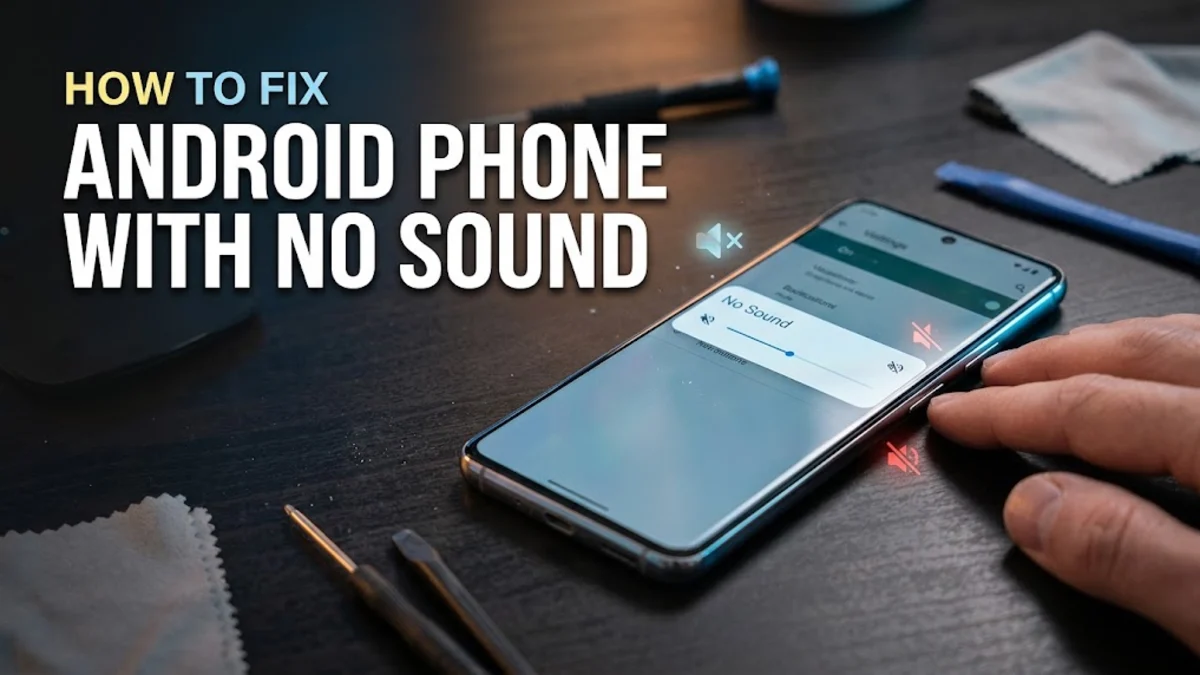
The most common reason for a silent Android phone is an accidental volume adjustment or an active sound profile that silences notifications. Android separates its audio streams into media, ringtones, notifications, and alarms, meaning your ring volume might be muted even while your media volume is turned up.
Press either the volume up or volume down physical button on the side of your device, then tap the three dots or gear icon that appears on the screen to open the full sound panel. Ensure that the sliders for ringtone, media, and alarm are all turned up to an audible level. Additionally, check your quick settings shade to confirm that Do Not Disturb or silent mode is turned off, as these features actively suppress incoming sounds.
Disconnect Active Bluetooth Audio Devices
Android phones often automatically route audio to previously paired wireless headphones, smart speakers, or car audio systems, even if those devices are turned off or sitting in another room. When this happens, your phone's internal speakers remain silent because the operating system believes an external audio accessory is currently in use.
Open your device settings and navigate to Connected devices > Connection preferences > Bluetooth, or simply pull down your quick settings panel and toggle Bluetooth off completely. If your phone's sound immediately returns after disabling Bluetooth, you know the issue was caused by a stray audio routing glitch. You can then reconnect your preferred accessories or unpair and re-pair any stubborn devices.
Inspect and Clean the Speaker Grille and Headphone Jack
Physical debris, dust, lint, and moisture are frequent culprits behind muffled or completely absent sound on mobile phones. Pocket lint frequently packs tightly inside the speaker grilles or the physical headphone jack, tricking older phones into thinking a pair of headphones is plugged in at all times.
Inspect your phone ports and speaker openings closely under a bright light. If you spot debris, gently sweep the area using a clean, dry, soft-bristled toothbrush or a wooden toothpick. Never insert sharp metal objects like pins or paperclips into the openings, as this can permanently puncture the internal speaker membrane or damage the delicate charging and audio contacts.
Restart Your Phone and Clear System Cache
Temporary software freezes and background audio service crashes can leave your phone completely silent. A standard system reboot forces all underlying audio drivers and system processes to restart, which clears out erratic memory states causing the silence.
Press and hold the power button and volume up button simultaneously until the power menu appears on your display, then tap Restart. If the issue persists after a reboot, you may need to clear the cache of the specific app giving you trouble by going to Apps > See all apps, selecting the affected application, and tapping Storage & cache > Clear cache.
Boot Into Safe Mode to Check for Faulty Apps
Third-party media players, equalizers, ringtone customizers, and communication tools can occasionally take over your audio routing or crash the Android audio subsystem entirely. Testing your phone in safe mode temporarily disables all downloaded apps, allowing you to determine if a recently installed application is causing the sound failure.
Press and hold your phone physical power button until the power menu pops up on screen, then press and hold the Power off prompt until the Reboot to safe mode confirmation appears. Tap OK. Once your phone starts up in safe mode with a label displayed at the bottom of the screen, test your sound by playing a default ringtone or video. If audio works normally in safe mode, uninstall your recently downloaded apps one by one until the problem resolves.
Update Your Android Operating System and System Apps
Running outdated operating system software can leave your device vulnerable to known bugs that disrupt audio drivers and speaker performance. Google and phone manufacturers regularly push out security patches and system updates that specifically address hardware compatibility and sound bugs.
To check for pending updates, open Settings > System > System update or Software update, and tap Check for updates. Download and install any available packages and restart your device once the installation finishes. Additionally, check the Google Play Store to ensure that your core system applications and media players are running their latest versions.
The bottom line
Fixing an Android phone with no sound usually comes down to adjusting hidden volume sliders, disconnecting invisible Bluetooth accessories, or clearing out physical debris from the speakers. By working through these troubleshooting steps systematically, you can identify the root cause and restore normal audio to your device without needing a costly repair shop visit.
Frequently asked questions
Why is my Android phone silent even when the volume is up?
This usually happens when audio is accidentally routed to a connected Bluetooth device, when Do Not Disturb mode is active, or when a background software glitch has crashed the audio server.
How do I know if my phone speaker is physically broken?
If you have tried a full factory reset, cleaned the speaker grilles, and confirmed that audio fails across all apps, ringtones, and media playback, the speaker hardware may be damaged and require professional repair.
Can a screen protector block phone sound?
Yes, poorly aligned or overly thick screen protectors can sometimes cover the earpiece speaker or microphone grilles near the top of the display, muffling incoming call audio.
Why does my phone think headphones are plugged in?
Pocket lint or moisture trapped inside the headphone jack or USB-C port can short out the pins, tricking the operating system into sending audio through a nonexistent headset.
Will restarting my phone delete my personal data?
No, a standard restart or reboot only clears temporary memory and refreshes system software. Your personal files, photos, and messages remain completely safe.