How to Fix Gemini Not Responding
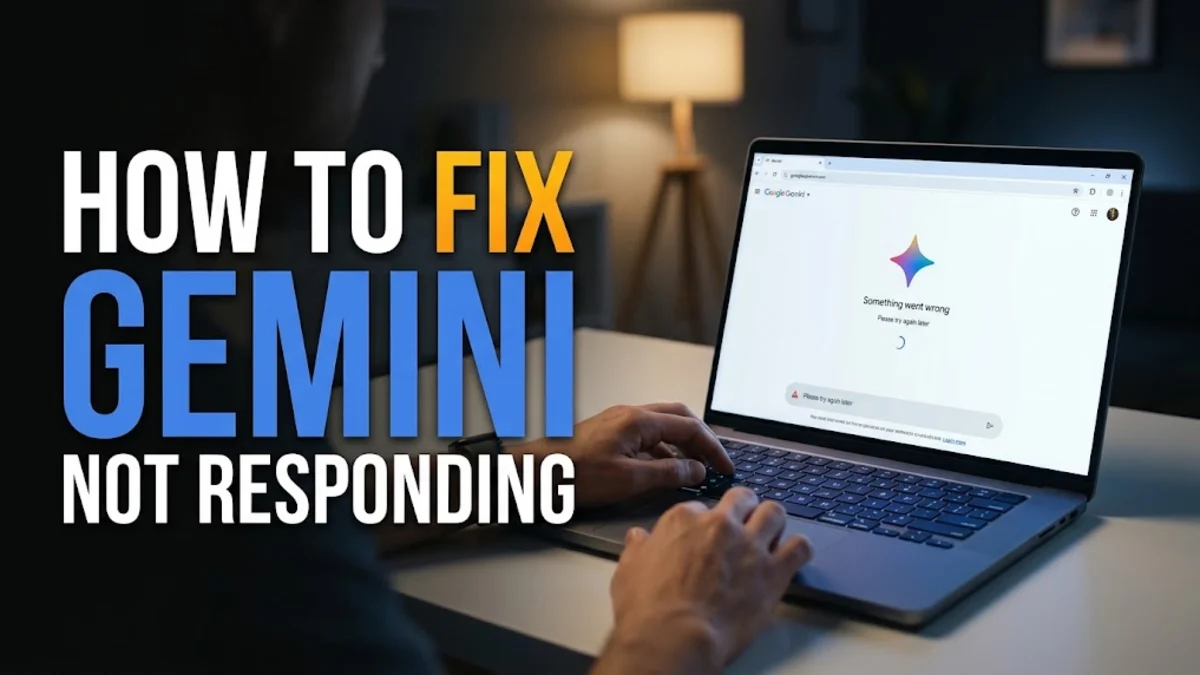
When you rely on Google Gemini for quick writing help, brainstorming, or research, a sudden freeze or silence can disrupt your workflow. If your prompts are spinning indefinitely or the chat interface refuses to load any answers, you are likely dealing with a temporary connection glitch, browser cache conflict, or a backend service outage.
Fixing this issue usually takes just a few minutes once you identify whether the problem stems from your local network, your web browser, or Google's servers. Read on to discover the most effective troubleshooting steps to get your AI assistant working smoothly again.
Check Your Internet Connection and Network Settings
The most common reason for Gemini failing to respond is an unstable or dropped internet connection. Because AI models require continuous data streaming to deliver real-time text generation, even a brief drop in packet loss can cause the interface to hang. Start by opening another browser tab and loading a media-heavy website to confirm your connection is active and stable.
If you are using Wi-Fi, try toggling your wireless adapter off and back on, or restart your home router by unplugging it for thirty seconds. If you are on a cellular connection or corporate network, firewalls, strict VPN settings, or proxy servers might be blocking the specific domains required by Google's API. Temporarily disabling your VPN or switching to an alternate network can instantly reveal whether network security is the root cause.
Clear Your Browser Cache and Cookies
Corrupted browser cache and outdated cookies frequently interfere with modern web apps like Gemini, causing scripts to fail silently in the background. If the chat window opens but inputs do not trigger any response, clearing your browsing data is a reliable next step. In Google Chrome, press Ctrl + Shift + Delete on Windows or Cmd + Shift + Delete on Mac to open the clearing panel.
Select a time range such as 'All time', check the boxes for cached images and files as well as cookies, and click clear data. After clearing your cache, completely close your browser window, relaunch it, and navigate back to the Gemini web interface. This forces the browser to download fresh, uncorrupted application scripts directly from Google's servers.
Test in an Incognito or Private Browsing Window
Browser extensions, content blockers, and aggressive script inhibitors often break interactive AI interfaces without displaying an explicit error message. To determine if an extension is causing Gemini to freeze, open a new Incognito window or Private browsing session and log into your Google account. If Gemini responds normally in incognito mode, an installed extension is likely interfering with the script execution.
To isolate the problematic extension, go to your browser extension manager via Settings > Extensions and disable your add-ons one by one. Pay special attention to ad blockers, privacy enhancers, and script managers, as these tools frequently block the background web sockets that Gemini uses to stream responses to your screen.
Restart the Gemini Mobile App or Clear App Cache
If you are experiencing unresponsive behavior on an Android or iOS mobile device, the issue might be related to local app data corruption or an outdated build. Start by completely closing the app. On Android, swipe up from the bottom of your screen and hold, then swipe the Gemini app away. On iOS, swipe up from the bottom and pause in the middle, then swipe up on the app card.
If force closing the app does not resolve the issue, Android users can clear the local application cache. Navigate to your device Settings > Apps > Gemini > Storage and tap Clear Cache. Avoid tapping clear data unless you are prepared to log back in and reconfigure your app preferences, as this resets all locally saved settings.
Verify Google Workspace Status and Service Outages
Sometimes the problem is entirely outside your control because Google's servers are experiencing high traffic volumes or an unexpected outage. When global infrastructure issues occur, prompts may fail to send or return generic error messages across all user devices. You can check the official Google Workspace Status Dashboard or independent monitoring sites like Downdetector to see if other users are reporting active outages.
If an active server outage is confirmed, no amount of troubleshooting on your device will restore service. In such cases, the best approach is to wait patiently for Google's engineering team to resolve the backend issue and restore normal functionality to the AI models.
Update Your Browser or Mobile Operating System
Running an outdated web browser or operating system can cause compatibility issues with newly updated AI features and security protocols. Google regularly updates Gemini's underlying architecture, which may require modern browser APIs that older software versions do not support. Ensure your browser is fully updated by checking the about menu in Chrome, Edge, or Safari.
Similarly, check your mobile device for pending operating system updates. On an iPhone, go to Settings > General > Software Update, and on Android, visit Settings > System > System Update. Installing the latest security patches and system updates ensures complete compatibility with cloud-based AI services.
Log Out and Back Into Your Google Account
Authentication tokens and session credentials can occasionally expire or become desynchronized, preventing the Gemini platform from authorizing your requests. If your prompts are instantly rejected or met with infinite loading spinners, signing out of your Google account and signing back in will refresh your session tokens.
Click your profile icon in the top right corner of the Gemini interface, select sign out, and then log back in using your primary Google credentials. If you manage multiple Google accounts, ensure you are actively logged into the specific account associated with your Gemini Advanced subscription or workspace profile.
The bottom line
Dealing with an unresponsive AI assistant can be frustrating, but working through these systematic troubleshooting steps usually identifies and resolves the underlying issue quickly. Whether it is a cleared browser cache, a disabled extension, or simply waiting out a temporary server outage, getting Gemini back online lets you return to your daily tasks without interruption.
Frequently asked questions
Why does Gemini stop generating text halfway through a response?
This usually happens due to a temporary network interruption or a strict token limit timeout. Refreshing the page or prompting Gemini to continue from where it stopped typically resolves the issue.
Does my ad blocker cause Gemini to freeze?
Yes, aggressive ad blockers and privacy extensions can block the background web sockets and script requests required by Gemini, causing the chat interface to hang or fail.
How do I check if Gemini is currently down globally?
You can check independent outage tracking websites or social media reports to see if other users are experiencing similar connectivity failures with Google services.
Will clearing my browser cache delete my previous chat history?
No, your chat history is securely stored in your cloud-based Google account, not in your local browser cache. Clearing cache only removes temporary files and cookies.
Why is Gemini working on my phone but not on my computer?
This discrepancy usually indicates a browser-specific issue, such as an interfering extension, corrupted cache, or outdated browser version on your desktop computer.