How to Fix ChatGPT Not Working on Phone
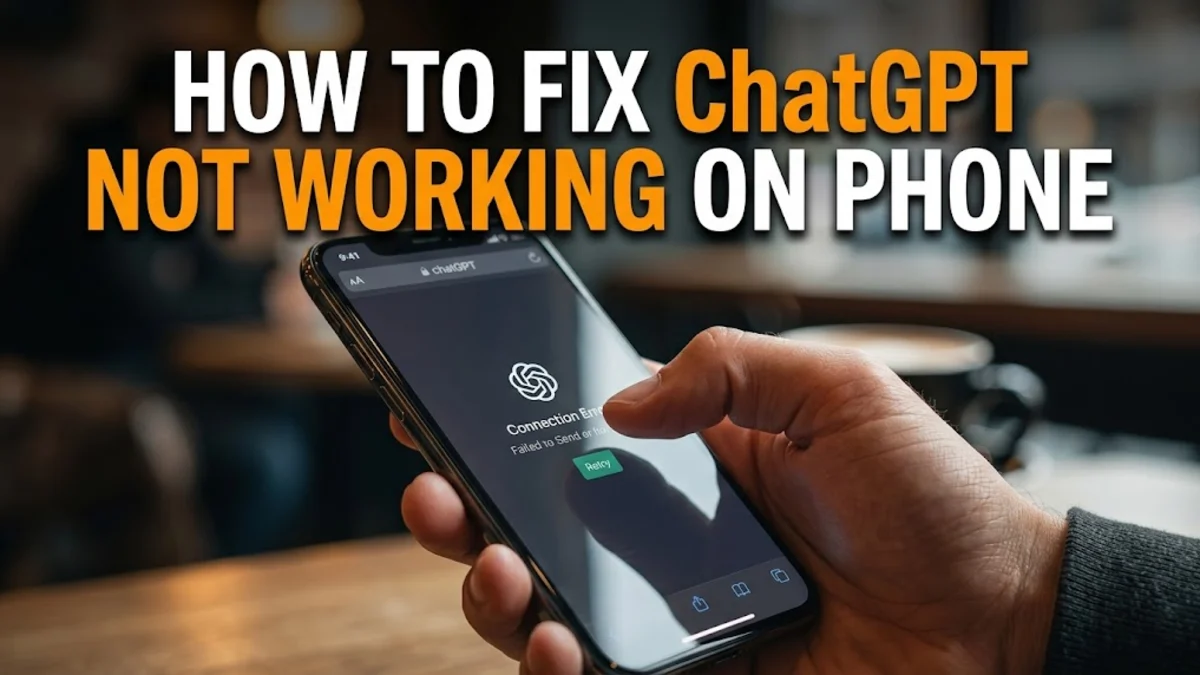
When ChatGPT refuses to load or crashes on your smartphone, it can completely disrupt your workflow. Fortunately, most mobile app issues stem from minor network glitches, outdated app versions, or cached data corruptions that you can fix in a few minutes.
Check Your Internet Connection
Network instability is the most common reason why ChatGPT fails to load prompts or displays connection errors on mobile devices. Switch between Wi-Fi and mobile data to see if the issue is tied to your current network provider. Sometimes, strict firewall settings, corporate Wi-Fi restrictions, or public network login portals block the API endpoints that ChatGPT relies on to communicate with OpenAI servers.
To test your connection, open a mobile web browser and try loading a heavy webpage. If your connection is active but unstable, try toggling airplane mode on and off to force your phone to reconnect to the nearest cell tower or router. On iOS, go to Settings > Cellular to verify data permissions. On Android, navigate to Settings > Network & internet to check your connection status. Resetting your network settings completely can also clear out stubborn routing glitches that prevent the app from reaching OpenAI services.
Force Close and Restart the App
Background processes can sometimes freeze or enter an infinite loading loop, preventing the ChatGPT interface from rendering correctly. Simply minimizing the app does not shut it down entirely, as mobile operating systems keep suspended states in memory. Force-closing the application clears these hung states and forces a completely fresh initialization when you open it again.
On an iPhone with Face ID, swipe up from the bottom of your screen and pause in the middle, then swipe up on the ChatGPT preview card to close it. On Android devices, swipe up from the bottom and hold to open the recent apps screen, then swipe the ChatGPT card away. After force-closing, wait about ten seconds before tapping the app icon on your home screen to launch it fresh. This simple step resolves temporary UI freezes and unresponsive chat windows without losing your active sessions.
Clear App Cache and Temporary Data
Over time, accumulated temporary files and corrupted cache data can cause the ChatGPT mobile app to lag, crash unexpectedly, or fail to load conversation histories. Clearing this data removes corrupted local files without deleting your actual account chats, which are safely stored in the cloud on OpenAI servers. Corrupted cache entries are especially common after major operating system updates.
For Android users, open your device settings by going to Settings > Apps > ChatGPT > Storage, then tap Clear Cache. On iOS, Apple does not provide a direct cache-clearing button within app settings, so you will need to offload or reinstall the app to purge deep system cache. Clearing cache frees up local storage and eliminates rendering conflicts caused by outdated temporary files left over from previous app updates.
Update to the Latest App Version
Running an outdated version of the ChatGPT app can lead to compatibility issues with OpenAI backend updates, resulting in authentication failures or broken features. Developers frequently push patches to fix known bugs, memory leaks, and sudden crashes on specific mobile operating system versions. Checking for updates ensures your mobile software can properly communicate with current API protocols.
To update your app, open the App Store on iOS or the Google Play Store on Android, search for ChatGPT, and tap Update if a newer version is available. If you see an option to open instead of update, you already have the latest release. Enabling automatic app updates in your device store settings prevents you from falling behind on critical security and performance patches released throughout the year.
Verify OpenAI Server Status
Sometimes the problem has nothing to do with your phone at all, but rather originates from widespread service outages or routine maintenance on OpenAI's infrastructure. When millions of users flood the platform simultaneously, server overloads can cause high latency, failed message generation, or complete login blackouts across mobile and web interfaces.
You can check real-time service health by visiting official status tracking websites or community monitoring tools to see if other users are reporting similar disruptions. If an official outage is underway, troubleshooting your phone's settings will not help; you simply need to wait for OpenAI engineers to restore normal server operations. During major outages, mobile apps often display generic error messages such as something went wrong or fail to load past the initial splash screen.
Reinstall the App and Re-authenticate
If none of the previous troubleshooting steps resolve the issue, a clean reinstallation provides a foolproof way to eliminate deeply corrupted application files or broken login tokens. Uninstalling the app completely removes all local binaries, ensuring that when you download it again, you get a pristine installation free of configuration errors.
Press and hold the ChatGPT icon on your device, select Remove App or Uninstall, and confirm the deletion. Head back to your device's app store, download the official application, and log back in using your credentials. Re-authenticating your account refreshes your OAuth security tokens and re-establishes a clean connection between your mobile device and your OpenAI profile, clearing out persistent login loops.
The bottom line
Fixing ChatGPT when it stops working on your phone usually comes down to checking your network, clearing stale cache, or updating the application. By following these methodical steps, you can get back to generating text, analyzing photos, and managing your prompts without frustrating interruptions.
Frequently asked questions
Will I lose my chat history if I reinstall the ChatGPT app?
No. Your chat history is securely tied to your OpenAI account in the cloud, not stored locally on your phone. Once you log back in after reinstalling, all your past conversations will appear.
Why does ChatGPT keep saying 'Network Error' on my phone?
A network error typically indicates that your phone cannot reach OpenAI servers. This is usually caused by a weak internet connection, active VPN interference, or a temporary regional outage.
Do I need a subscription for the ChatGPT mobile app to work?
No, the official ChatGPT app is free to download and use for standard models. A subscription is entirely optional and only required for advanced features.
How often should I update the ChatGPT mobile app?
You should update the app whenever a new version is released in the App Store or Google Play Store. Enabling automatic updates ensures you always have the latest bug fixes.