How to Fix Google Pixel 10 Charging So Slow
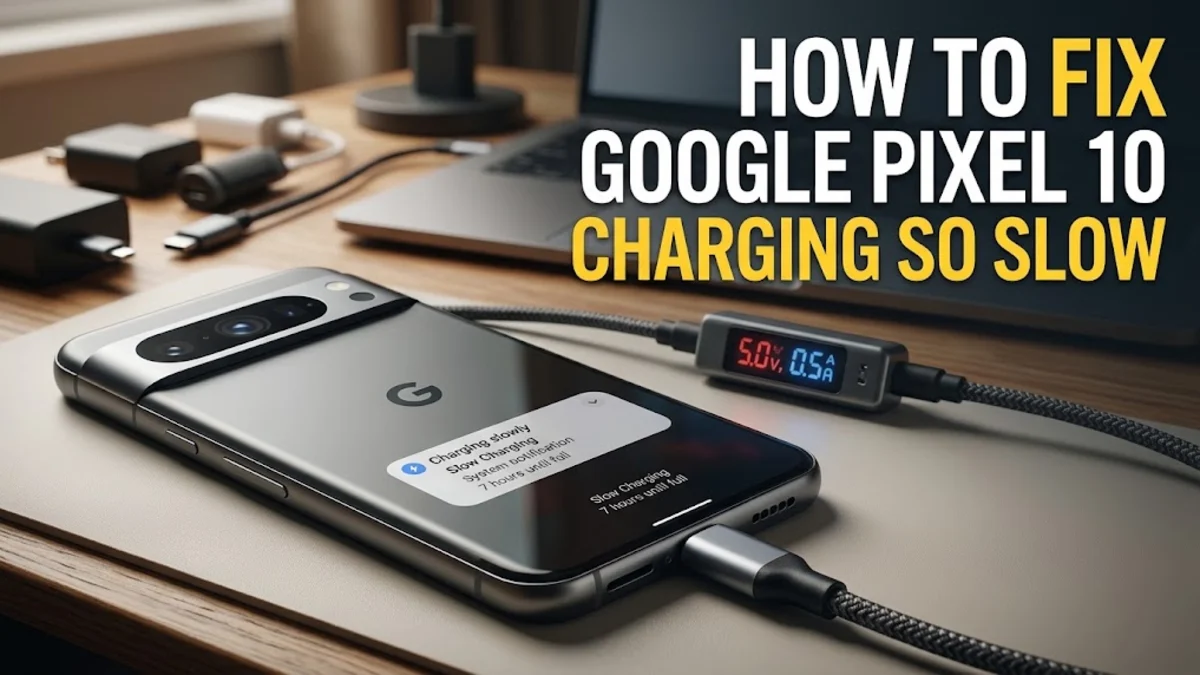
Notice that your Google Pixel 10 is taking hours to reach a full battery percentage instead of minutes? Slow charging can be frustrating, especially when you need a quick power boost before heading out.
This troubleshooting guide walks you through the most effective methods to diagnose and resolve charging speed issues on your Pixel device, from hardware inspections to software tweaks.
Check Your Charging Cable and Power Adapter
The most common reason your Google Pixel 10 charges slowly is a mismatched or failing charging accessory. Many users plug their new phone into older USB-A bricks or low-wattage chargers that cannot deliver the required power delivery profile. The Pixel 10 requires a USB Power Delivery 3.0 PPS certified charger to reach its maximum charging speeds.
To fix this, check that you are using a genuine Google USB-C charger or a reputable third-party equivalent rated for at least 30 watts. Inspect your cable for any visible fraying, bends, or internal breaks. If your cable is damaged, even slightly, the phone safety protocols will throttle the electrical current to prevent short circuits, resulting in painfully slow charging times. Always test with a known working cable and wall brick before assuming the issue lies within the phone hardware itself.
Clean the USB-C Port and Remove Debris
Pocket lint, dust, and microscopic debris frequently accumulate inside the USB-C port of your Google Pixel 10 over time. When you plug in the charging cable, this debris gets compressed at the bottom of the port, preventing the pins from making full, clean contact with the cable connector. This incomplete connection often forces the phone to fallback to a much slower charging rate or disconnect intermittently.
Carefully inspect your charging port using a bright flashlight and a magnifying glass if necessary. If you spot lint or dirt, use a wooden toothpick or a soft anti-static brush to gently scrape out the debris. Avoid using metal needles or paperclips, as these can easily scratch the delicate gold-plated contact pins inside the port or cause a short circuit in the battery management system. Once cleared, plug the cable back in and check if the charging speed returns to normal.
Disable Adaptive Charging and Battery Features
Modern Android versions include smart power features designed to protect your battery longevity, but these can sometimes make your phone appear to charge slowly. Adaptive Charging, for instance, slows down charging overnight based on your alarm schedule to reduce wear on the lithium-ion cell. If you are charging during the day and notice sluggish speeds, this feature might still be calibrating or misinterpreting your usage patterns.
To check and adjust these settings, open your device menu by navigating to Settings > Battery > Adaptive charging and toggle it off temporarily. Additionally, check if your phone is stuck in Extreme Battery Saver mode, which heavily restricts background processes and limits charging performance to preserve overall system stability. Turning off these aggressive power-saving measures will allow your device to pull maximum current from the wall adapter.
Monitor Phone Temperature and Thermal Throttling
Lithium-ion batteries are highly sensitive to extreme temperatures. If your Google Pixel 10 gets too hot while gaming, running heavy background tasks, or sitting in direct sunlight, the built-in thermal management system will automatically throttle the charging speed. Charging generates natural heat, and combining external heat with internal charging heat can trigger safety protections that reduce current flow to a trickle.
Remove any thick or insulating phone cases that trap heat around the back glass and battery compartment. Unplug the phone, move it to a cool, shaded area, and let it cool down to room temperature for ten to fifteen minutes before plugging it back in. Avoid using demanding apps like GPS navigation or 3D games while the phone is fast charging, as this continuous thermal stress will significantly prolong your total charging duration.
Boot Into Safe Mode to Check for Rogue Apps
Sometimes a rogue third-party application running in the background can prevent your Pixel 10 from entering deep sleep states, causing continuous power draw and interfering with charging optimization routines. Apps that constantly poll location services or handle heavy background synchronization can disrupt normal power management states managed by the Android operating system.
To test if an installed app is causing your charging issue, reboot your phone into Safe Mode by pressing and holding the power and volume up buttons, then tap and hold the Power off prompt until the Reboot to safe mode prompt appears. Once in Safe Mode, plug in your charger. If the phone charges normally at high speeds, a recently installed application is the culprit. Uninstall your most recently added apps one by one until the charging speed returns to normal outside of Safe Mode.
The bottom line
Resolving slow charging on your Google Pixel 10 usually comes down to swapping out a faulty cable, clearing port debris, or adjusting power software settings. By following these practical diagnostic steps, you can quickly restore your device to its optimal charging performance.
Frequently asked questions
Does the Google Pixel 10 come with a charger in the box?
No, Google only includes a USB-C cable in the box with the Pixel 10. You need to purchase a compatible 30W USB-PD PPS charger separately or use an existing high-wattage power brick.
Why does my Pixel 10 charge fast up to 80% and then slow down?
This is a normal battery protection feature built into Android. Charging slows down significantly once your battery reaches 80% to protect long-term battery health and prevent overheating.
Can a wireless charger cause my Pixel 10 to charge slowly?
Yes, wireless charging is inherently slower and less efficient than wired charging. Using uncertified wireless pads or misaligning the phone coils will result in very slow power delivery.
Is it safe to use my laptop USB-C port to charge my Pixel 10?
It is safe, but standard laptop USB ports usually output lower wattage (around 5W to 15W), which will cause your phone to charge much slower than a dedicated wall adapter.
What should I do if none of these fixes work?
If you have tested multiple certified chargers, cleaned the port, and tried Safe Mode with no improvement, your battery hardware may have degraded. Contact Google Support or visit an authorized repair center for assistance.