How to Mirror iPhone on Mac
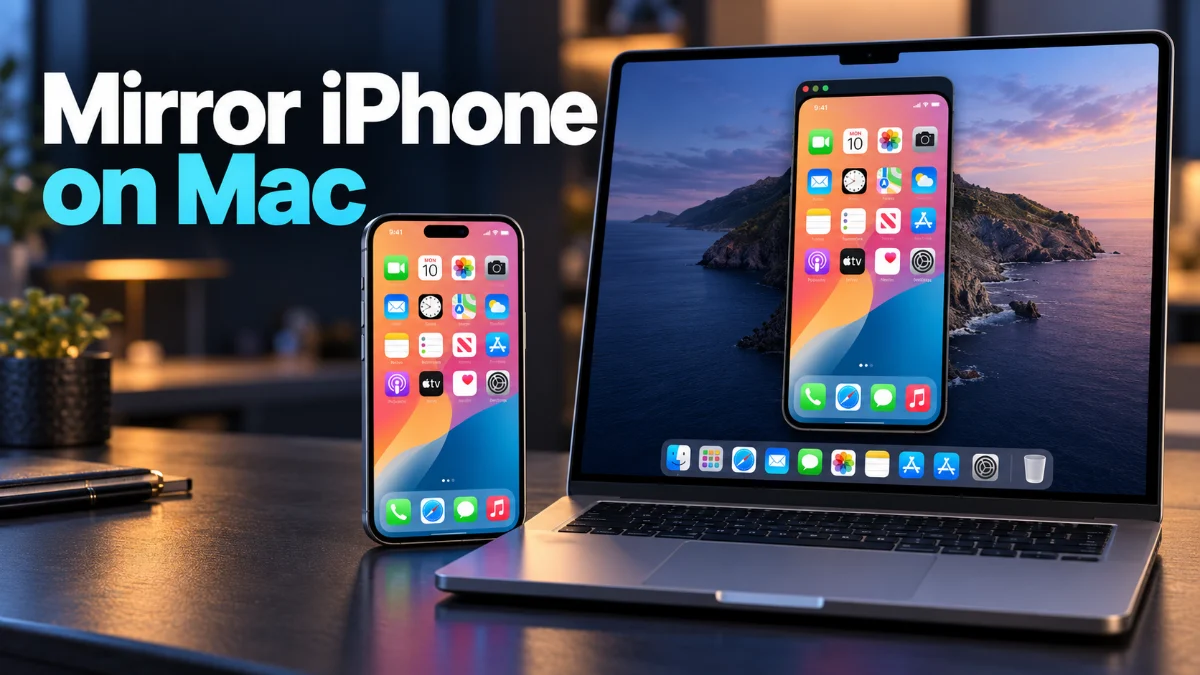
iPhone Mirroring allows you to view and interact with your iPhone directly from your Mac screen without even taking your phone out of your pocket. This powerful Continuity feature bridges the gap between your mobile device and desktop workflow, letting you launch apps, reply to notifications, and browse content with complete privacy and seamless performance.
Checking System Requirements and Compatibility
Signing In with the Same Apple Account
Configuring Bluetooth and Wi-Fi Settings
Launching and Setting Up iPhone Mirroring for the First Time
Once your hardware, software, and network settings are properly aligned, you are ready to initiate the mirroring session. Locate the iPhone Mirroring app icon inside your Mac Dock or open your Applications folder to launch the utility for the first time. Your Mac will scan the local area network and display a prompt showing your iPhone name. Click on your iPhone icon in the window to begin the pairing handshake. Your iPhone will briefly light up, and you may be asked to unlock your device using Face ID, Touch ID, or your passcode to authorize the connection. After you unlock your iPhone once to grant permission, your Mac will remember the authorization, allowing you to mirror your screen instantly in subsequent sessions without needing to touch your physical phone again.
Navigating and Controlling Your iPhone Interface
With the virtual iPhone window open on your Mac desktop, you can interact with your mobile device using your Mac trackpad or mouse just as you would with your finger. Clicking on app icons launches them instantly, and scrolling with two fingers on your trackpad lets you navigate through home screen pages, web browsers, and document lists with fluid animations. You can also use your Mac physical keyboard to type text into any input field on your mirrored iPhone screen, which makes replying to lengthy emails or searching for information exceptionally fast. To return to the home screen from within any app inside the mirrored window, simply move your mouse cursor toward the bottom edge of the iPhone window and click the virtual home indicator bar that appears on the screen.
Managing iPhone Notifications on Your Mac
Troubleshooting Common Connection Failures
The bottom line
Mastering iPhone Mirroring transforms your daily productivity by keeping your smartphone accessible right from your Mac desktop. By meeting the system requirements, verifying your Apple Account settings, and keeping your networking tools optimized, you can enjoy a frictionless multitasking experience across your entire Apple ecosystem.
Frequently asked questions
Can I use iPhone Mirroring while my phone is locked?
Yes, your iPhone remains locked while being mirrored on your Mac screen, keeping your personal data secure from physical onlookers while still giving you full remote control capability through your desktop.
Does iPhone Mirroring drain my iPhone battery quickly?
The feature is designed to be energy-efficient by using low-power hardware acceleration, but because the screen remains active in a low-power state and maintains an active wireless link, you will notice a slight increase in battery consumption during extended mirroring sessions.
Can I make audio phone calls through the mirrored iPhone window?
Audio playback, including phone calls, music, and video sound, will continue to play through your Mac speakers or connected AirPods via audio routing as long as your devices are connected to the same continuity network.
Why is the iPhone Mirroring option missing from my Mac Dock?
If the app is missing, your Mac or iPhone is likely running an incompatible operating system version, or your devices are not signed into the same Apple Account with two-factor authentication enabled.
Can I drag and drop files between my Mac and mirrored iPhone?
Yes, you can seamlessly drag and drop photos, documents, and other files between your Mac desktop and supported apps inside the iPhone Mirroring window for easy file transfer.