How to Fix an iPad Not Charging When Plugged In
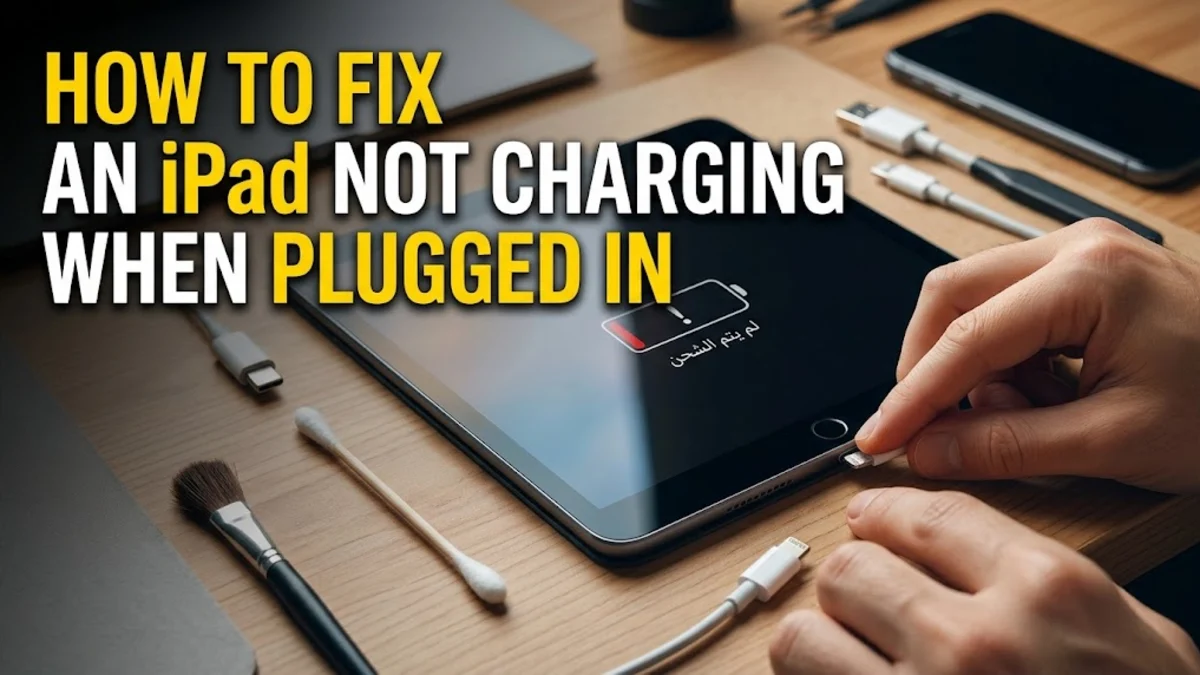
If your iPad refuses to charge when you plug it into a power source, it can be frustrating, especially when you rely on it for work or daily use. Fortunately, most charging issues stem from minor accessory failures, accumulated lint in the port, or temporary software glitches rather than a dead battery.
Inspect Your Charging Cable and Adapter
The fastest place to start your troubleshooting is by checking the physical accessories you are using to power your tablet. Look closely along the entire length of your Lightning or USB-C cable for any signs of fraying, bends, or exposed wiring. Even if a cable looks fine on the outside, internal damage can prevent power from flowing properly to your device. Next, examine the USB power adapter itself. Try plugging your charging cable into a different wall outlet or testing a completely different charging block to see if the issue persists. If you are using a computer USB port to charge your iPad, keep in mind that many computer ports do not output enough wattage to charge an iPad effectively, often displaying a Not Charging message in the status bar. Always use an Apple-certified or high-quality MFi-certified cable and a high-output wall adapter designed specifically for tablets to ensure stable and safe power delivery.
Clean Debris From the iPad Charging Port
Over time, pocket lint, dust, and microscopic debris easily pack into the bottom of the iPad charging port, preventing the connector pins on your cable from making solid contact with the internal terminals. Take a bright flashlight and peer directly into the port to check for trapped particles. If you notice any buildup, you need to clean it out with extreme caution to avoid bending the fragile gold pins inside. Never use metal objects like paperclips, sewing needles, or SIM-ejector tools, as these can scratch the contacts or cause a dangerous short circuit. Instead, use a clean, completely dry wooden toothpick or a soft-bristled anti-static brush. Gently scrape along the back wall and sides of the port to loosen any compressed lint, then tilt the iPad so the debris falls out. Once the port is completely clear, plug your cable back in and check if the charging indicator appears on your screen.
Force Restart Your iPad
Check for Temperature Warnings and Environmental Limits
Apple devices are engineered to operate within specific ambient temperature ranges, typically between 32 and 95 degrees Fahrenheit. If your iPad has become excessively hot from gaming, running intensive applications, or sitting in direct sunlight on a dashboard, the internal thermal management system will automatically halt charging to protect the lithium-ion battery from permanent chemical damage. Conversely, if your iPad is freezing cold, it may temporarily refuse to charge until it warms up to room temperature. Move your tablet to a cool, shaded, indoor environment and allow it to sit powered off for twenty to thirty minutes so it can return to its normal operating temperature. Once the chassis feels neutral to the touch, plug it back into your wall charger. Avoid putting your device in a refrigerator or using artificial heating elements to alter its temperature quickly, as rapid thermal shifts can cause internal condensation and short circuits.
Update Your iPadOS to the Latest Version
Evaluate Battery Health and Hardware Failure
If you have tried multiple cables, verified your wall outlets, cleaned out the port, and performed a force restart without any success, the underlying problem may be related to physical hardware degradation. Lithium-ion batteries have a finite lifespan measured in charge cycles and will eventually lose their capacity to hold a charge or accept power entirely. On modern iPads, you can inspect battery health statistics or check for service warnings by reviewing system diagnostics or contacting Apple Support. If the battery is completely worn out or if the internal logic board charging IC has suffered damage from a power surge or liquid exposure, software troubleshooting will not resolve the issue. In this scenario, your best course of action is to schedule a diagnostic appointment at an Apple Store or an authorized service provider to explore hardware repair or replacement options.
The bottom line
Fixing an iPad that refuses to charge usually comes down to methodical elimination, starting with simple cable swaps and port cleaning before moving on to software resets and temperature checks. By following these structured troubleshooting steps, you can quickly identify the root cause and get your tablet powered back up.
Frequently asked questions
Why does my iPad charge very slowly when plugged in?
Slow charging usually happens when you are using a low-output power source, such as a computer USB port or an older iPhone charging block, instead of a high-wattage tablet adapter.
Can a damaged charging cable ruin my iPad battery?
Yes, frayed or uncertified cables can deliver unstable electrical currents, which can damage the internal charging components and degrade your battery health over time.
How do I know if my iPad charging port is broken?
If you have cleaned out all visible debris, tried multiple known-working cables, and the cable feels loose or still fails to establish a connection, the internal pins may be physically damaged.
Should I use wireless charging for my iPad?
Standard Apple iPads do not feature built-in wireless charging capabilities and must be charged using a physical Lightning or USB-C cable connected to a power source.
What should I do if my iPad shows a liquid detection warning?
Unplug the cable immediately and let your iPad dry completely in a well-ventilated area for several hours before attempting to plug it in again.