How to Fix Windows 10 Boot Loop
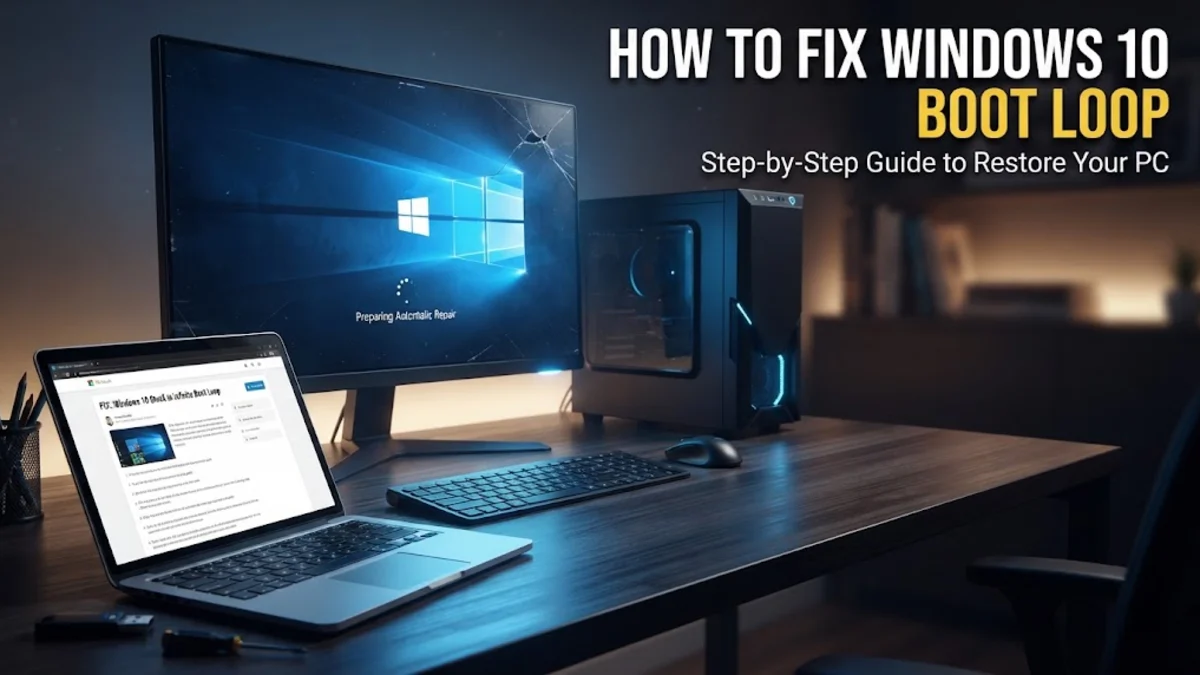
A Windows 10 boot loop occurs when your computer endlessly restarts before reaching the desktop, trapping you in a frustrating cycle of loading screens and error messages. This issue is typically triggered by corrupted system files, faulty driver updates, incorrect BIOS settings, or malfunctioning hardware components that prevent the operating system from initializing properly.
Disconnect All External Devices
The quickest and easiest way to fix a Windows 10 boot loop is to disconnect all non-essential external hardware. Sometimes, a faulty USB drive, an external hard drive, a printer, or even a wireless mouse receiver can confuse the computer's boot sequence, causing it to restart repeatedly. Shut down your PC completely by holding down the power button for ten seconds. Unplug everything except your monitor, keyboard, and mouse. Next, turn your computer back on and check if it boots normally into the desktop.
If your computer successfully boots up after removing your devices, you can reconnect them one by one, restarting your PC after each addition. This process of elimination helps you identify which specific piece of hardware or peripheral device is causing the conflict. If a specific device triggers the boot loop again, leave it disconnected and check the manufacturer website for updated firmware or drivers before using it with your computer.
Access Windows Recovery Environment
When your computer cannot boot normally, you must enter the Windows Recovery Environment (WinRE) to run diagnostic tools and repair utilities. To force your PC into WinRE, turn on your computer and immediately press and hold the power button for about ten seconds to force a shutdown. Repeat this process two to three times. On the third attempt, let your computer start up normally. Windows should detect that the boot process failed and display the Automatic Repair screen, where you can access advanced troubleshooting options.
From the Automatic Repair screen, click on Advanced options to open the main recovery menu. Here you will find tools like Startup Repair, Command Prompt, and System Restore. If your computer does not automatically trigger the recovery environment, you may need to create a Windows 10 installation media USB drive on another working computer, plug it into your stricken PC, and boot from it to access the recovery tools.
Run Automatic Startup Repair
Once you are inside the Windows Recovery Environment, the built-in Startup Repair tool should be your first diagnostic choice. This utility automatically scans your system files, registry settings, and configuration details to find and fix common issues that prevent Windows from loading. To use this feature, navigate through Troubleshoot > Advanced options > Startup Repair. Select your user account, enter your password if prompted, and let the diagnostic process run.
The repair tool can take several minutes to analyze your system and apply necessary fixes. Do not interrupt your computer while the scan is running, as this can cause further corruption. If Startup Repair successfully resolves the issue, your computer will automatically restart into Windows 10. If the tool reports that it could not repair your PC, move on to the next troubleshooting method to isolate deeper system file corruption.
Uninstall Recent Windows Updates
A faulty cumulative update or an incompatible driver patch pushed through Windows Update is a frequent culprit behind sudden boot loops. If your computer started looping immediately after a recent update, you can uninstall it from the recovery environment. Navigate to Troubleshoot > Advanced options > Uninstall Updates. You will be given the choice to remove either the latest quality update or the latest feature update. Choose the quality update first, as it is the most common cause of boot failures.
Follow the on-screen prompts to confirm the uninstallation and allow the system to remove the problematic patch. Once the process completes, restart your computer and test if it boots to the desktop. To prevent the same update from reinstalling automatically, you can temporarily pause updates or use a Microsoft troubleshooting tool to hide the problematic package until a stable version is released.
Run SFC and DISM Scans via Command Prompt
Corrupted system files are often responsible for preventing Windows 10 from completing its boot sequence. You can repair these files using built-in command-line utilities. In the recovery environment, go to Troubleshoot > Advanced options > Command Prompt. First, type the Deployment Image Servicing and Management command DISM.exe /Online /Cleanup-image /Restorehealth and press Enter to repair the underlying system image.
After the DISM scan finishes, type the System File Checker command sfc /scannow and press Enter. This utility scans all protected system files and replaces corrupted or missing versions with cached copies. This process can take ten to fifteen minutes. Once the scan is complete, type exit and press Enter to close the command prompt, then restart your computer to see if the boot loop is fixed.
Reset Your PC
If all troubleshooting methods fail and your computer remains trapped in a boot loop, you will need to use the Reset This PC feature. This powerful option reinstalls Windows 10 while giving you the choice to keep your personal files or remove everything. Navigate to Troubleshoot > Reset this PC. Select Keep my files if you want to preserve your documents, photos, and downloaded files while wiping your applications and system settings back to factory defaults.
Confirm your selection and choose either a cloud download or local reinstallation of Windows. The local reinstallation uses existing files on your drive, while cloud download fetches fresh installation files from Microsoft servers, which is recommended if your current system files are heavily corrupted. Once the reset process finishes, your computer will guide you through the initial setup wizard, bringing you back to a clean, working desktop environment.
The bottom line
Fixing a Windows 10 boot loop requires a methodical approach, starting with simple peripheral checks and progressing to recovery environment tools and system file scans. By following these structured steps, you can diagnose the root cause of the restart cycle and restore your computer to full working order without losing your important files.
Frequently asked questions
What causes a Windows 10 boot loop?
A boot loop is usually caused by corrupted system files, faulty driver updates, failing hard drives, incorrect BIOS configurations, or conflicting external hardware devices.
Will I lose my files if I use Startup Repair?
No, running Startup Repair or uninstalling recent updates will not delete your personal files, documents, or photos.
How do I force Windows 10 into Safe Mode during a boot loop?
You can force entry into the recovery environment by interrupting the boot process three consecutive times with the power button, then navigating to Troubleshoot > Advanced options > Startup Settings.
Can a failing hard drive cause a boot loop?
Yes, failing storage drives with bad sectors can corrupt essential system files during startup, trapping the computer in a continuous restart cycle.
What should I do if none of the repair options work?
If standard recovery options fail, you can use the Reset This PC feature to reinstall Windows while keeping your personal files, or perform a clean installation using a bootable USB drive.