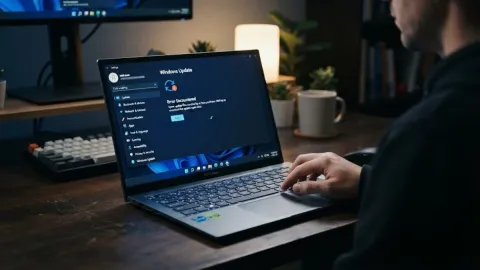
How to Fix Windows 11 Installation Has Failed

The 'Windows 11 installation has failed' error message is one of the most frustrating hurdles you can encounter when upgrading your operating system in 2026. This generic error often lacks a specific code, leaving you to wonder whether the culprit is your hardware, a software conflict, or a corrupted download. Most often, the failure stems from incompatible drivers, insufficient disk space, or peripheral interference that prevents the installer from finalizing the system migration.
To resolve this, you need to systematically eliminate the common blockers that halt the installation process. Whether you are upgrading from Windows 10 or installing the latest 25H2 feature update for Windows 11, the troubleshooting steps remain consistent. This guide will walk you through verifying your system requirements, clearing the update cache, and performing a clean installation if the standard update route continues to fail.
Verify System Compatibility and TPM Status
Before diving into complex software fixes, you must ensure your hardware meets the strict 2026 standards for Windows 11. Even if your PC previously ran Windows 11, a new version like 25H2 might have stricter enforcement of security features. The most frequent hardware-related reason why a Windows 11 installation has failed is a disabled Trusted Platform Module (TPM) 2.0 or Secure Boot. Without these enabled in your BIOS/UEFI, the installer will terminate the process without a detailed explanation.
Start by downloading the official PC Health Check app from Microsoft. Once installed, click Check Now to see a breakdown of your compatibility. If it reports that TPM 2.0 is missing, you will need to restart your computer and enter the UEFI settings (usually by pressing F2, F10, or Del during boot). Look for a setting labeled Security Chip, fTPM, or PTT and ensure it is set to Enabled. Similarly, ensure Secure Boot is active. If your hardware is theoretically compatible but these settings are off, the installation will fail every time you attempt it.
Disconnect External Hardware and Peripherals
A common mistake many users make is leaving non-essential hardware connected during an OS upgrade. Extra peripherals like external hard drives, printers, webcaps, and even gaming controllers can cause driver conflicts that lead to the 'Windows 11 installation has failed' error. The installer often tries to migrate drivers for every connected device, and if one of those drivers is unsigned or incompatible with the new kernel, the entire setup rolls back to the previous state.
To avoid this, simplify your setup as much as possible. Unplug everything except your keyboard, mouse, and primary monitor. If you are using a laptop, disconnect any docking stations or external displays. If you have multiple internal hard drives or SSDs that are not your primary boot drive, some technicians even recommend disabling them in the BIOS temporarily. This ensures the installer only sees the necessary components, significantly reducing the chance of a driver-level hang-up during the critical finalization stages of the installation.
Clear the Windows Update Cache and Reset Components
If you are attempting to install Windows 11 through the standard Settings menu and it fails, the problem likely lies within the local update cache. Over time, the SoftwareDistribution folder can become cluttered with partial downloads or corrupted manifests. When the installer encounters a file it cannot read or verify, it triggers a failure. Resetting these components forces Windows to download a fresh, verified copy of the installation files.
To do this, open the Command Prompt as an administrator. Type the following commands one by one, pressing Enter after each: net stop wuauserv, net stop bits, and net stop cryptsvc. This stops the background update services. Next, navigate to C:>Windows>SoftwareDistribution and delete everything inside the folder. Once cleared, go back to the Command Prompt and restart the services by typing net start wuauserv, net start bits, and net start cryptsvc. Try the installation again via Settings > Windows Update > Check for updates.
Fix Corrupted System Files and Disk Errors
The installation process requires a stable foundation. If your current version of Windows has corrupted system files or bad sectors on the hard drive, the installer will fail when it attempts to modify protected directories. This is a very common scenario for users who haven't performed a clean install in years. You can use built-in tools to scan for and repair these underlying issues before attempting the upgrade again.
Open Command Prompt with administrative privileges and run sfc /scannow. This utility will scan all protected system files and replace corrupted ones with a cached copy. After that, run the Deployment Image Servicing and Management tool by typing DISM /Online /Cleanup-Image /RestoreHealth. This command connects to Microsoft servers to replace any damaged files that the SFC tool couldn't fix. Finally, run chkdsk c: /f and restart your computer to repair any file system errors on your disk. These three steps together ensure that your current OS is healthy enough to support an upgrade.
Free Up Storage Space and Disable Security Software
Lack of sufficient storage space is a subtle but frequent cause for the Windows 11 installation has failed error. While the minimum requirement is officially 64GB, in practice, you need at least 20GB to 30GB of *free* space specifically for the installation process to manage temporary files and create the Windows.old backup folder. Go to Settings > System > Storage and use the Cleanup recommendations to delete temporary files, large downloads, and previous update leftovers.
Additionally, third-party antivirus and firewall software are notorious for blocking OS upgrades. These programs often interpret the installer's attempt to modify the system registry and kernel as a malicious attack. In 2026, many security suites have integrated 'tamper protection' that must be manually disabled. Temporarily uninstalling your third-party antivirus (ensure you have your license key handy) is often more effective than simply disabling it, as underlying drivers may still remain active. You can rely on Windows Defender during the installation process, as it is designed to work seamlessly with the Windows 11 installer.
Use the Windows 11 Installation Assistant or ISO
If the built-in Windows Update continues to fail, your best bet is to bypass it entirely by using the Windows 11 Installation Assistant or creating a bootable USB drive via the Media Creation Tool. The Installation Assistant is a standalone executable that manages the update process more robustly than the standard settings menu. It performs its own compatibility checks and often succeeds where the automated Windows Update fails because it uses a different mechanism for file extraction and application.
To use this method, visit the official Microsoft download page and select Download Now under the Installation Assistant section. Run the tool and follow the prompts. If that still results in a 'Windows 11 installation has failed' error, your final resort is a clean installation. This involves using the Media Creation Tool to burn the Windows 11 ISO onto a USB drive with at least 8GB of space. You then boot your PC from this USB drive. Note that a clean install will wipe your primary drive, so you must back up your files to an external source or cloud storage first. This method is the nuclear option but is 100% effective at bypassing software conflicts and registry errors.
The bottom line
Fixing the 'Windows 11 installation has failed' error requires a mix of hardware verification and software cleanup. By ensuring TPM 2.0 is active, clearing out the update cache, and removing external hardware, you eliminate over 90% of the common failure points. If standard updates fail, don't hesitate to use the Installation Assistant or a clean ISO install to get your system up and running on the latest 2026 build of Windows 11.
Frequently asked questions
Will fixing the installation error delete my files?
Most troubleshooting steps, like clearing the update cache or running SFC, will not delete your personal files. However, if you choose to perform a 'Clean Installation' via a USB drive as a final resort, your files will be erased. Always back up your data before attempting a major OS upgrade.
Why does my installation fail at 35% or 85%?
Hangs at specific percentages usually indicate different problems. A failure at 35% often points to driver conflicts or hardware issues, while a failure at 85% usually indicates a problem with the final configuration of the registry or the migration of user data. Disconnecting peripherals and disabling antivirus are the best fixes for these specific hangs.
What is error code 0xC1900101?
This is a generic 'roll-back' error code that frequently accompanies a failed Windows 11 installation. It almost always signifies a driver compatibility issue. Updating your BIOS and chipset drivers from your manufacturer's website is the most effective way to resolve this specific code.
Do I need to enable TPM 2.0 if I already have Windows 11?
Yes. Even if you are already on Windows 11, major feature updates like the 25H2 version check for TPM 2.0 and Secure Boot status during the installation. If these settings were somehow disabled in your BIOS after your initial installation, the update will fail.