How to Fix Google Account Not Working on Android
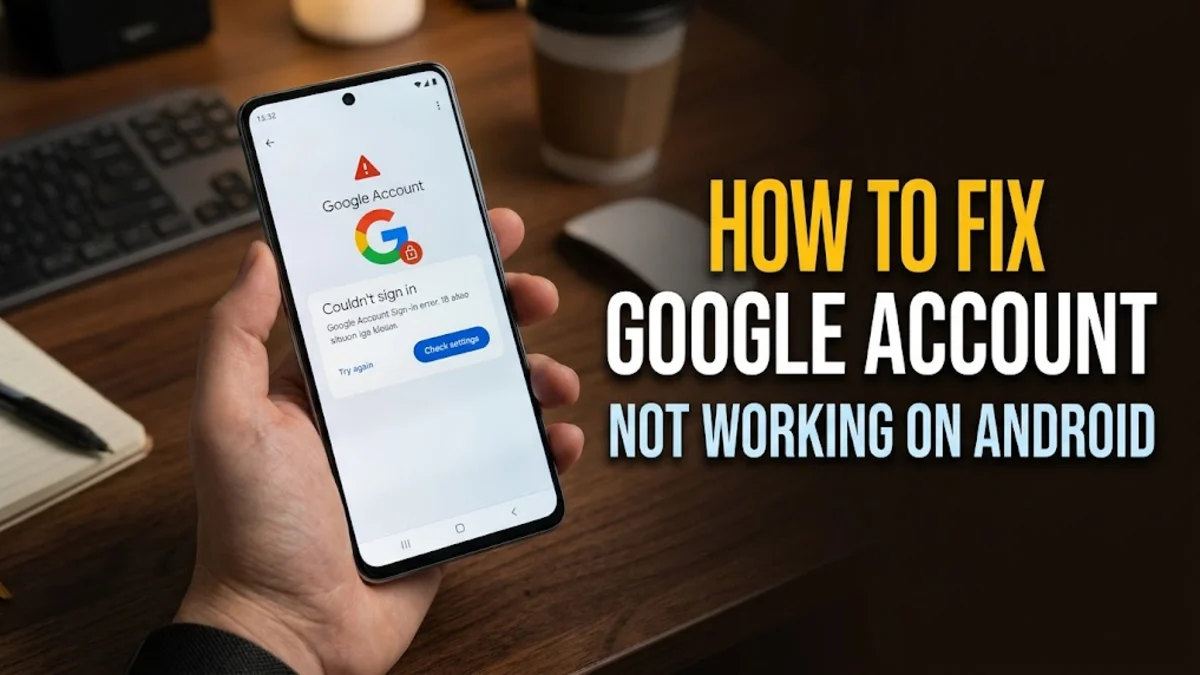
When your Google account stops working on your Android device, you typically experience sync failures, login loops, or an inability to access Gmail, Google Drive, and the Google Play Store. To fix this issue quickly, you usually need to clear corrupted cache files, verify your device date and time, or remove and re-add your Google account in the system settings.
Account synchronization glitches often happen after a major system update, a password change on another device, or a temporary network disruption. Working through these troubleshooting steps in order will restore your account connection and get your synchronization back on track without losing any of your personal data.
Check Your Internet Connection and Date Settings
The most common reason for a Google account to stop working on Android is a mismatch in your device date and time settings, or a restricted internet connection. Google servers require precise time synchronization to authenticate your credentials safely. If your phone is set to the wrong time zone or manual time, authentication tokens will fail, resulting in connection errors across all Google applications.
To fix this, open your device settings and navigate to System > Date & time. Make sure both Set time automatically and Set time zone automatically are toggled on. Next, test your internet connection by switching between Wi-Fi and mobile data. If you are using a VPN or a restrictive firewall, disable it temporarily because it may be blocking secure traffic to Google authentication servers.
Remove and Re-Add Your Google Account
If your account credentials are out of sync or corrupted locally, removing the account and adding it back forces your phone to establish a fresh, secure connection with Google servers. Do not worry about losing your emails, photos, or contacts; all your data remains safely stored in the cloud and will reappear once you sign back in.
Open your phone settings and tap Passwords & accounts or Users & accounts, depending on your device manufacturer. Select your email address under the Google section, then tap Remove account and confirm the prompt. Restart your Android device completely to clear temporary memory. Once rebooted, return to the same menu, tap Add account, choose Google, and sign in with your credentials again.
Clear Cache and Data for Google Play Services
Google Play Services is the backbone framework that handles account synchronization, push notifications, and security authentication on Android. When its cache becomes corrupted, multiple Google apps will fail to connect or continuously prompt you to sign in repeatedly without success.
Go to Settings > Apps > See all apps and search for Google Play Services. Tap on it, select Storage & cache, and choose Clear cache. If the account issue persists, tap Manage space and select Clear all data. This action will not delete your personal files, but it will reset background services and force your system to rebuild necessary temporary configuration files.
Check for Pending System and App Updates
Running outdated software versions of Android or core Google apps can create security protocol mismatches that prevent your account from authenticating properly. Google frequently updates its security certificates, and older versions of the operating system may struggle to communicate with modern server requirements.
Open your device settings and go to System > System update to check for any available software patches. Afterward, open the Google Play Store, tap your profile icon in the top right corner, select Manage apps & device, and update all Google-related applications. Keeping your software updated ensures full compatibility with current security protocols and authentication standards.
Reset App Preferences to Resolve Background Conflicts
Sometimes disabled system applications, restricted background data, or permission conflicts can interfere with how your Google account communicates with the operating system. Resetting app preferences restores default system settings without deleting any of your personal data, apps, or media files.
To perform this reset, open your device settings and navigate to System > Reset options > Reset app preferences or look under Apps > Reset app preferences depending on your Android skin. Review the warning prompt and confirm the reset. This action re-enables any accidentally disabled system services, resets notification permissions, and clears background restrictions that might be blocking your Google account synchronization.
Verify Two-Factor Authentication and App Passwords
If you recently updated your account security settings or enabled strict two-factor authentication, your Android device might require a fresh authentication prompt to establish trust. Failing to approve a login notification sent to another trusted device will lock your account out of your current session.
Log into your Google account on a desktop web browser to verify that no security alerts or pending verifications require your attention. If you use strict security keys or backup prompts, ensure your phone number and recovery options are up to date. Once verified, return to your Android device and tap the notification prompting you to sign in and confirm your identity.
The bottom line
Fixing a Google account that is not working on Android usually comes down to resolving date mismatches, clearing corrupted Play Services cache, or simply removing and re-adding your credentials. By systematically working through these solutions, you can restore full functionality to your device and ensure your personal data syncs smoothly once again.
Frequently asked questions
Will I lose my emails if I remove my Google account from Android?
No, removing your Google account from your Android device only deletes the local cache and connection tokens. All your emails, photos, contacts, and documents remain securely stored on Google cloud servers and will sync back immediately when you sign in again.
Why does my Google account keep asking me to sign in repeatedly?
This login loop is typically caused by corrupted Google Play Services data, an outdated operating system, or a mismatch in your device date and time settings. Clearing the cache of Google Play Services and restarting your phone usually resolves this issue.
What should I do if clearing cache does not fix the sync error?
If clearing cache fails, you should clear all data for Google Play Services, check for pending system updates, and completely remove and re-add your Google account through your Android settings menu.
Does resetting app preferences delete my photos or apps?
No, resetting app preferences only restores default system settings, re-enables disabled system apps, and resets notification permissions. It does not delete your personal files, photos, downloaded apps, or game progress.