How to Fix Facebook Messenger Not Working
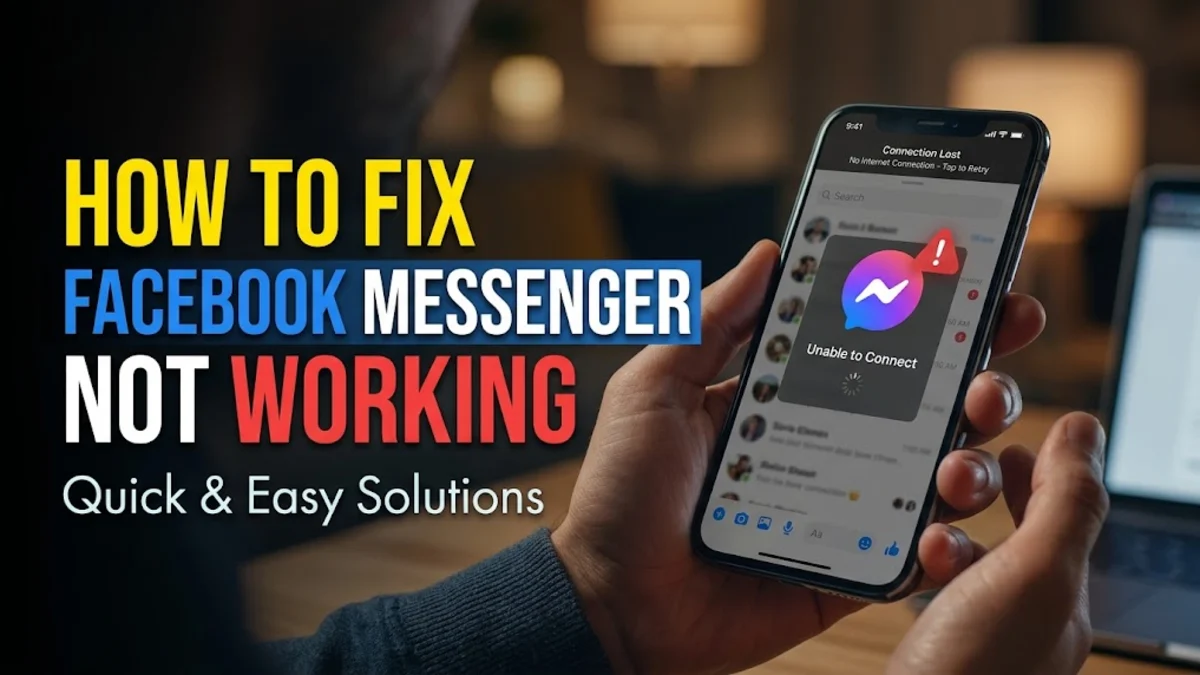
Experiencing issues with Facebook Messenger can disrupt your daily communication, leaving messages stuck or preventing the app from loading completely. Fortunately, most common connection and performance glitches can be resolved with a few simple troubleshooting steps on your phone or computer.
Whether you are dealing with frozen chats, failure to send messages, or a constant connecting status, working through these practical solutions will help you identify the root cause and restore full functionality to your Messenger app.
Check Your Internet Connection
A weak or unstable internet connection is one of the most common reasons why Facebook Messenger fails to send messages, load chats, or connect to the server. When your Wi-Fi or mobile data fluctuates, the app loses its real-time connection with Meta servers, resulting in spinning loading wheels or failed message delivery. Testing your connection immediately helps you rule out local network issues before troubleshooting the app itself.
To check if your network is the culprit, try opening a web browser and loading a heavy webpage, or switch between Wi-Fi and mobile data. If you are on Wi-Fi, try toggling airplane mode on and off to force your phone to reconnect to the nearest cell tower or router. If other apps are also failing to load data, restarting your home router or switching to a stable network connection will usually restore normal Messenger functionality.
Clear Messenger App Cache and Data
Over time, accumulated temporary files and corrupted cache data within the Messenger app can cause it to freeze, crash, or refuse to update incoming messages. Clearing this stored data forces the application to rebuild its temporary files from scratch, resolving underlying software glitches without deleting your actual chat history or account information.
On an Android device, navigate to Settings > Apps > Messenger > Storage, and tap Clear Cache and Clear Data. If you are using an iPhone, iOS does not have a direct cache clear button for individual apps, so you will need to offload the app by going to Settings > General > iPhone Storage > Messenger and selecting Offload App before reinstalling it.
Update the Messenger App
Running an outdated version of Facebook Messenger can lead to compatibility issues with Meta's servers, especially after backend API updates. App developers regularly push updates that fix critical bugs, patch security vulnerabilities, and restore missing features. If your app version is too old, it may stop connecting entirely until you install the latest release.
Open the Google Play Store on Android or the Apple App Store on iOS, search for Messenger, and check if an update button is available. If an update is waiting, tap it to download and install the newest version. Enabling automatic app updates in your store settings ensures you never miss important bug fixes and keeps your messaging experience smooth.
Restart Your Device
Background processes, temporary operating system glitches, and RAM congestion can interfere with how network-dependent apps like Messenger operate. A simple device reboot clears the system memory, terminates frozen background tasks, and re-establishes all network communication protocols from a clean slate.
To restart your smartphone, press and hold the power button (and volume down button on many modern devices) until the power slider appears, then swipe to turn it off. Wait about thirty seconds for the device to power down completely before turning it back on. Once your phone boots up fully, launch Messenger again to see if your connection and messages have recovered.
Check Facebook Server Status
Sometimes the issue is not on your end at all, but rather a widespread outage affecting Meta's servers globally. When Facebook, Instagram, and Messenger experience server-side downtime, millions of users lose the ability to send or receive messages, and the app may display connection errors regardless of your internet strength.
You can check if Meta services are currently experiencing an outage by visiting reliable third-party status tracking websites or checking official social media channels for announcements. If a server outage is confirmed, there is nothing you can do locally except wait for Meta engineers to fix the problem on their end, which usually takes anywhere from a few minutes to a couple of hours.
Reinstall Messenger
If none of the previous troubleshooting steps resolve the issue, core application files might be severely corrupted or missing. Completely removing the application and downloading a fresh copy ensures that all installation files are pristine and correctly configured on your device storage.
Uninstall Messenger by long-pressing its icon on your home screen and selecting Uninstall or Remove App. Once uninstalled, head back to the Google Play Store or Apple App Store, search for Messenger, and download it again. Log back into your account using your credentials to restore your chat history and resume normal messaging.
The bottom line
Troubleshooting Facebook Messenger doesn't have to be complicated when you follow a structured approach. By checking your connection, clearing cache, updating the app, and verifying server statuses, you can quickly get your conversations back on track.
Frequently asked questions
Why is Messenger saying waiting for network?
This usually indicates that your device has lost connection to the internet or Meta's servers are temporarily unreachable. Try switching between Wi-Fi and mobile data or toggling airplane mode.
Does clearing Messenger data delete my messages?
No, clearing your app cache or data only removes temporary files stored locally. Your actual chat history is saved on Meta's cloud servers and will reappear once you log back in.
Why can I see my friend's posts but not message them?
If you can view their profile but cannot send messages, they may have deactivated their account, restricted your messaging permissions, or blocked you on Messenger.
How do I know if I am blocked on Messenger?
When you are blocked, your messages will fail to send, and you will typically see a notice stating that the person is unavailable on Messenger when trying to open their chat.